
The easiest video editor isn't the same for every beginner. A person making AI-generated Shorts needs a different workflow from someone cutting a family video, trimming a podcast, recording an internal update, or building a polished Apple-only project. The popular advice to “just use the simplest app” ignores what happens after the first export, when captions need correction, aspect ratios need changing, audio needs cleaning, or a team needs to reuse the project.
This roundup treats video editing software easy as a workflow question, not a feature-count contest. Each pick is judged by its learning curve, ideal projects, standout capabilities, limitations, platform fit, and pricing or plan considerations. The list covers AI-generated short-form content, social templates, transcript editing, traditional timelines, office communication, mobile creation, and ecosystem compatibility.
That focus matters because editing has moved beyond specialist post-production. The global video editing software market was valued at USD 3.54 billion in 2025 and is projected to reach USD 4.99 billion by 2031, according to Straits Research's market overview. Easier workflows are becoming a mainstream expectation. ClipNova belongs in this list as the AI-first option for readers who want to automate more than timeline assembly.
Table of Contents
- 1. ClipNova
- 2. CapCut
- 3. Canva Video Editor
- 4. Descript
- 5. Wondershare Filmora
- 6. Movavi Video Editor
- 7. Microsoft Clipchamp
- 8. VN Video Editor
- 9. CyberLink PowerDirector
- 10. Apple iMovie
- Top 10 Easy Video Editors, Quick Comparison
- Choose the Editor That Matches Your Workflow
<a id="1-clipnova"></a>
1. ClipNova
ClipNova suits creators who begin with a topic, prompt, link, or rough idea instead of a finished footage folder. It can produce a short-form draft with a script, voiceover, visuals, B-roll, captions, music, and social-ready exports. The workflow feels closer to directing and revising a first cut than building every layer manually in a traditional timeline.
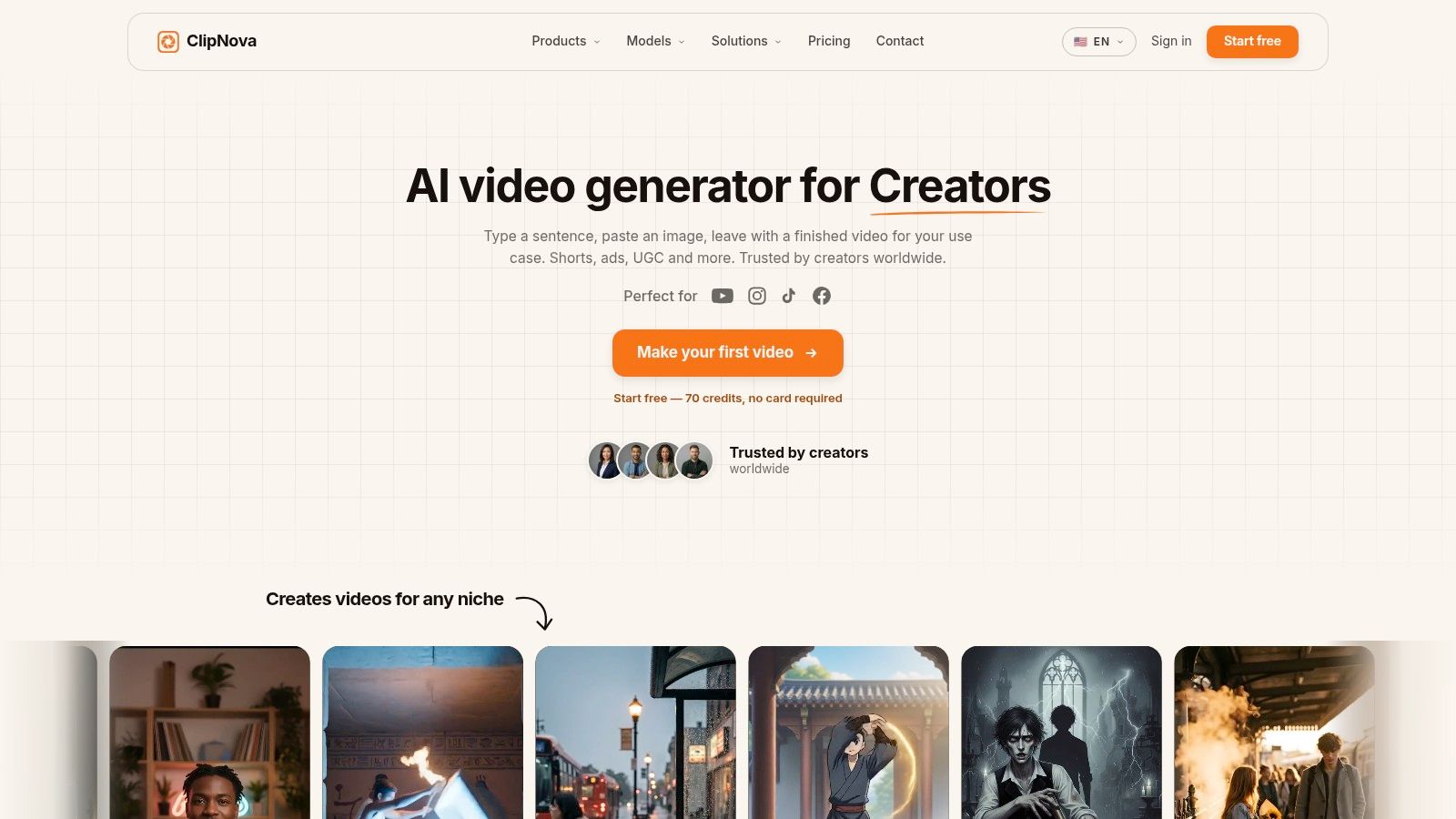
Its clearest fit is repeatable short-form production. ClipNova supports 9:16, 1:1, and 16:9 outputs, automatic captions, beat-matched music, talking avatars, reference-voice host videos, anime and cartoon scene generation, plus ad workflows for UGC, TikTok, Facebook, and product videos. Ultra mode provides native synced audio at 1080p. The image toolkit covers background removal, upscaling, and unblurring.
<a id="where-clipnova-saves-the-most-work"></a>
Where ClipNova saves the most work
The platform brings writing, voiceover, stock selection, editing, and motion-design tasks into one workflow. Ideation tools can help shape hooks, while variant generation supports A/B testing without rebuilding each version. Translation and re-voicing in 32 languages also support localization for different audiences.
Paid plans include watermark-free downloads, commercial rights, and encrypted projects. ClipNova states that user inputs aren't used to train its models. A free starter trial provides 70 credits with no card required. Paid options include Hobby, Starter, Growth, Ultra, and Enterprise plans, with annual-billing examples of Hobby at $15 per month, Starter at $39 per month, Growth at $79 per month, and Ultra at $159 per month. Credit allowances increase across the tiers. Review the ClipNova AI video studio for current plan terms before choosing a subscription.
Practical rule: Treat generated output as a strong first cut, not a final master. Prompt refinement and human review remain necessary for nuanced brand language, factual details, pacing, and high-end creative direction.
The main trade-off is credit consumption. Frequent generation, advanced models, voice training, and enterprise requirements can make the plan structure more important than the advertised subscription price. ClipNova fits content creators, agencies, performance marketers, e-commerce teams, and musicians who prioritize speed, localization, and production scale over frame-by-frame control.
<a id="2-capcut"></a>
2. CapCut
CapCut feels natural if your work begins on a phone and ends on a social platform. Its mobile, desktop, and browser versions support quick cuts, templates, auto captions, AI effects, keyframes, chroma key, stabilization, and cloud-based continuity. The template library is particularly effective for creators who want a recognizable short-form format without designing every title animation themselves.
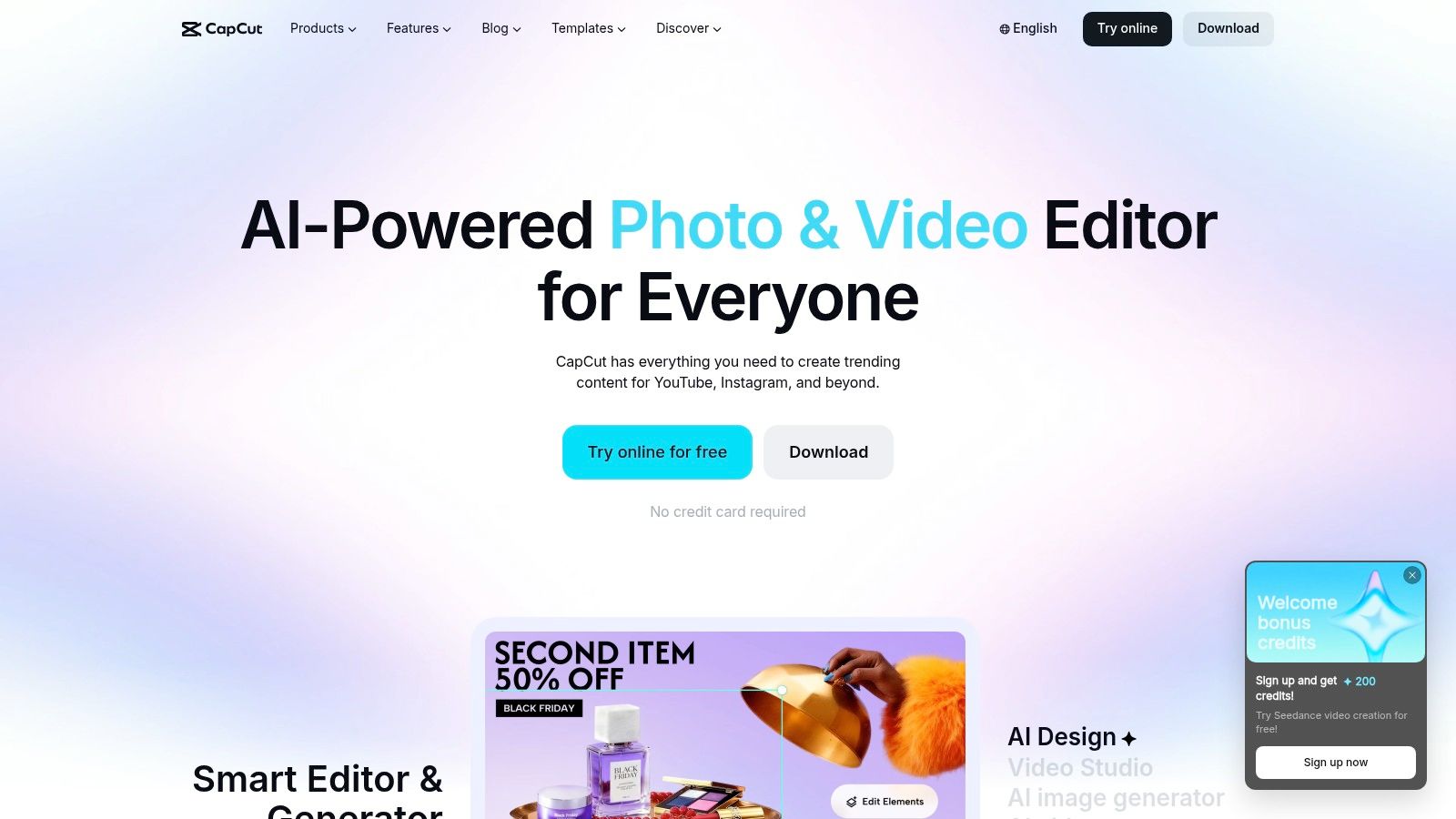
The learning curve is low because the interface prioritizes familiar social actions. You can trim a clip, apply a caption style, add music, resize for vertical viewing, and export without understanding traditional nonlinear editing. That makes CapCut a strong choice for TikTok-style clips, Reels, quick product posts, and trend-led edits.
The limitation appears when a quick project becomes a repeatable production system. Some advanced features and export resolutions sit behind paid access, and users need to check the current plan before building a workflow around a specific effect or output setting. Paywall changes can also affect expectations around higher-resolution exports.
For a broader look at choosing an editor around visual effects, see this guide to an app with video filters. CapCut is easy because it gets you moving quickly, but it can encourage template dependence. If your brand needs precise audio mixing, detailed color work, or consistent design rules across many campaigns, you may outgrow the convenience.
Choose CapCut when mobile speed and social-native templates matter most. Choose another tool when you need deeper ownership of every layer or a more predictable long-term pricing structure.
<a id="3-canva-video-editor"></a>
3. Canva Video Editor
Canva Video Editor is the most comfortable choice for people who already think in layouts, brand colors, and reusable design systems. Its drag-and-drop workspace brings video alongside presentations, social graphics, stock media, music, captions, animations, and brand-kit controls. A marketing coordinator can produce a short promo without learning the vocabulary of professional post-production.
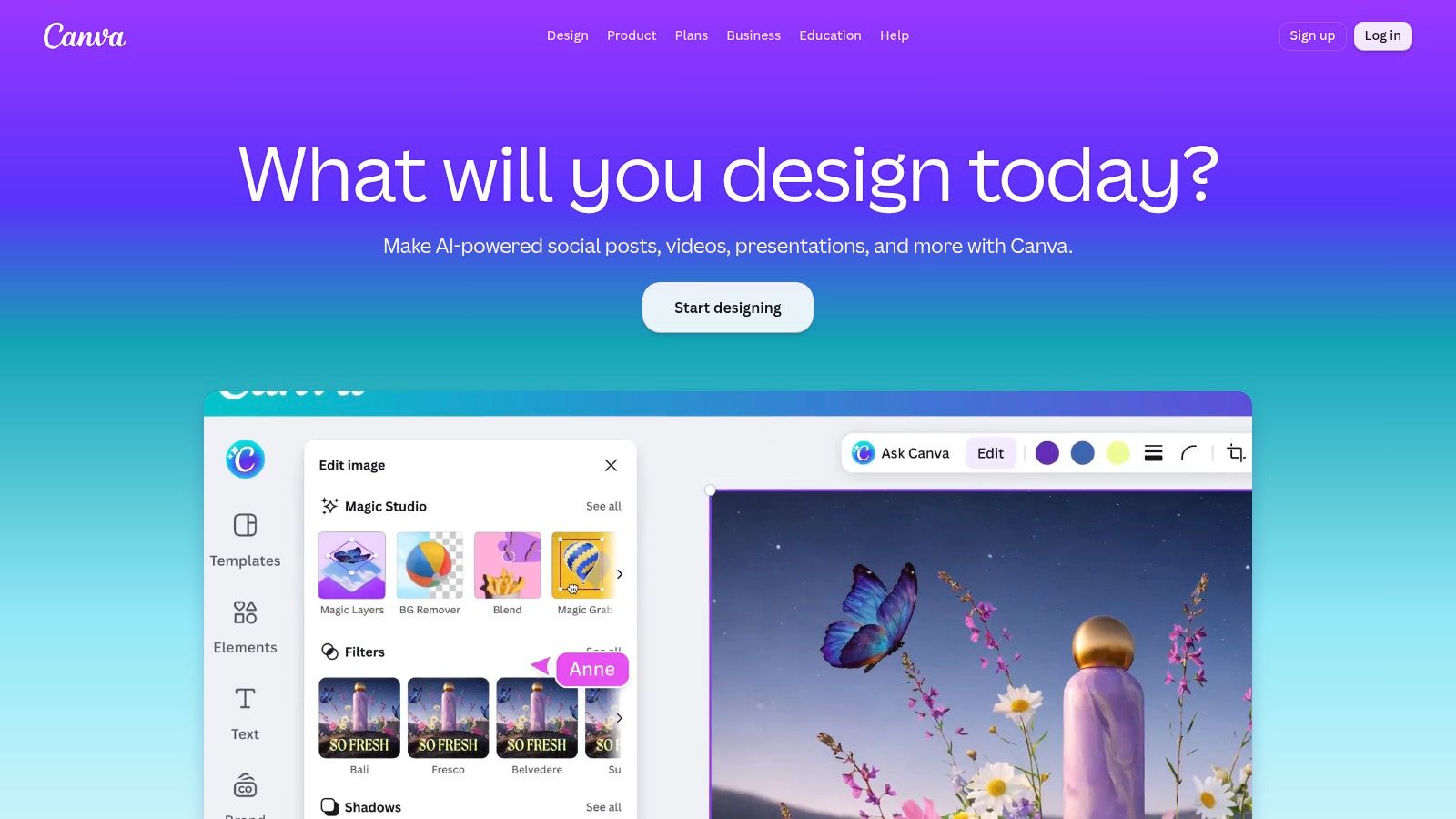
The editor works well for branded social posts, event announcements, simple explainers, product slideshows, and internal campaigns. Templates reduce the blank-page problem, while the browser-based workflow makes handoff easier for teams that already store creative work in shared online spaces. You can keep a consistent visual language without asking every contributor to master a complex timeline.
<a id="the-design-first-trade-off"></a>
The design-first trade-off
Canva's simplicity comes from limiting the depth of the editing environment. Its timeline handles straightforward sequencing, transitions, text, and animation, but it isn't the right tool for complex multicamera edits, detailed audio finishing, advanced color correction, or cinematic compositing. Template-led production can also make different brands feel similar if the team doesn't customize the structure thoughtfully.
The plan decision usually centers on access to premium templates, stock assets, brand controls, and collaboration features rather than editing mechanics alone. Test the exact assets your team expects to use, especially if a campaign depends on particular music, footage, or brand-kit functions.
Canva is a practical pick when brand consistency matters more than timeline sophistication. It's less suitable for editors who want to shape every cut manually or build a project with many interdependent layers.
<a id="4-descript"></a>
4. Descript
Descript changes the central question from “Where should I cut the clip?” to “Which words should stay?” Upload a talking-head recording, podcast, screen capture, or interview, and the transcript becomes the main editing surface. Delete a sentence in the document, and the corresponding video or audio disappears from the sequence.
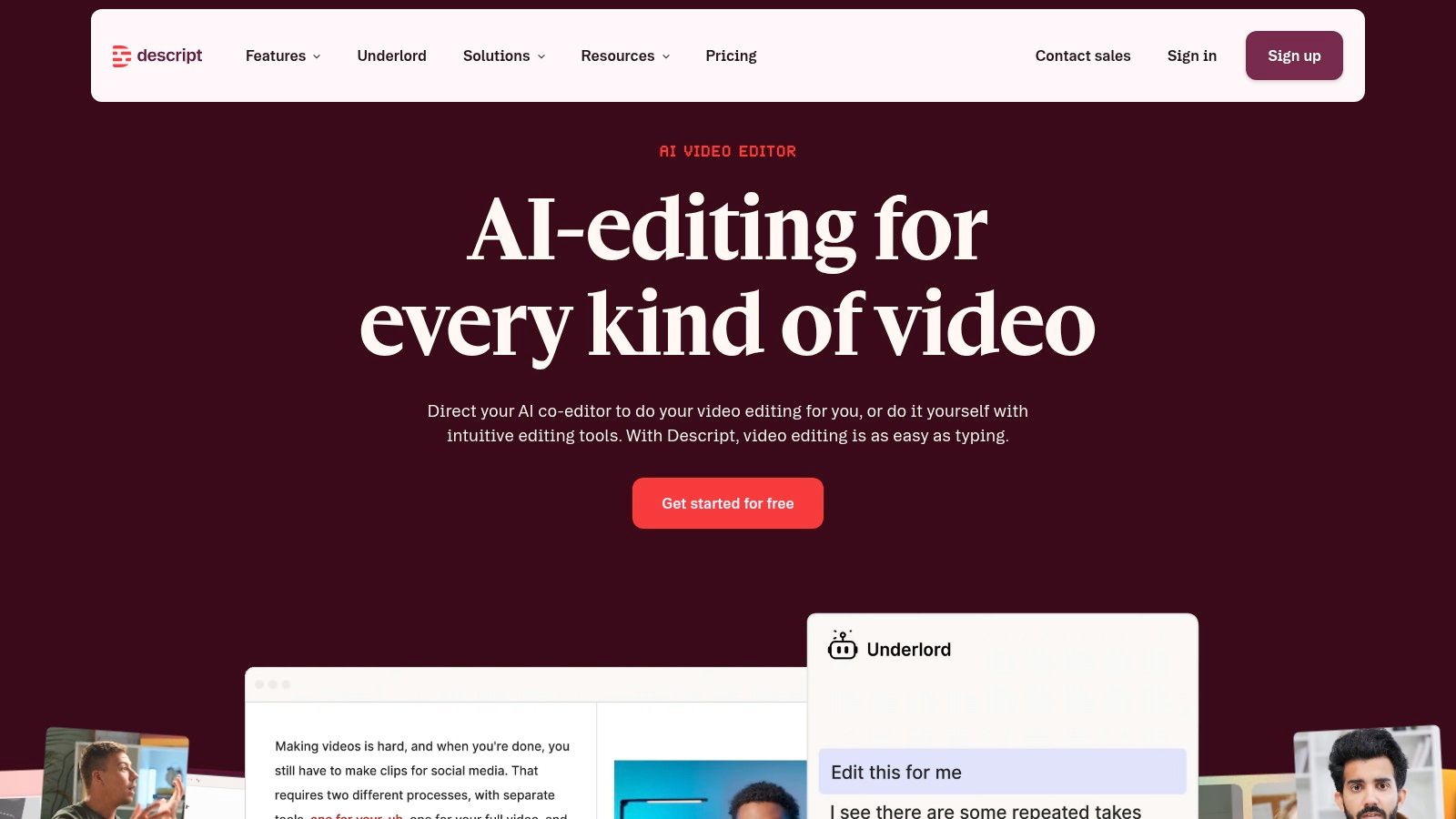
That approach is excellent for dialogue-heavy work. Removing filler words, trimming silences, correcting a rambling answer, and turning a long recording into short clips feels closer to editing a document than operating a conventional NLE. Screen recording and layout tools also make Descript useful for tutorials, product walkthroughs, and distributed teams that need to review spoken content.
“Edit the words first, then refine the picture” is the right mental model for Descript.
The limitation is creative rather than basic usability. Descript isn't designed to replace a deep timeline when you're building effect-heavy sequences, detailed sound design, complex multicamera projects, or highly controlled visual storytelling. Transcription and AI functions also depend on the selected plan, so check usage limits before making it the center of a large content operation.
Caption quality still deserves a deliberate review, particularly with names, specialist terms, accents, and mixed speakers. This practical guide on how to add subtitles to a video explains why captions should be treated as part of the publishing workflow, not an afterthought.
Pick Descript for podcasts, interviews, screen recordings, and talking-head content. If the story is primarily visual, Filmora, PowerDirector, or a more traditional timeline editor will give you better control.
<a id="5-wondershare-filmora"></a>
5. Wondershare Filmora
Filmora occupies the useful middle ground between a basic editor and a professional suite. Its timeline is familiar enough for beginners, but the surrounding library of titles, transitions, effects, motion presets, and stock assets lets users produce a polished-looking edit before they understand every manual technique.
Filmora suits YouTube videos, social promos, simple music edits, product demonstrations, and family projects that need more personality than a template-only editor provides. The interface gives you a real timeline with room to learn trimming, layering, transitions, titles, and basic audio decisions. AI add-ons such as speech-to-text and portrait or background tools can shorten repetitive tasks.
The practical catch is that Filmora's extra capabilities can complicate the buying decision. Some effects and AI functions may require add-on credits or higher-tier access, and bundles can make it difficult to compare the cost of the exact workflow you want. A low entry price isn't useful if the features you rely on sit outside the plan.
Before adopting it for a recurring process, create a representative project with your preferred captions, assets, effects, and export format. The ClipNova guide to automating video editing is also useful for deciding which parts of a traditional workflow should be automated rather than manually repeated.
Filmora is a good choice when you want a gentle timeline learning curve with visual polish. It's less appealing when you want fully automated prompt-to-video production or highly advanced finishing controls.
<a id="6-movavi-video-editor"></a>
6. Movavi Video Editor
Movavi Video Editor keeps the editing surface uncomplicated. Guided workflows, clear controls, titles, transitions, filters, stabilization, basic color tools, subtitle support, and export helpers give beginners the tools needed for short social edits, personal videos, and straightforward presentations without exposing every professional option at once.
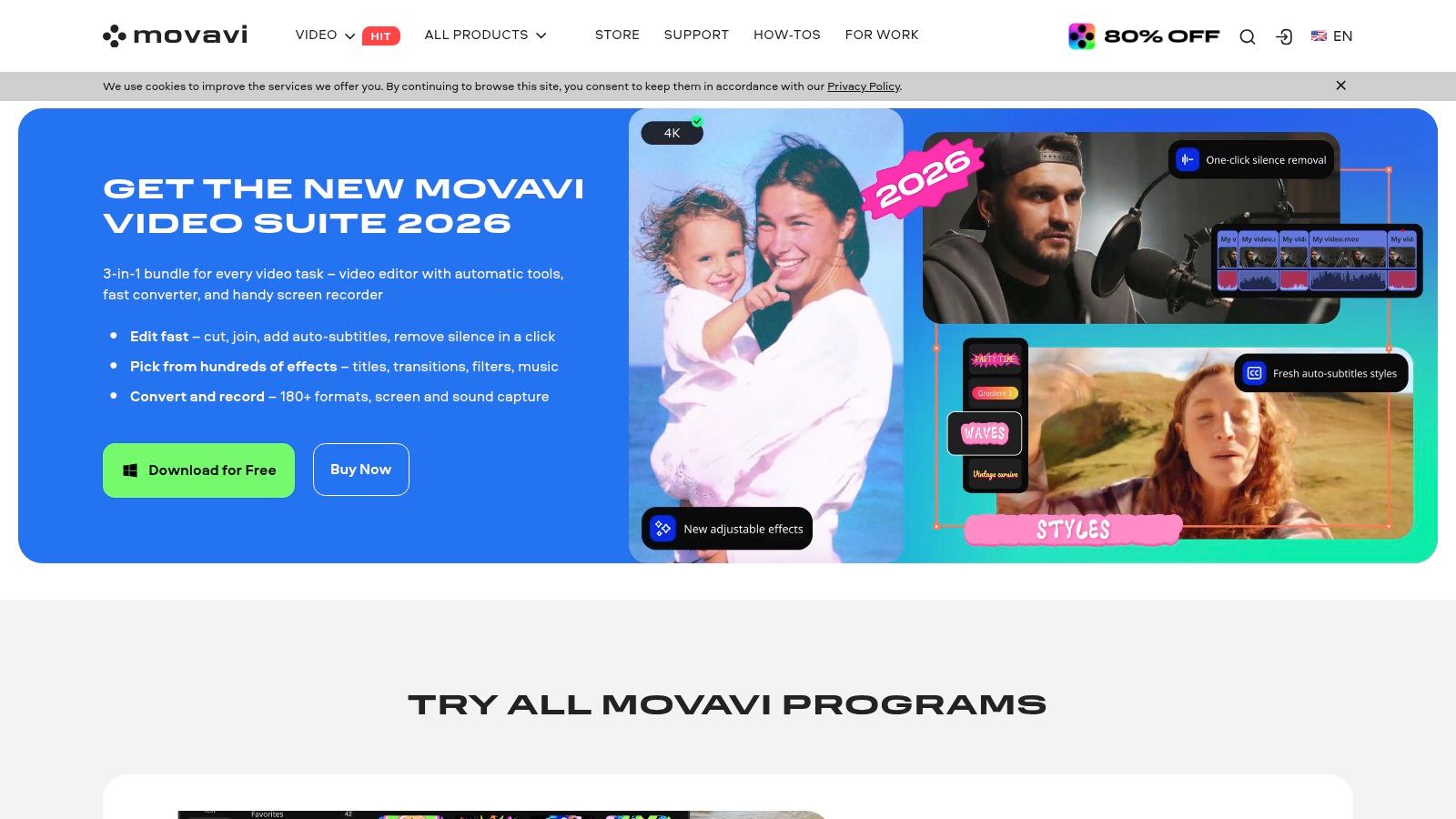
It's particularly comfortable on modest computers where a heavy professional suite would create more friction. The interface makes common actions easy to find, and the software's focus on direct editing helps users finish a project instead of spending the session configuring a complex workspace.
<a id="what-youll-notice-after-the-first-project"></a>
What you'll notice after the first project
Movavi gives up depth to preserve clarity. Advanced color management, detailed audio routing, compositing, and complex multicamera work aren't its strengths. That isn't a problem for a birthday montage or a simple social post, but it becomes relevant when your projects start needing precise technical treatment.
Pricing can also require attention because plan, lifetime, and upgrade structures may differ. Confirm whether the license covers the devices and features you need, and check what happens when a future version becomes relevant. A clear purchase is part of easy editing, because switching tools halfway through a project creates its own learning cost.
Movavi works best for beginners who want a conventional timeline without professional-suite complexity. It's a sensible starting point for predictable, modest projects, but creators building a large short-form pipeline may prefer automation or stronger template ecosystems.
<a id="7-microsoft-clipchamp"></a>
7. Microsoft Clipchamp
Microsoft Clipchamp is designed for the workplace user who needs a video finished without turning video editing into a specialist department. It runs in the browser and as a Windows app, with drag-and-drop editing, templates, auto captions, brand kits, stock media, screen recording, and sharing features that fit naturally into Microsoft 365 environments.
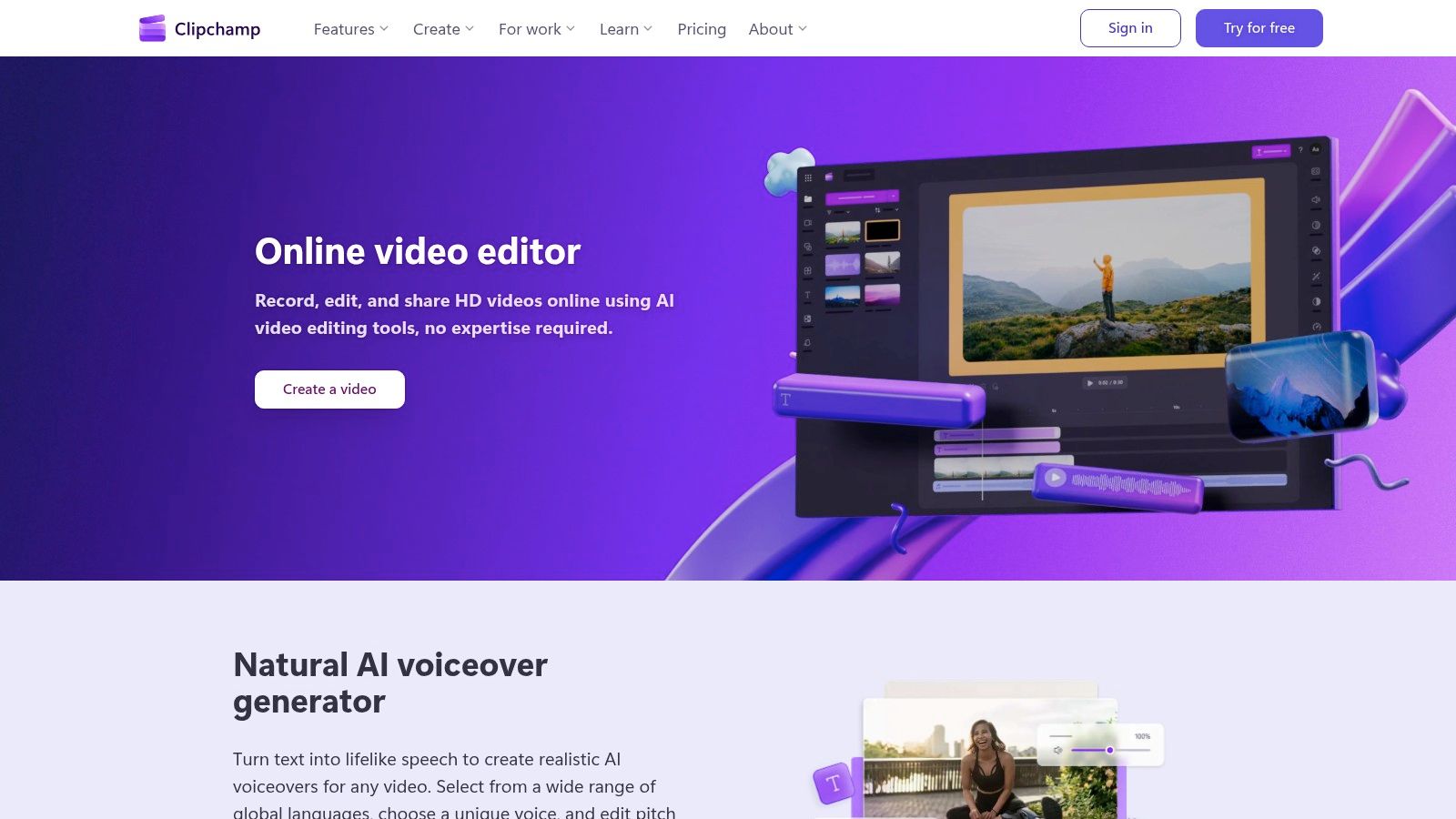
That makes Clipchamp a strong match for internal announcements, onboarding clips, training updates, simple social content, and screen-recorded demonstrations. Someone who already works in a Microsoft-centered organization can get from recording to shareable draft without installing a demanding desktop editor or learning a complicated asset-management system.
The browser workflow is also the main trade-off. Large or complex projects can feel more dependent on connection quality, browser behavior, and available system resources than a dedicated desktop timeline. Advanced audio treatment and color controls are limited, so Clipchamp isn't the natural choice for a cinematic campaign or a layered commercial.
Check the current export and asset terms before standardizing it across a team. The important question isn't only whether one person can make a quick video. It's whether colleagues can open, review, revise, and export the same kind of project without encountering different access limits.
Choose Clipchamp for office communication and lightweight team production. Choose Canva when brand design is central, Descript when spoken content drives the edit, or ClipNova when the team needs automated generation and localization rather than manual assembly.
<a id="8-vn-video-editor"></a>
8. VN Video Editor
VN Video Editor is one of the strongest options for creators who want a mobile-first editor without giving up a real multi-track workflow. It supports keyframing, speed changes, templates, auto captions, text-to-speech, slow-motion interpolation, and straightforward export controls, making it more capable than its simple interface initially suggests.
The free core editor is a major attraction for social creators who need to cut, caption, and publish from a phone. You can work quickly with clips recorded on the same device, add movement with keyframes, and create a more controlled sequence than a purely template-based app allows. A macOS version extends the workflow beyond mobile.
VN's platform fit needs checking before you commit. It's strongest on mobile and macOS, and there isn't an official Windows app. In-app purchase options can also vary by platform and region, so users should confirm the current availability of specific features rather than assume every device offers the same experience.
A free editor is only “easy” if it works on the device where your footage and publishing routine already live.
VN is best for hands-on social editing while traveling or working from a phone. It won't replace a desktop NLE for long-form, high-volume projects, and it won't provide ClipNova's prompt-to-video automation. But for rapid mobile cuts with more timeline control than a basic template app, it's a compelling starting point.
<a id="9-cyberlink-powerdirector"></a>
9. CyberLink PowerDirector
PowerDirector gives beginners a visible path from guided editing to more advanced timeline work. Templates and assisted workflows make the first project approachable, while the broader non-linear editor leaves room for multiple layers, detailed sequencing, and more ambitious visual treatment as your confidence grows.
AI-assisted tools include effects such as sky replacement and stabilization, and the PowerDirector 365 subscription adds ongoing effects packs and updates. That ecosystem works for creators who want access to a large library while learning a traditional editing model. You can begin with a template, then gradually take over the timeline instead of changing applications as soon as your needs become more demanding.
The cost of that flexibility is interface density. PowerDirector exposes more options than ultra-simple editors, and its add-on packs can make the feature set feel fragmented. Beginners may need to decide which tools they use before paying for a broader package.
PowerDirector suits new editors who expect their projects to grow in complexity. It's less efficient for someone whose main goal is generating batches of short-form content from prompts, and it may feel unnecessarily busy for a one-off family video. Use the trial or current plan information to test the specific effects, exports, and asset access your workflow requires.
<a id="10-apple-imovie"></a>
10. Apple iMovie
iMovie remains the cleanest starting point for people already using Apple devices. On iPhone and iPad, Storyboards and Magic Movie reduce the decisions involved in assembling a basic project. On Mac, the simple timeline, titles, transitions, soundtracks, and sound effects provide enough control for family videos, school projects, explainers, and casual YouTube work.
The device handoff is the advantage. A creator can start with footage in Photos on an iPhone or iPad, continue on a Mac, and export without learning a new interface at every stage. Supported devices also offer easy 4K export, which is useful when the source footage and destination justify it.
iMovie's limitations become obvious when the project demands advanced audio mixing, detailed color correction, effects, or a complex multicamera structure. The software is intentionally contained, and its availability is restricted to Apple's ecosystem. A Windows user can't use it as a shared team standard, and a mixed-device team may need another editor for continuity.
Pick iMovie when free, simple, and Apple-native matters more than expansion. It's an excellent first editor for basic projects, but creators who need multilingual versions, automated variants, or high-volume social production will need a more specialized workflow.
<a id="top-10-easy-video-editors-quick-comparison"></a>
Top 10 Easy Video Editors, Quick Comparison
| Tool | Core features | UX / Quality ★ | Price / Value 💰 | Target & USP 👥 ✨ |
|---|---|---|---|---|
| ClipNova 🏆 | Text→video; talking avatars; Ultra synced audio; music→video; image tools; multi-aspect exports | ★★★★★ Fast ideation, A/B variants, realistic voices | 💰 Hobby $15 → Ultra $159/mo; free 70‑credit trial; commercial rights | 👥 Creators, agencies, marketers, ✨ End‑to‑end studio; 32 languages; auto‑resize; model catalog |
| CapCut | Mobile/web editor; templates; auto‑captions; AI effects | ★★★★ Very easy, mobile‑first | 💰 Free core; some exports/features paywalled | 👥 Mobile creators, ✨ Quick templates & vertical/social workflow |
| Canva Video Editor | Drag‑drop editor; templates; brand kits; stock media | ★★★★ Design‑first, browser | 💰 Free → Pro for premium assets | 👥 Non‑designers & teams, ✨ Huge template & brand tooling |
| Descript | Transcript‑based edit; overdub; filler removal; screen recorder | ★★★★ Fast for dialogue-heavy content | 💰 Free → Paid tiers; advanced AI limited | 👥 Podcasters & talking‑heads, ✨ Edit‑by‑text, overdub |
| Wondershare Filmora | Timeline editor; effects/presets; AI add‑ons; cross‑platform | ★★★★ Polished, quick to learn | 💰 One‑time or subscription; add‑on credits | 👥 Beginner → prosumer creators, ✨ Rich effects & presets |
| Movavi Video Editor | Guided workflows; titles/transitions; stabilization | ★★★ Stable, fast on modest hardware | 💰 Paid licenses/subscriptions; tiered options | 👥 Beginners on PC, ✨ Simple, performance‑focused |
| Microsoft Clipchamp | Browser/Windows editor; templates; auto‑captions; M365 tie‑ins | ★★★ Very easy, web‑based | 💰 Free → Paid for stock/high exports | 👥 Microsoft teams & internal comms, ✨ Seamless M365 integration |
| VN Video Editor | Mobile multi‑track; keyframing; templates; text‑to‑speech | ★★★★ Free, mobile‑capable | 💰 Free core; in‑app purchases | 👥 Mobile creators, ✨ No watermark; powerful mobile tools |
| CyberLink PowerDirector | Template edits; AI effects (sky replace, stabilization) | ★★★★ Room to grow; many add‑ons | 💰 PowerDirector 365 subscription or perpetual | 👥 Newcomers wanting growth, ✨ AI effects & large ecosystem |
| Apple iMovie | Simple timeline; Magic Movie; 4K export; device handoff | ★★★★ Cleanest Apple UX | 💰 Free on Mac/iOS | 👥 Apple users & families, ✨ Seamless iPhone/iPad ↔ Mac workflow |
<a id="choose-the-editor-that-matches-your-workflow"></a>
Choose the Editor That Matches Your Workflow
Start with the output, not the brand name. If you need a prompt, topic, or link to become a publishable short-form asset with script, narration, visuals, captions, music, translations, and multiple aspect ratios, choose ClipNova. Its value comes from reducing the number of separate production steps, especially when you need variants, localization, or a regular publishing cadence. The trade-off is that generated work still needs human review, and credit usage matters as production volume rises.
For mobile-first social editing, CapCut and VN Video Editor are the practical shortlist. CapCut has the smoother template-led path for trend-oriented content, while VN gives hands-on editors a capable mobile timeline and keyframing workflow. Check device support and current plan access before building a routine around either one.
Choose Canva Video Editor when the project is really a branded design task that happens to include video. Choose Microsoft Clipchamp for internal updates, screen recordings, and workplace content, especially when the team already uses Microsoft 365. Both tools prioritize accessibility and collaboration over advanced finishing.
If spoken content drives the structure, Descript is the clearest fit. Editing from a transcript makes interviews, podcasts, tutorials, and talking-head videos faster to shape, but it isn't the best environment for elaborate visual edits. For a traditional timeline with room to grow, compare Filmora, Movavi, and PowerDirector. Filmora emphasizes presets and visual polish, Movavi keeps the interface especially direct, and PowerDirector provides a broader runway for more advanced projects.
Apple users seeking the simplest free start should try iMovie. Its clean interface and device continuity are difficult to beat for basic Apple-only projects, although the platform boundary and limited finishing tools are real constraints.
The video editing software market reached USD 2.33 billion in 2022 and is forecast to reach USD 3.71 billion by 2030, with a projected 6% CAGR from 2023 to 2030, according to Cognitive Market Research. That expansion means beginners have more choices, but more choice doesn't remove the need to test the workflow. Paid users are also projected to rise from 43 million in 2023 to 63.59 million by 2030 in the same market framing, which reinforces the practical importance of choosing software you can continue using after the novelty wears off.
Use one representative project before deciding. Import the footage or prompt, create the first draft, correct captions, test the export, produce the alternate aspect ratio, and check how much manual work remains. Confirm platform compatibility, watermark rules, commercial rights, asset access, credit or subscription limits, and whether another person can review the project without friction. For teams producing creator-led campaigns, document the workflow and attribution requirements with guidance on UGC content workflows and attribution tactics.
The best beginner editor is the one that removes the bottleneck you face. If your problem is assembling social assets at scale, a simple timeline alone may not be enough. If your problem is trimming a single recording, a full AI studio may be unnecessary. Match the tool to the work, then judge it by the second and third export, not just how quickly the first draft appears.
ClipNova combines prompt-to-video generation with scripting, voiceover, visuals, captions, music, localization, variants, and social-ready exports in one AI-powered studio. If you want easy video editing software that can automate more of the journey from idea to publishable short-form content, visit ClipNova and test it with a real project.
Ready to ship your own?
Start creating viral videos with AI in under twenty minutes, no credit card required.