
The ideal TikTok video resolution is 1080 × 1920 pixels in a 9:16 aspect ratio. Uploads above this are downscaled by the platform, so a clean 1080p export usually makes more sense than sending TikTok a 4K master.
You spend hours cutting a sharp, detailed video, export it, upload it, and then watch the posted version look as if it was filmed through a foggy window. Fine hair turns into mush, captions lose their edges, and fast movement produces blocks that weren't visible in your editing timeline.
That result usually isn't caused by one bad setting. TikTok video resolution works as part of a delivery system involving source quality, bitrate, codec, frame rate, aspect ratio, file size, and the interface layered over the picture. Fixing only the pixel dimensions won't protect a file that's already over-compressed, badly cropped, or filled with detail TikTok has to discard.
Table of Contents
- Why Your TikTok Uploads Look Blurry
- TikTok Video Resolution and Aspect Ratio Standards
- Best Export Settings for Maximum Quality
- Choosing the Right Aspect Ratio for Your Content
- Safe Zones and Hidden Quality Killers
- Building a Repeatable TikTok Export Workflow
<a id="why-your-tiktok-uploads-look-blurry"></a>
Why Your TikTok Uploads Look Blurry
The first practical correction is simple: export to 1080 × 1920 pixels at 9:16. TikTok may accept larger uploads, but guidance from Postfa's TikTok video size reference and Riverside's TikTok video specifications guide treats this vertical Full HD frame as the safest delivery target. Riverside also notes that larger uploads are typically downscaled rather than displayed at native 4K.
That distinction matters because the file you upload isn't necessarily the file viewers receive. TikTok processes the upload for playback, and that processing can remove detail, soften edges, and expose compression in difficult shots. A 4K source can still be valuable during editing, especially when you need to crop or stabilize footage, but its extra detail doesn't guarantee extra detail in the app.
<a id="the-resolution-misconception"></a>
The resolution misconception
A higher source resolution gives you more room to work. It doesn't give TikTok an obligation to preserve every pixel. The platform's practical rendering target remains 1080 × 1920, so a carefully encoded 1080p master often survives better than a huge file that gets aggressively reworked during processing.
The frame itself contains about 2.07 million pixels, while vertical 4K material contains roughly four times as many before compression, as described in the Postfa resolution breakdown. That extra source information helps with reframing, but it isn't a reliable shortcut to sharper final playback.
Practical rule: Treat 1080p as the delivery ceiling and higher-resolution footage as an editing resource.
<a id="what-actually-affects-perceived-sharpness"></a>
What actually affects perceived sharpness
Bitrate controls how much visual information the export preserves before upload. Codec and container affect compatibility. Frame rate affects motion clarity and the amount of data moving through each second of video. Aspect ratio determines whether the player can fill the screen without adding borders or forcing an avoidable crop.
Even your design choices matter. Fine text, noisy shadows, rapid camera movement, artificial blur, and heavy grain all give compression more difficult material to encode. If your source needs repair before export, an AI image upscaler for restoring visual detail can help with still assets, but it can't recreate missing video detail.
<a id="tiktok-video-resolution-and-aspect-ratio-standards"></a>
TikTok Video Resolution and Aspect Ratio Standards
A clean 4K master can still look soft after upload. TikTok reprocesses the file, fits it beneath interface overlays, and may limit how much detail reaches playback. Resolution therefore works as part of a delivery system, not as a promise that viewers will see every source pixel.
For practical delivery, 720 × 1280 is the minimum acceptable tier in current guidance, while 1080 × 1920 remains the standard target. TikTok can accept vertical 4K material at 2160 × 3840, but uploads above its practical rendering target are generally reduced during processing, according to Riverside's resolution guidance. A 720 × 1280 frame gives compression less information for faces, product edges, and text. A 1080 × 1920 frame supplies more detail at a size TikTok can use effectively. Vertical 4K mainly gives editors room to reframe before export.
<a id="resolution-tiers-at-a-glance"></a>
Resolution tiers at a glance
| Resolution | Pixel Dimensions | Est. File Size (60s) | Post-Compression Quality |
|---|---|---|---|
| 720p | 720 × 1280 | Depends on bitrate and codec | Acceptable, but softer detail and text |
| 1080p | 1080 × 1920 | Depends on bitrate and codec | Strong practical target for delivery |
| 4K vertical | 2160 × 3840 | Depends on bitrate and codec | Useful for reframing, usually downscaled for playback |
File size cannot be estimated from duration alone. Bitrate, codec, motion, audio, and container settings all affect the export. ScreenSnap's TikTok size guide also points out that practical upload limits can vary between mobile workflows and TikTok Studio, so one universal file-size figure would mislead.
<a id="why-916-should-be-your-default"></a>
Why 9:16 should be your default
A 9:16 vertical frame fills the phone screen and leaves the most usable space for a talking head, demonstration, product shot, or caption-led edit. It also avoids an unnecessary resize before TikTok applies its own processing. Keep important text and faces away from interface overlays, because nominal resolution does not protect content placed beneath buttons, captions, or other controls.
Square video remains useful when the source was made for another placement. Horizontal footage inside a vertical canvas, however, can create empty space or force a restrictive crop. Build the sequence at 1080 × 1920 before positioning graphics, then check the rendered file on a phone. Riverside's guidance supports treating 1080p as the delivery target, while ScreenSnap's guide reinforces checking the upload route rather than relying on a single file-size assumption.
<a id="best-export-settings-for-maximum-quality"></a>
Best Export Settings for Maximum Quality
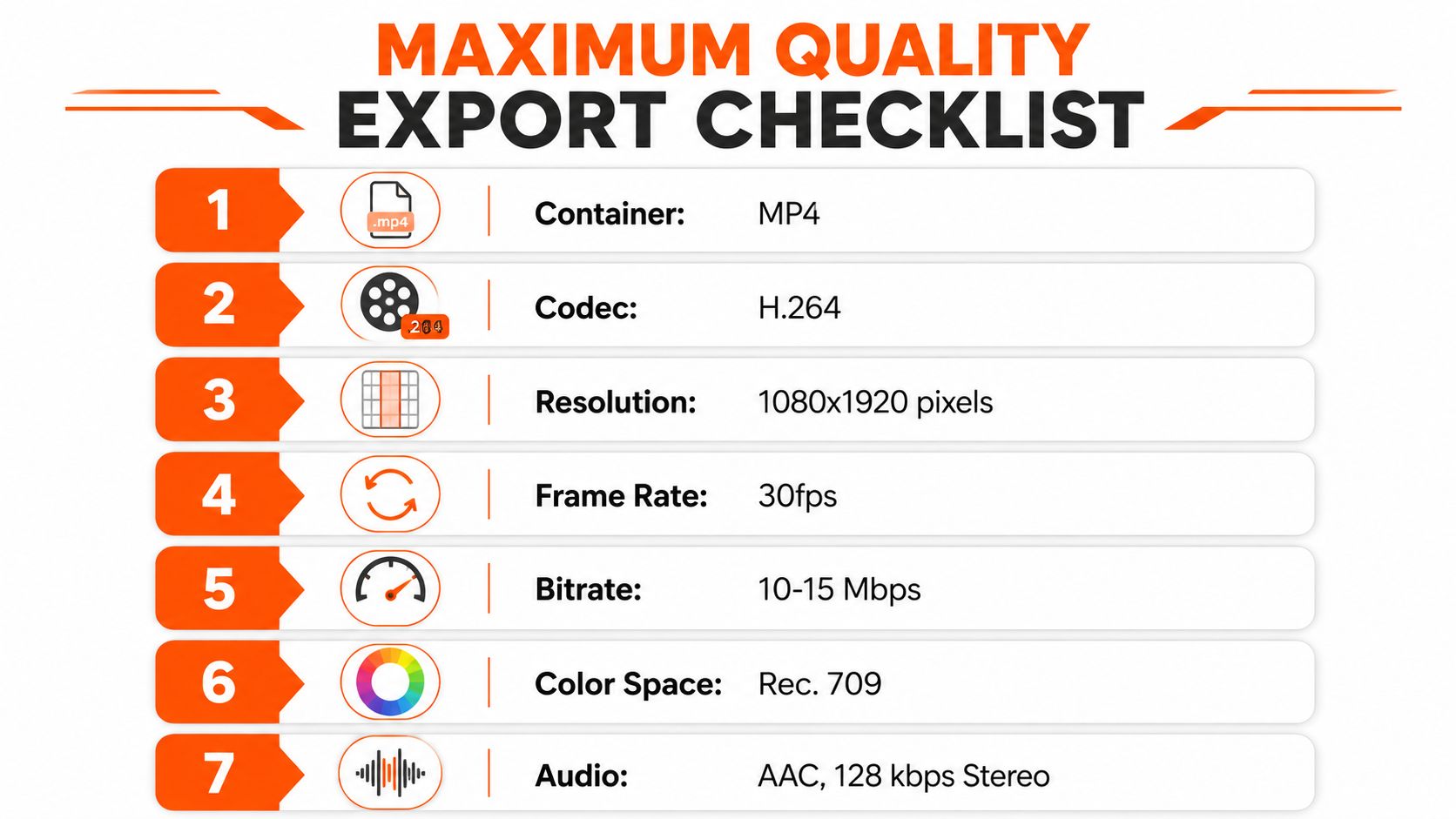
A reliable export starts with compatibility, not maximum file size. For most TikTok workflows, use an MP4 container with H.264 video. H.265, also called HEVC, can compress footage efficiently, but H.264 remains the safer general-purpose choice when the same file needs predictable handling across editing software, upload paths, and playback devices.
Use the source frame rate whenever possible. If the footage was recorded at 23.976, 24, 30, or 60 fps, preserve that rate in the sequence and export rather than forcing a conversion that can introduce duplicate frames, uneven motion, or unnecessary interpolation.
<a id="a-practical-export-recipe"></a>
A practical export recipe
Use these settings as a starting point, then inspect the result on a phone:
- Canvas: 1080 × 1920 pixels
- Aspect ratio: 9:16
- Container: MP4
- Video codec: H.264
- Profile: High Profile where the application provides that option
- Frame rate: Match the source, such as 23.976, 24, 30, or 60 fps
- Color: SDR Rec.709 for a predictable standard-dynamic-range result
- Audio: AAC stereo, with a sensible speech-and-music bitrate
Bitrate needs judgment. A visually complex edit needs more data than a locked-off presenter against a plain background, but pushing the file size upward doesn't guarantee a better TikTok upload. Use a clean master that retains texture without creating a needlessly large file, then check whether the platform or upload route imposes a limit.
<a id="presets-for-common-editors"></a>
Presets for common editors
In Premiere Pro, create a custom H.264 preset with a 1080 × 1920 frame, progressive scanning, source-matched frame rate, Rec.709 output, and AAC audio. In DaVinci Resolve, set the timeline resolution before editing, choose MP4, H.264, and the same frame rate as the source. In CapCut, select the vertical TikTok canvas, choose 1080p, preserve the recorded frame rate, and avoid repeatedly exporting and re-importing the same file.
TikTok's high-quality upload option can help when the original export is sound and the connection is stable. It can't restore detail already lost through a low-quality render, and app settings can change, so treat the posted preview as the final test. If you move between presentation assets and social video, keep each platform's export path separate. A workflow such as uploading a PowerPoint presentation to YouTube has different requirements and shouldn't dictate your TikTok preset.
<a id="choosing-the-right-aspect-ratio-for-your-content"></a>
Choosing the Right Aspect Ratio for Your Content
A 16:9 interview can be technically sharp and still fail in the feed when a tight 9:16 crop removes the speaker, product, or action that gives the shot meaning. TikTok resolution is therefore a framing decision as much as a pixel count. Choose the ratio around the subject, source footage, and amount of usable screen space after TikTok compression and interface treatment.
Talking-head videos usually suit 9:16 because the face, gestures, captions, and prompts fit one continuous composition. Product demonstrations also benefit from vertical framing when the item is tall or the action moves upward. Widescreen footage needs more care. A hard crop may preserve nominal resolution while removing the context viewers need.
<a id="match-the-frame-to-the-story"></a>
Match the frame to the story
| Aspect Ratio | Best Content Types | FYP Performance | Profile Grid Display | Recommended Resolution |
|---|---|---|---|---|
| 9:16 | Talking heads, tutorials, UGC, demonstrations | Full-screen presentation | Uses the vertical frame | 1080 × 1920 |
| 1:1 | Product close-ups, square graphics, repurposed social posts | More surrounding space or unused screen area | Compact square preview | 1080 × 1080 |
| 16:9 | Widescreen interviews, gameplay, cinematic source, YouTube repurposing | Can appear smaller inside the vertical feed | Widescreen composition may be reduced | 1920 × 1080 |
TikTok can display square and widescreen material, but letterboxing or pillarboxing reduces the area occupied by the actual video. Black bars do not automatically mean the file is low quality. They do make the subject smaller, leave less room for readable captions, and weaken the opening visual on a phone.
<a id="a-useful-decision-test"></a>
A useful decision test
Start by marking the subject's boundaries. If a 9:16 crop cuts off the product, speaker, or action viewers need to understand, retain the wider source and design the surrounding space deliberately. Create a widescreen master at 1920 × 1080 when the original composition depends on width. Use a square master at 1080 × 1080 for close-ups or graphics built around a centered subject.
If the idea depends on a close face, vertical demonstration, or large captions, build at 1080 × 1920 instead of placing a wide clip inside a tall template. That approach gives the subject more usable pixels and reduces the need for an aggressive crop. The best nominal resolution still produces a weak post when the composition leaves the subject too small for the feed.
Profile and search previews can crop differently from the full player, so keep essential words away from the extreme edges. Review the clip in a feed-style preview, not only on the clean editor canvas. The correct ratio is the one that keeps the important content legible after TikTok's crop, overlays, and compression.
<a id="safe-zones-and-hidden-quality-killers"></a>
Safe Zones and Hidden Quality Killers
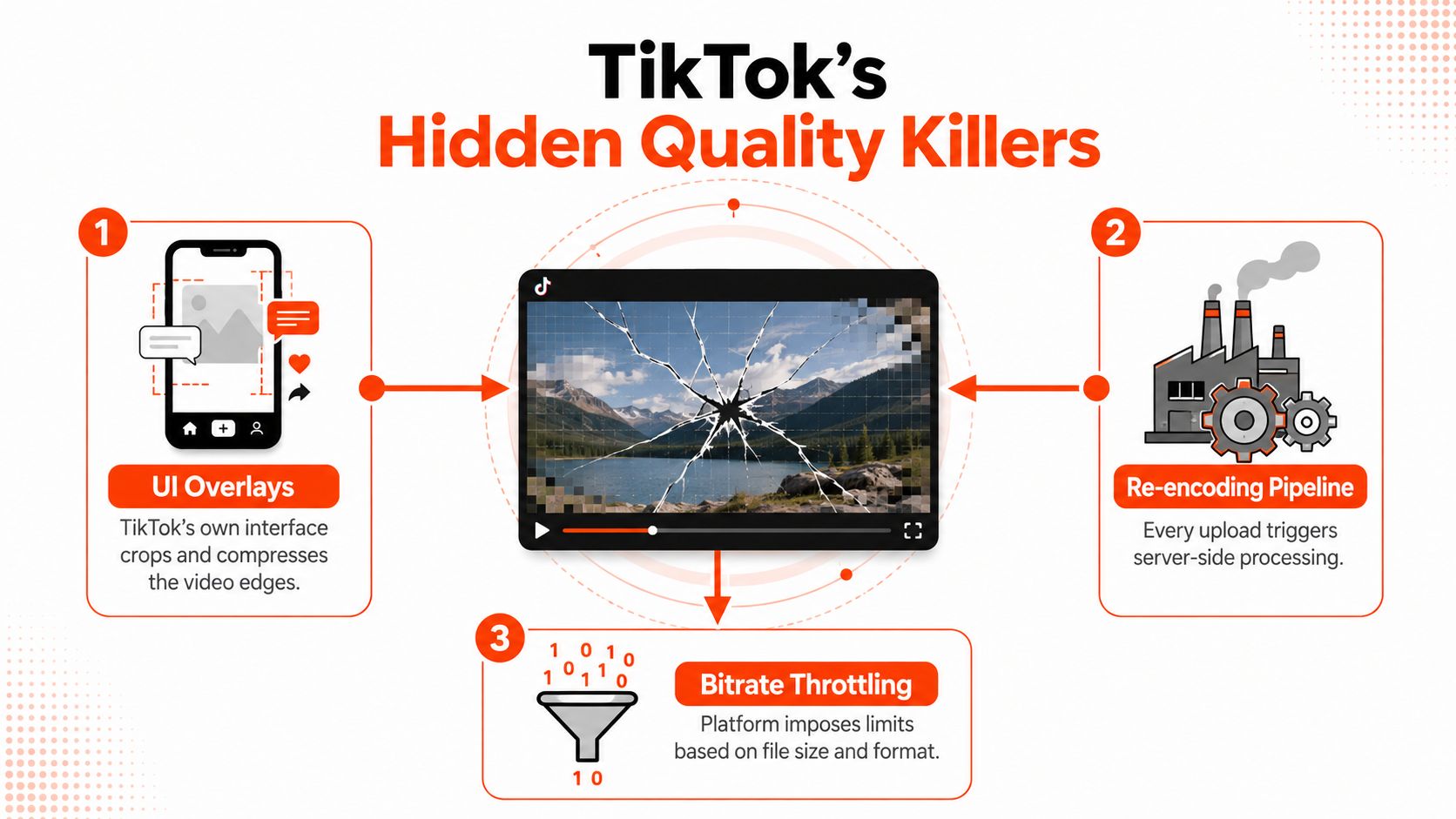
A technically correct frame can still look poor if the viewer can't read the text or see the subject. TikTok's caption area and action controls occupy part of the vertical screen, especially toward the lower edge and right side. ScreenSnap's practical TikTok guide calls attention to these overlays and to the fact that upload limits can vary across workflows.
Don't treat the whole 1080 × 1920 canvas as equally available. Keep faces, product labels, subtitles, prices, and calls to action away from the bottom caption stack and the right-side action rail. Leave breathing room at the top as well, particularly if your account name, search treatment, or other interface elements may cover the composition.
<a id="the-quality-killers-editors-miss"></a>
The quality killers editors miss
- UI overlap: A caption can be perfectly sharp and still fail if TikTok places interface text over it.
- Repeated encoding: Exporting, messaging, downloading, and re-exporting the same clip creates multiple opportunities for softness and blocking.
- Oversized files: A large upload may trigger additional processing or become inconvenient to move through a mobile workflow.
- High-frequency detail: Confetti, fine fabric, foliage, grain, and tiny text often break apart sooner than broad shapes and high-contrast graphics.
- Motion blur: Fast pans and handheld movement spread detail across frames, leaving compression fewer stable areas to preserve.
<a id="file-size-is-part-of-picture-quality"></a>
File size is part of picture quality
Practical upload guidance reports a mobile cap around 287.6 MB, while TikTok Studio limits can reach 4 GB, as summarized by ScreenSnap's comparison of TikTok upload constraints. Those figures aren't interchangeable. The route you use can change what fits, and a file that exceeds a practical cap may be recompressed, rejected, or routed through a different processing path.
Before publishing, watch the exported file outside your editor. Scrub through fast movement, inspect small text, check skin tones and gradients, and preview the composition with TikTok's controls in mind. If a critical detail is already weak before upload, changing the resolution alone won't save it.
<iframe width="100%" style="aspect-ratio: 16 / 9;" src="https://www.youtube.com/embed/9dEMB1bvDo0" frameborder="0" allow="autoplay; encrypted-media" allowfullscreen></iframe><a id="building-a-repeatable-tiktok-export-workflow"></a>
Building a Repeatable TikTok Export Workflow
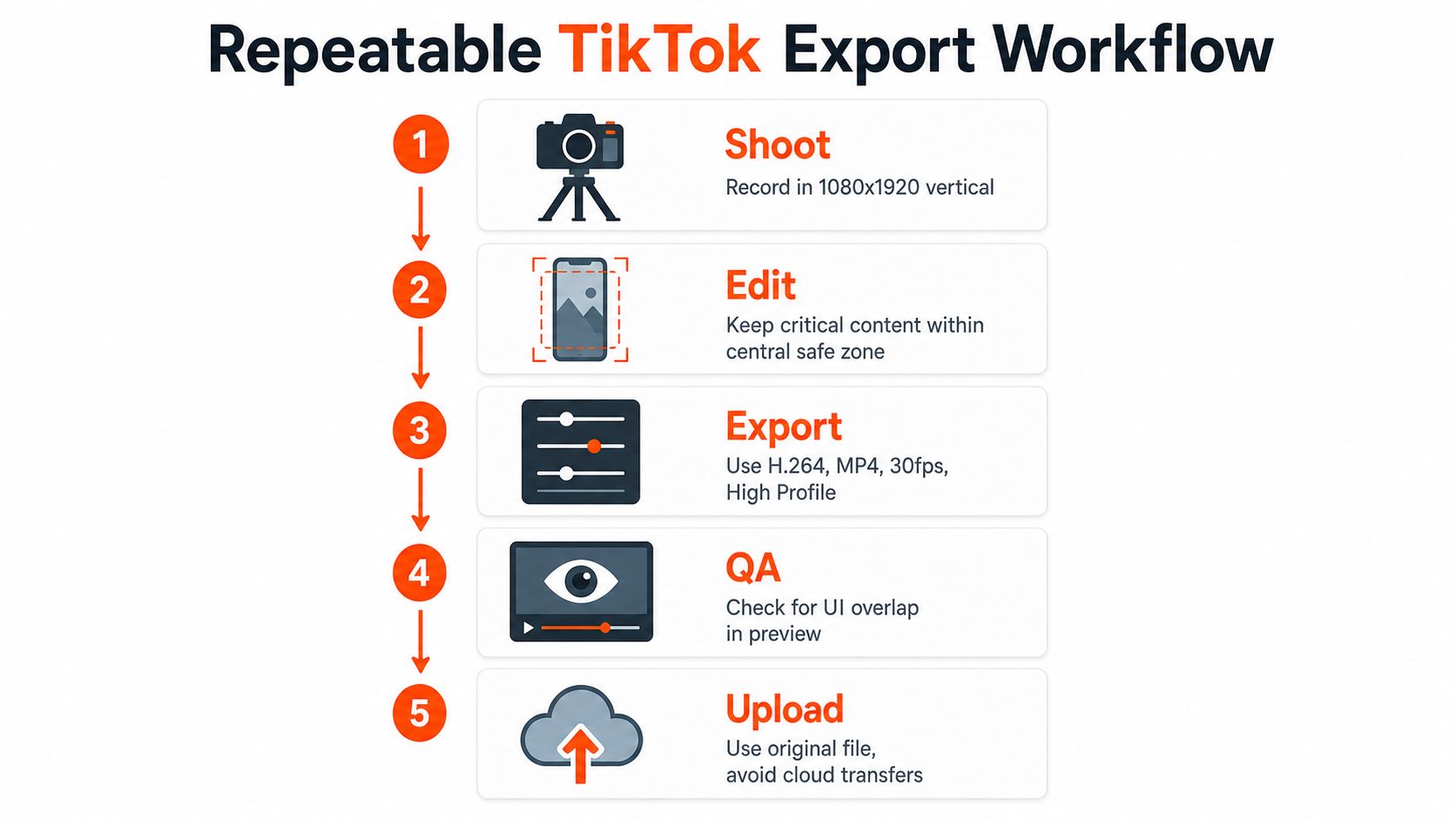
Quality improves when the same checks happen every time, not when an editor guesses at settings on deadline. Start with a 1080 × 1920 sequence, place a temporary overlay guide above the edit, and keep captions and key visual information inside the unobstructed center area.
<a id="the-production-sequence"></a>
The production sequence
- Shoot with the final crop in mind. Record vertically when the content is intended for a full-screen TikTok composition. If you capture wider footage for flexibility, frame the subject with enough surrounding space for a vertical reframing.
- Edit once from the original. Keep the camera master in the project and avoid using a downloaded social copy as your editing source. Apply color correction before adding captions, graphics, and effects.
- Export a controlled master. Use MP4, H.264, 1080 × 1920, source-matched frame rate, and Rec.709. Name the file clearly so your team doesn't accidentally upload a preview or messaging-app version.
- Run a phone-based QA pass. Check faces, subtitles, gradients, motion, audio sync, and interface overlap. Review both the opening frame and the moments with the most movement.
- Upload the original export. Don't send the file through a service that may resize or recompress it first. Use a stable connection and confirm the posted version before distributing it elsewhere.
For teams publishing repeatedly, a written preset prevents every editor from making a different interpretation of “high quality.” An automated studio such as ClipNova can generate short-form assets, apply captions, and export across 9:16, 1:1, and 16:9 formats, while a practical TikTok posting guide for creators can help organize the publishing side of that workflow. If subtitles are part of your format, review how to add subtitles to a video before exporting so text remains part of the composition rather than an afterthought.
Keep a master checklist beside the export queue. If the frame is correct, the text is safe, the source hasn't been repeatedly compressed, and the final file survives a phone preview, you've removed the most common causes of a blurry TikTok upload.
ClipNova helps you create publish-ready short-form videos with generated scripts, voiceovers, visuals, captions, music, and TikTok-ready exports in one workspace. Use it to produce consistent 9:16, 1080p assets and resize variants without rebuilding each edit manually, then visit ClipNova to start creating.
Ready to ship your own?
Start creating viral videos with AI in under twenty minutes, no credit card required.