
TikTok's recommended format is 9:16 vertical, exported at 1080 × 1920 pixels, and TikTok's published minimum for a 9:16 ad is above 540 × 960 pixels, with 16:9 at 960 × 540 pixels or higher and 1:1 at 640 × 640 pixels or higher. Those three numbers settle the technical question in under a minute.
The advice that gets repeated everywhere, that TikTok requires 9:16, is wrong in the way it is often meant. TikTok accepts three shapes, documents all three, and will happily optimize a wide file into a vertical placement. What 9:16 buys you is the full phone screen, and that is a production decision, not an upload rule. Get the decision wrong and you spend an evening cropping faces out of shots you already rendered. Get it right at the start and the same story ships to TikTok, YouTube and a square feed without a rescue mission.
This guide is written the way I'd explain it to someone who has already exported a dozen videos and hit the annoying problems: soft footage, captions buried under the right-side icons, a horizontal clip sitting in a vertical frame with black bars top and bottom. The numbers are TikTok's own. The judgement about when they stop being useful is mine.
Table of Contents
- TikTok Aspect Ratios and Pixel Sizes at a Glance
- Why 9:16 Is the TikTok Default, Not a Strict Rule
- Choosing Vertical, Horizontal or Square for Each Video
- Safe Zones for Captions, Faces and Logos
- Export Settings Beyond Pixel Size
- How Long a Finished TikTok Upload Can Run
- Resize a 16:9 Story and Fix Ratio Problems
- Make Your First Vertical Story at the Right Ratio
<a id="tiktok-aspect-ratios-and-pixel-sizes-at-a-glance"></a>
TikTok Aspect Ratios and Pixel Sizes at a Glance
| Ratio | Minimum pixels | Recommended export | Best use |
|---|---|---|---|
| 9:16 vertical (in-feed and default) | Above 540 × 960 | 1080 × 1920 | Full-screen feed video, ads and story masters |
| 16:9 horizontal | 960 × 540 or higher | 1920 × 1080 | Landscape placements and YouTube repurposing |
| 1:1 square | 640 × 640 or higher | 1080 × 1080 | Square feed placements and mixed-platform reposts |
| 9:16 Branded Mission | 720 × 1,280 | 1080 × 1920 | Branded Mission ads, 100 MB maximum file size |
The three in-feed minimums come straight from TikTok, which published these figures in 2026: TikTok's in-feed ad specifications accept 9:16 video at 540 × 960 pixels or higher, 16:9 video at 960 × 540 pixels or higher, and 1:1 video at 640 × 640 pixels or higher. The Branded Mission format is stricter on the floor and much stricter on file size: TikTok's Branded Mission ad specifications require a 9:16 ratio, a minimum resolution of 720 × 1,280 pixels, and a maximum file size of 100 MB.
The row that confuses people is the first one. 1080 × 1920 and 540 × 960 are the same 9:16 ratio. Nothing about the shape changes between them. What changes is detail: how many pixels are available for a caption stroke, an eyebrow, a product label, the edge of a face. A 540 × 960 export clears TikTok's stated minimum and still looks like a 2014 phone video the moment it's stretched across a modern screen.
That's why I treat the published minimum as a floor, not a target. The floor tells you what uploads. The target tells you what survives compression, scaling and a caption layer sitting on top of the image.
Working rule: export one 9:16 master at 1080 × 1920, and add 16:9 or 1:1 only for placements that actually need them. One well-built master beats three rushed derivatives.
For a channel publishing story videos, that single decision removes most of the downstream mess. You render once at the right shape and the only remaining work is content, not conversion.
<a id="why-916-is-the-tiktok-default-not-a-strict-rule"></a>
Why 9:16 Is the TikTok Default, Not a Strict Rule
If 9:16 were a requirement, every widescreen upload would fail. It doesn't. TikTok's own advertising tools list three supported placement ratios, 9:16, 1:1 and 16:9, and its video aspect ratio intelligent optimization tool documentation confirms that videos can be adapted among all three formats. The platform is built to accommodate portrait, square and widescreen creative. It isn't enforcing one shape.
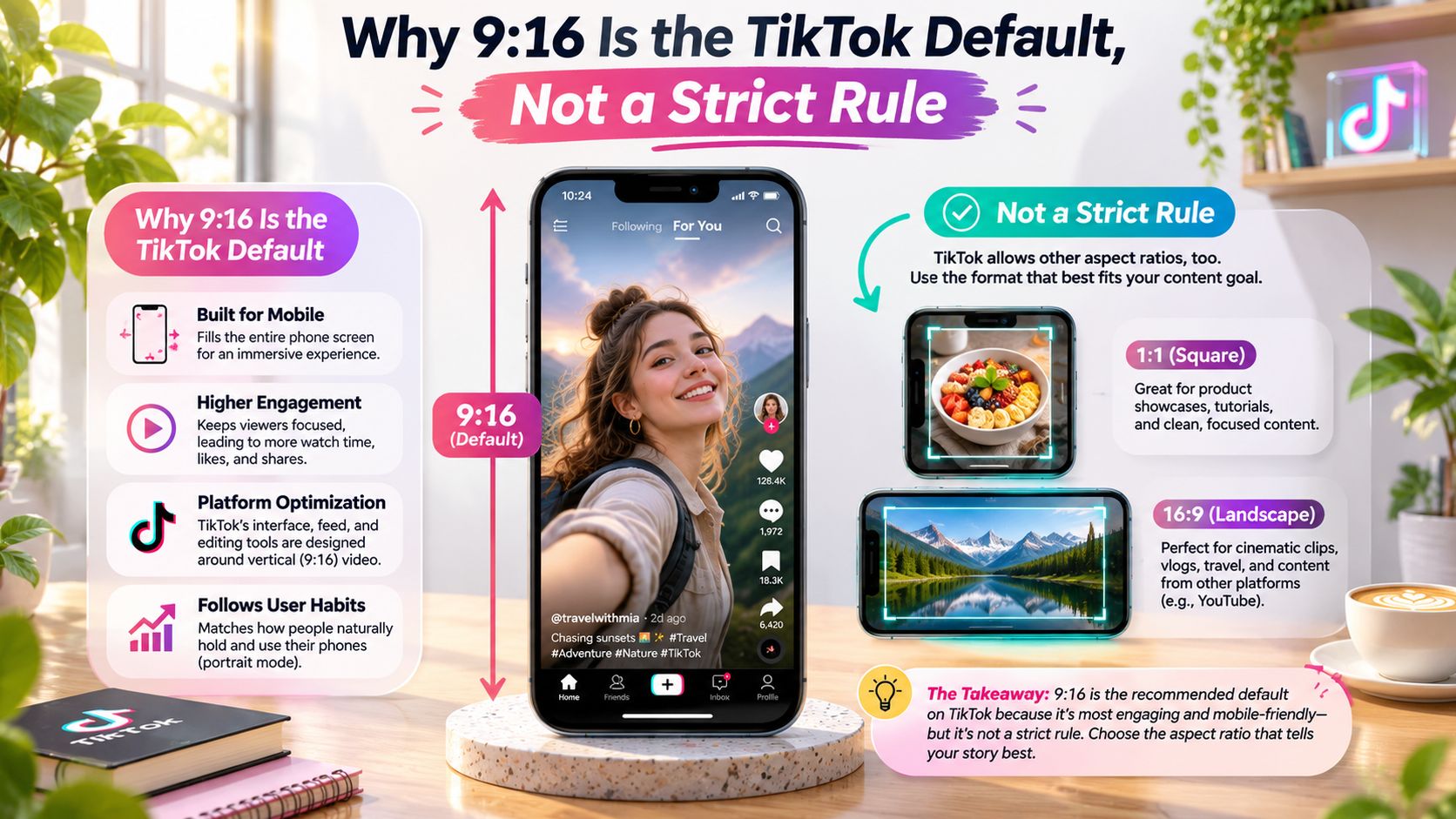
So why does everyone still say 9:16? Because of the phone. Most viewers hold a portrait screen, and 9:16 is the ratio that fills it edge to edge. Take a 60-second story with a close-up character speaking to camera. At 9:16 that face occupies the frame and the caption sits under the chin. Deliver the same shot in 16:9 and you get a small letterboxed window with black bars above and below, plus a subject who now looks twice as far away.
Aspect ratio controls presentation, not permission. A wide file uploads fine. It just competes for attention in a smaller box, and on a platform built for thumb-scrolling, that smaller box loses.
The ratio isn't a gate you pass through at upload. It's a decision you make before the first scene is generated.
Build one 9:16 master for the story. Treat horizontal and square versions as deliberate second deliverables with their own purpose, not as leftovers from an edit that got squeezed sideways at the last minute.
<a id="choosing-vertical-horizontal-or-square-for-each-video"></a>
Choosing Vertical, Horizontal or Square for Each Video
Four questions, asked in order, decide the ratio for almost any video.
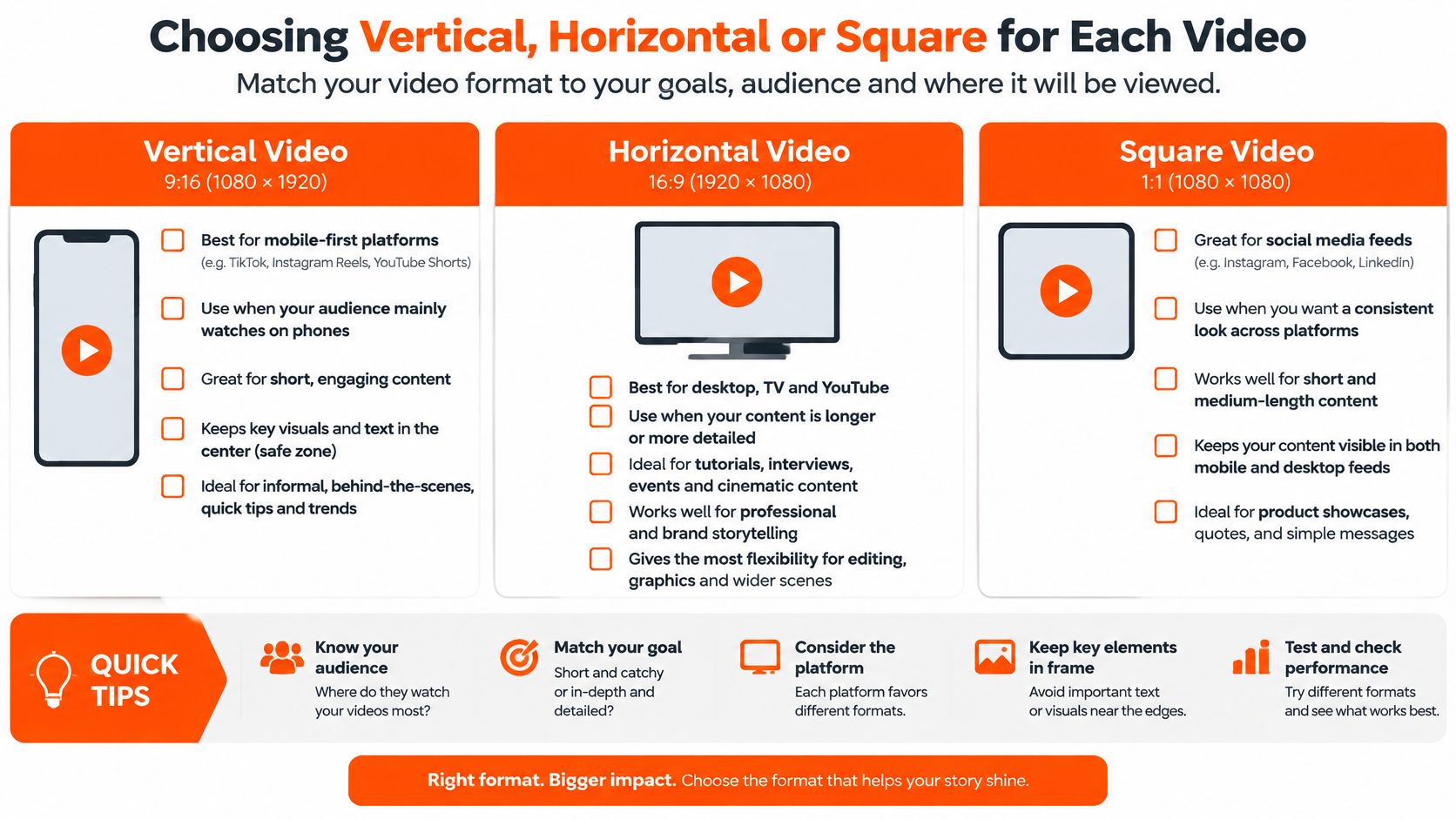
- Is it watched on a phone first? If yes, 9:16. For TikTok-first publishing this is the end of the conversation unless the footage fights it.
- Do the shots depend on wide framing? Two people side by side, a historical map, a product demonstration with hands and table in the same frame. If yes, either keep those scenes in 16:9 or redesign them as vertical close-ups and split cuts. Cropping a wide shot to vertical later is how heads and hands get amputated.
- Will it also run on YouTube or another horizontal placement? If yes, build a separate 16:9 version rather than assuming the vertical cut can be reframed. TikTok's own ad production guidance makes the point plainly: keep the source composition natively vertical rather than dropping a horizontal video into a vertical frame, which wastes the visual area the story needs.
- Do you need square placements? If yes, export 1:1 from a centred composition where the subject sits in the middle third, not from a frame designed for the edges.
Here's how that plays out in practice. Say a channel makes a 4-minute history episode about a trade route, and the strongest visual is a map with three marked cities. The map earns its place in the 16:9 master built for YouTube. For the 9:16 cut, the map becomes a two-second full-frame graphic, then the narration moves to a close-up of the host describing the same three cities while the route draws itself in the background. Same script, same information, different staging. Nothing was squeezed.
That redesign is the part most guides skip, and it's the part that decides whether the vertical version feels native or salvaged.
<iframe width="100%" style="aspect-ratio: 16 / 9;" src="https://www.youtube.com/embed/rngc56oiifI" frameborder="0" allow="autoplay; encrypted-media" allowfullscreen></iframe>One ratio rarely serves every platform well. Choose the delivery ratio before the scenes exist, because after export your only options are crop, pad or rebuild.
<a id="safe-zones-for-captions-faces-and-logos"></a>
Safe Zones for Captions, Faces and Logos
An image can fit the frame and still disappear under TikTok's interface. TikTok's in-feed advertising guidance warns that interface elements may cover or crop content outside the safe zone. It also says safe-zone size varies with orientation, caption length and interactive add-ons.
For a 1080 × 1920 export, the margins below are a typical working layout, not measurements from TikTok's template or a guarantee. Use them to place key elements, then check the result in the app.
| Edge | Typical clear margin at 1080 × 1920 | Keep out of this edge |
|---|---|---|
| Left | About 120 px | Logos and key text near the edge |
| Right | About 120 px, with less room lower in the frame | Captions, logos and anything near the engagement icons |
| Top | About 240 px | Titles and faces too close to the top |
| Bottom | About 660 px | Captions, calls to action and essential text |
The bottom margin takes up more than a third of the frame height. Keep subtitles and calls to action above the lower interface area, where the caption block, profile name and sound label can compete for space.
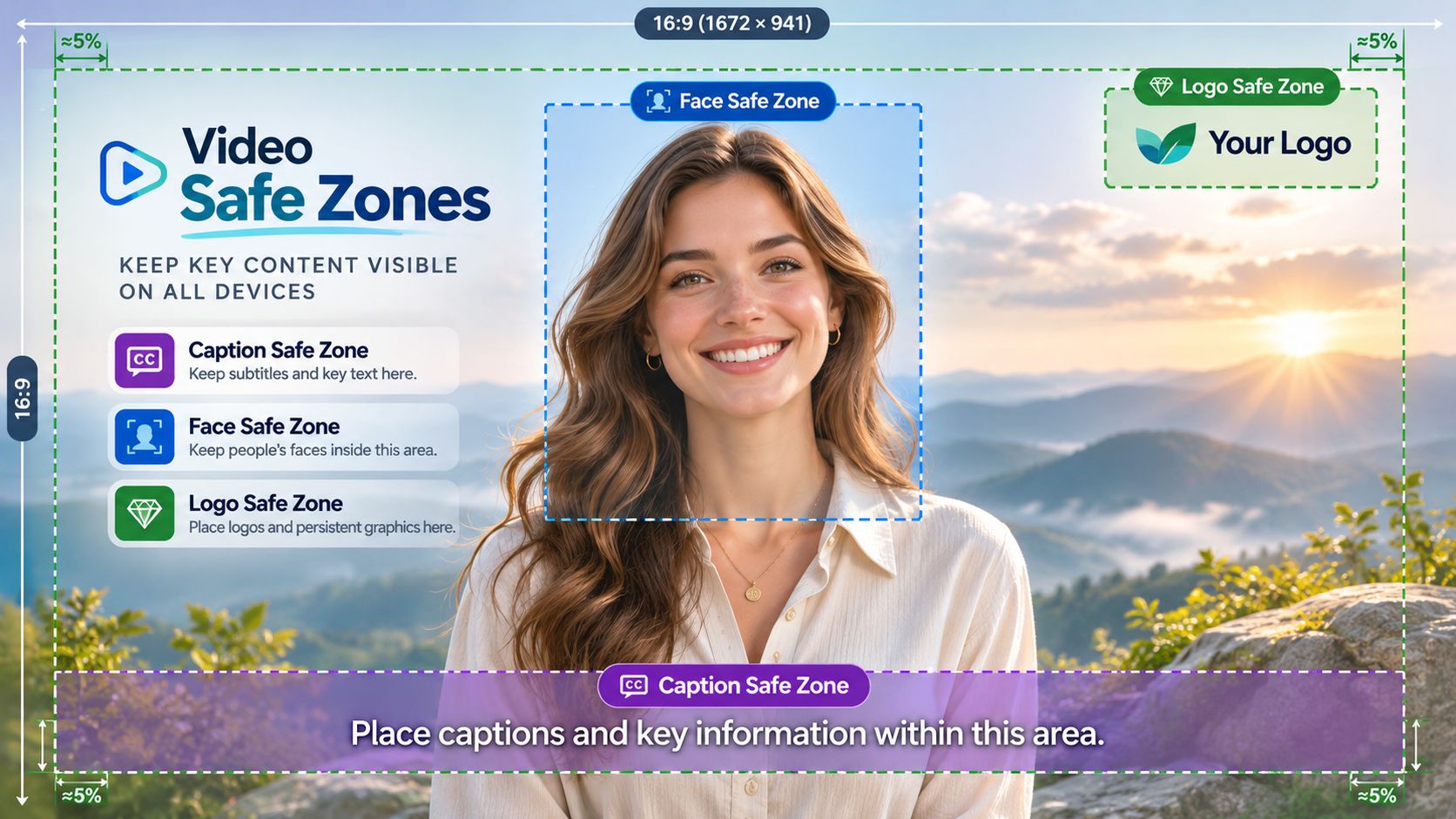
The engagement icons also reduce usable space along the right edge, especially lower in the frame. Keep logos and text you need viewers to read clear of that strip. Place faces near the upper centre, and subtitles just above the lower interface area. Use short, high-contrast lines with room on both sides. Long captions or shopping elements call for wider margins.
Validation step: Watch the rendered file on a phone before posting. Editor previews and desktop players do not show the interface in the same way.
Captions are part of the composition, not a final decoration. Research on TikTok captioning practices describes captions as representations of audio, language, signed languages and other sounds. It also discusses how multilingual captions can support comprehension and participation, while raising translation and cultural-context challenges. For practical guidance on timing and styling, see this guide to adding subtitles to a video.
Set the safe-zone overlay while arranging each scene. Moving text or faces after export can fix an overlap, but it cannot restore a composition built too close to the edges.
<a id="export-settings-beyond-pixel-size"></a>
Export Settings Beyond Pixel Size
Resolution sets the frame; file type, bitrate and file size affect whether the export uploads and how much detail survives compression.
| Setting | TikTok limit | Practical setting |
|---|---|---|
| File type | MP4, MPEG, MOV, AVI or 3GP | MP4 for the widest compatibility |
| Maximum ad file size | 500 MB | Check full-length exports against this cap |
| Bitrate, non-TopView video | Above 350 kbps | Keep well above the threshold at 1080 × 1920 |
| Bitrate, TopView video | Above 2,500 kbps | Use the higher bitrate for TopView placements |
| Branded Mission file size | 100 MB maximum | Shorten the cut or lower the bitrate if the file is too large |
The TikTok video size guide lists MP4, MPEG, MOV, AVI and 3GP as supported formats, a 500 MB maximum ad file size, and bitrate thresholds above 350 kbps for non-TopView video and 2,500 kbps for TopView video.
Bitrate is the trade-off between file size and retained detail. A 1080 × 1920 export at a higher bitrate can preserve crisp caption edges and skin detail, while a long video with gradients and constant motion can approach the file cap. Lowering the bitrate may reduce the file size, but can also introduce banding in dark areas and soften fine details. A bitrate just above 350 kbps may suit simple talking-head footage; it can struggle with a drifting starfield or other detailed motion.
Resolution sets the canvas. Bitrate determines how much visual detail compression preserves.
Before uploading, check the export:
- Pixel size: 1080 × 1920 for 9:16, 1920 × 1080 for 16:9, or 1080 × 1080 for 1:1.
- Ratio: Confirm the file uses the intended shape, rather than a crop from a project set to a different ratio.
- File type: MP4.
- Bitrate: Above 350 kbps for non-TopView video, or above 2,500 kbps for TopView placements.
- File size: Under 500 MB for standard ad files and under 100 MB for a Branded Mission.
Export the full-length version and inspect it before scheduling. Fixing a compression or format problem at export is simpler than discovering it after the post goes live.
<a id="how-long-a-finished-tiktok-upload-can-run"></a>
How Long a Finished TikTok Upload Can Run
TikTok's duration limits depend on how you create and upload the video: recording in the app allows up to 10 minutes, uploading a finished video through the mobile app allows up to 60 minutes, and TikTok Studio on the web allows up to 30 minutes.
The 10-minute figure applies to the in-app camera, not every video on TikTok. If you edit or generate a file first, use the upload path rather than the camera.
A five-minute story fits within the mobile-upload limit. Render the finished MP4, then upload it through the app.
Match the story's length to the upload path you'll use, not the in-app camera limit.
Duration is only one constraint. The preceding section covers file size and bitrate requirements; long, detailed videos can put more pressure on those limits because motion, grain and gradients all add detail across the runtime. If an export approaches a file-size cap, shorten the cut or reduce its bitrate while keeping the relevant minimum in mind. A tighter edit can preserve more detail than a longer one compressed to fit.
Check the destination before rendering. Mobile uploads allow the longest finished videos, TikTok Studio has a shorter limit, and recording in the app has its own cap.
<a id="resize-a-169-story-and-fix-ratio-problems"></a>
Resize a 16:9 Story and Fix Ratio Problems
A horizontal master can serve a vertical TikTok, but a center crop rarely preserves the story by itself. Decide which shots need reframing or rebuilding before exporting, and keep the original 16:9 file intact.
- Choose the delivery ratio before generating scenes. Cropping removes information at the edges. If a character stands at frame left, a center crop may cut them out.
- Keep the 16:9 master and make a separate 9:16 version at 1080 × 1920. You get two deliverables from one script without overwriting the original.
- Mark the story's must-keep details in the horizontal frame. Flag faces, subtitles, evidence and product details before reframing.
- Check each detail against the vertical crop. If a face or other key element falls outside the crop, rebuild the shot rather than forcing it into the frame.
- Recompose shots that fail. Turn two people side by side into separate shots, or present a wide map as a full-screen graphic followed by a close-up. The scene should read naturally in vertical format.
- Place captions inside the 1080 × 1920 safe area. Keep roughly 120 px from each side, 240 px from the top and 660 px from the bottom.
- Export as MP4 and review on a phone. Check that the crop, captions and faces still read clearly at screen size.
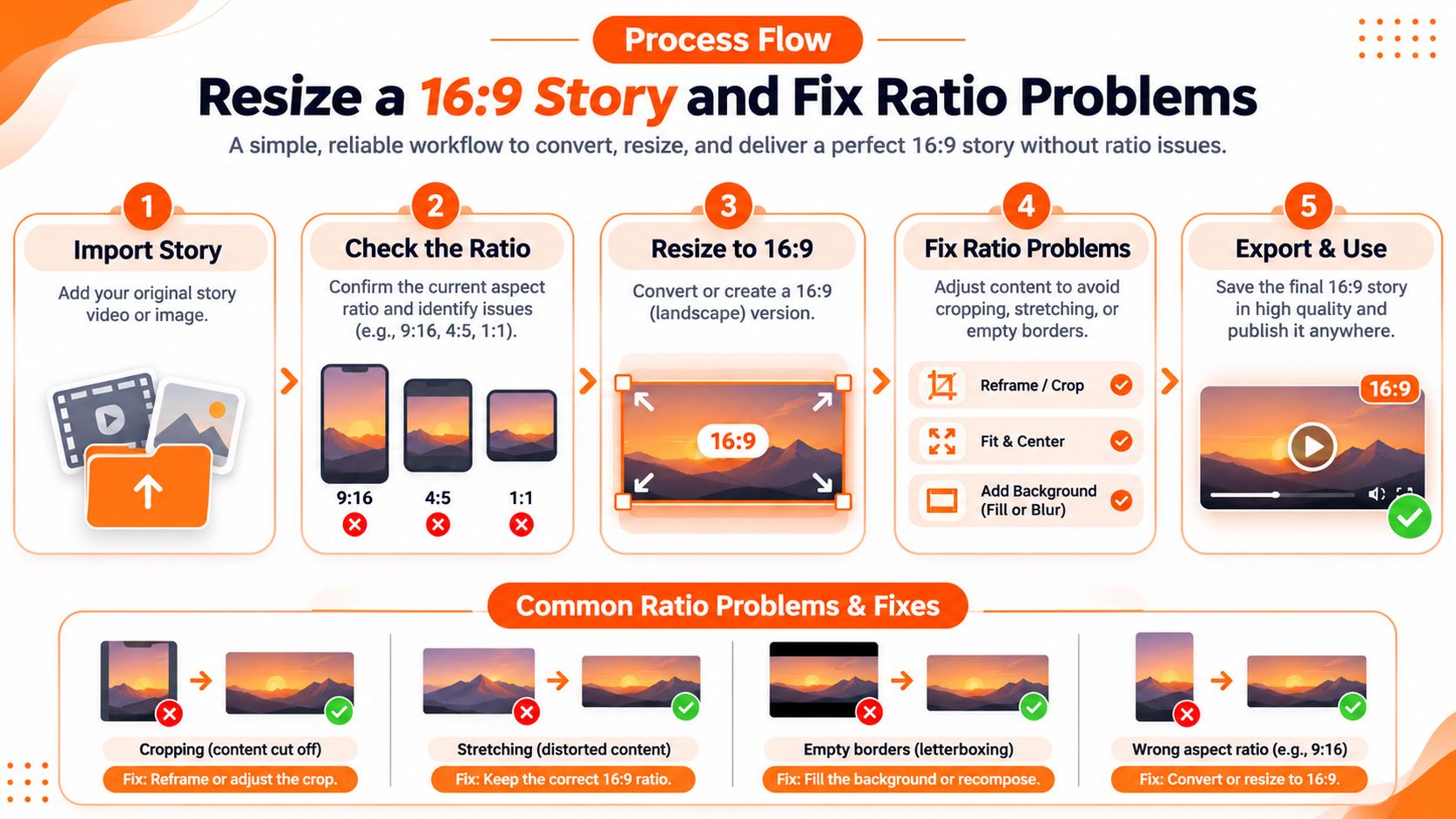
Rebuilding a shot takes more work than dragging a crop box, but it protects the meaning of the scene. A vertical cut should feel composed for its frame, not like a horizontal video squeezed into a new shape.
Use the symptom to identify the fix. Some problems come from framing; others require a new export or a revised file.
| Symptom | Likely cause | Fix |
|---|---|---|
| Black bars above and below the video | Horizontal video placed in a vertical frame | Reframe and crop, or regenerate the scene in 9:16 |
| Faces cut off at the edges | Crop applied without checking subject position | Recenter the shot before cropping, or rebuild it if the original framing cannot work |
| Captions hidden by right-side icons | Text placed too close to the interface | Move text left or above the lower band |
| Soft or blurry footage | Export below 1080 × 1920 or bitrate too low | Re-export at 1080 × 1920 with enough bitrate for the placement |
| Upload rejected | File exceeds the applicable size limit or uses an unsupported format | Shorten the cut, lower the bitrate or export MP4 |
Black bars usually signal a framing problem, not a missing export setting. If the scene depends on details spread across the full horizontal frame, a crop cannot keep them all. Rebuild that shot for vertical rather than hiding the bars with a tighter crop that loses important action.
For a cut-off face, return to the uncropped source and recenter the subject. If that leaves another character or detail out of frame, change the shot structure instead. Captions under interface icons need a simpler fix: move the text block left or higher.
Soft footage can come from a canvas smaller than 1080 × 1920 or a bitrate that is too low. Re-export at full size with headroom above 350 kbps, or above 2,500 kbps for TopView. If the file still looks soft, the source scenes may lack detail that export settings cannot restore.
For a rejected upload, check the file size, format and placement limits. Shortening the cut is often a cleaner way to reduce file size than cutting bitrate. If your video uses still frames, learn how to build a video from slides.
<a id="make-your-first-vertical-story-at-the-right-ratio"></a>
Make Your First Vertical Story at the Right Ratio
Three lines, then the reasoning. 9:16 at 1080 × 1920 is the TikTok master. 16:9 is for widescreen platforms. 1:1 exists only for square placements that ask for it. Everything else is a variant on those three.
The case for settling this before you generate anything is simple: the central vertical frame is where your story lives on TikTok, and scenes designed for it need no rescue work later. A character framed for 9:16 keeps their face inside the safe zone, their captions clear of the interface, and their expression readable at a glance. A character framed for 16:9 and cropped afterwards gets whatever survives.
Ratio first, scenes second. Every resize problem in this guide starts with that order reversed.
ClipNova exports MP4 in 9:16, 1:1 and 16:9 for TikTok, Reels, Shorts, YouTube, LinkedIn and X, and auto-resizes every render for all three ratios in one click, so a single story can ship in every format without a second build. Videos run up to 5 minutes at up to 1080p, with consistent characters across scenes.
The honest limit: a resized frame still needs review. Auto-resizing changes the frame, and a face that sat comfortably in the middle of a wide shot may not sit comfortably in a square. Check faces and captions in each new ratio before posting, the same way you'd check a fresh export. If a scene begins as a still image, turning a picture into a moving shot covers how to keep the character consistent through the move.
Make your first video at app.clipnova.io, and select 9:16 when you generate so the central frame is designed for TikTok from the start.
ClipNova AI makes the finished video rather than a pile of clips: script, scenes, voiceover, captions and music in one pass, with saved characters who keep the same face and outfit in every scene, up to 5 minutes at up to 1080p in 9:16, 16:9 or 1:1. You choose the ratio at generation time, which means the story is composed for the frame it publishes in instead of cropped into it afterwards. Visit ClipNova AI to make your first video.
Ready to ship your own?
Start creating viral videos with AI in under twenty minutes, no credit card required.