
A lip sync video is a clip in which a person's or character's mouth movements are timed to a separate audio track, so the speech appears to come from the face on screen.
You've recorded a good line, chosen a face, and pressed play. The mouth moves, but something still feels wrong: a word lands before the lips open, or the character keeps talking through a pause. Making the mouth move is the easy part. Matching the performance, then confirming you have permission to publish it, takes a more deliberate workflow.
Table of Contents
- What a Lip Sync Video Is and Where It Appears
- Manual and AI Lip Sync Methods Side by Side
- The Timing Window That Makes Speech Look Real
- How to Make a Lip Sync Video Step by Step
- Quality Checks for Hard Sounds and Fast Dialogue
- Consent and Rights to Check Before You Publish
- Start Your First Lip Sync Video
<a id="what-a-lip-sync-video-is-and-where-it-appears"></a>
What a Lip Sync Video Is and Where It Appears
A performer follows a familiar song, then the camera catches a line that lands just ahead of the voice. Even a small timing mismatch can make the scene feel artificial. Lip sync videos pair a visible performance with audio so the on-screen person or character appears to speak or sing.
Creators use the format in different ways. A baker might mime to a song, explain a recipe on camera, deliver translated dialogue, or appear as a recurring animated character. Each use has its own production needs, from matching an existing performance to keeping a character consistent across scenes.
<a id="the-formats-creators-actually-make"></a>
The formats creators actually make
- Performance clips: A person performs to a prerecorded song, sound, or dialogue. The performer follows the recording rather than speaking new lines.
- Dialogue dubs: A speaker's words are presented in another language. The new audio can be fitted to the existing performance, or the mouth animation can be adjusted to match it.
- On-screen explainers: A visible presenter delivers information. A talking avatar workflow can suit explainers where the face acts as the host.
- Character-led stories: Characters speak across scenes or episodes. Their faces, costumes, voices, and speaker assignments need to remain consistent alongside the sync.
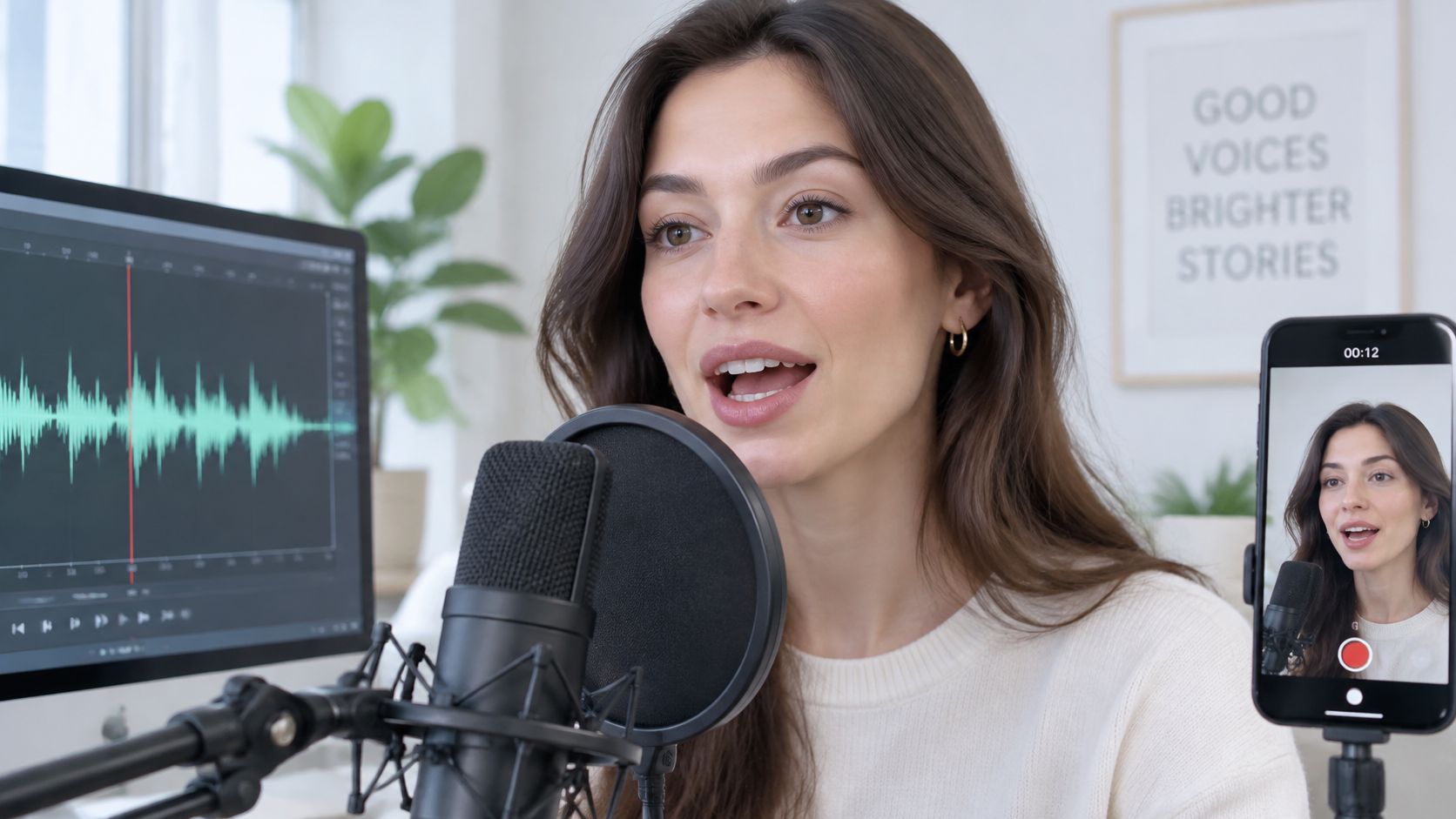
This recording setup shows how a visible performance relates to the audio being prepared.
<a id="from-performance-trend-to-production-technique"></a>
From performance trend to production technique
The lip sync overview identifies Gary Brolsma's 2004 Numa Numa performance as an early viral example and describes Musical.ly's acquisition by ByteDance and merger into TikTok in 2017. It also reports that 28 of 92 dance-challenge videos, about 30.4%, included users lip syncing song lyrics or substantial portions of them. That figure describes a particular sample, not all TikTok content.
The format works because viewers connect a voice track to the person or character they see. A voiceover over scenery has no visible speaker to match; once a face appears to deliver the words, mouth timing becomes part of the performance. And across a full video, a convincing result depends on keeping that timing consistent and having permission to use the face and voice.
Starting requirement: Prepare clear speech and a visible face. Then check that the audio and performance belong together throughout the clip.
<a id="manual-and-ai-lip-sync-methods-side-by-side"></a>
Manual and AI Lip Sync Methods Side by Side
| Method | How the mouth matches the audio | Skill and effort | Best for | Main limit |
|---|---|---|---|---|
| Manual dubbing with re-recorded lines | Actor or editor fits new lines to existing mouth movements | High skill, studio time | Feature films with fixed dialogue | Costly to redo for every language |
| Hand-keyed mouth shapes in an editor | Animator sets mouth frames by hand | High skill, slow per shot | A hero shot needing exact control | Time grows with every shot |
| AI lip sync on existing footage | Model alters mouth motion to match new audio | Low skill, quick to run | Re-voicing or translating existing clips | Needs a visible face and clear audio |
| Clip generator with added speech | Shot is generated first, then voice is added | Low skill, one shot at a time | Single cinematic shots | The shot still needs story assembly |
| Avatar presenter tool | Fixed presenter reads your script | Low skill, template-based | Explainers with a host | Presenter-focused rather than story-scene-focused |
| Story generator with saved characters | Saved character speaks each scene's lines with lip sync | Low skill, script to finished video | Recurring-character series across episodes | Difficult angles and speech speed can require scene regeneration |
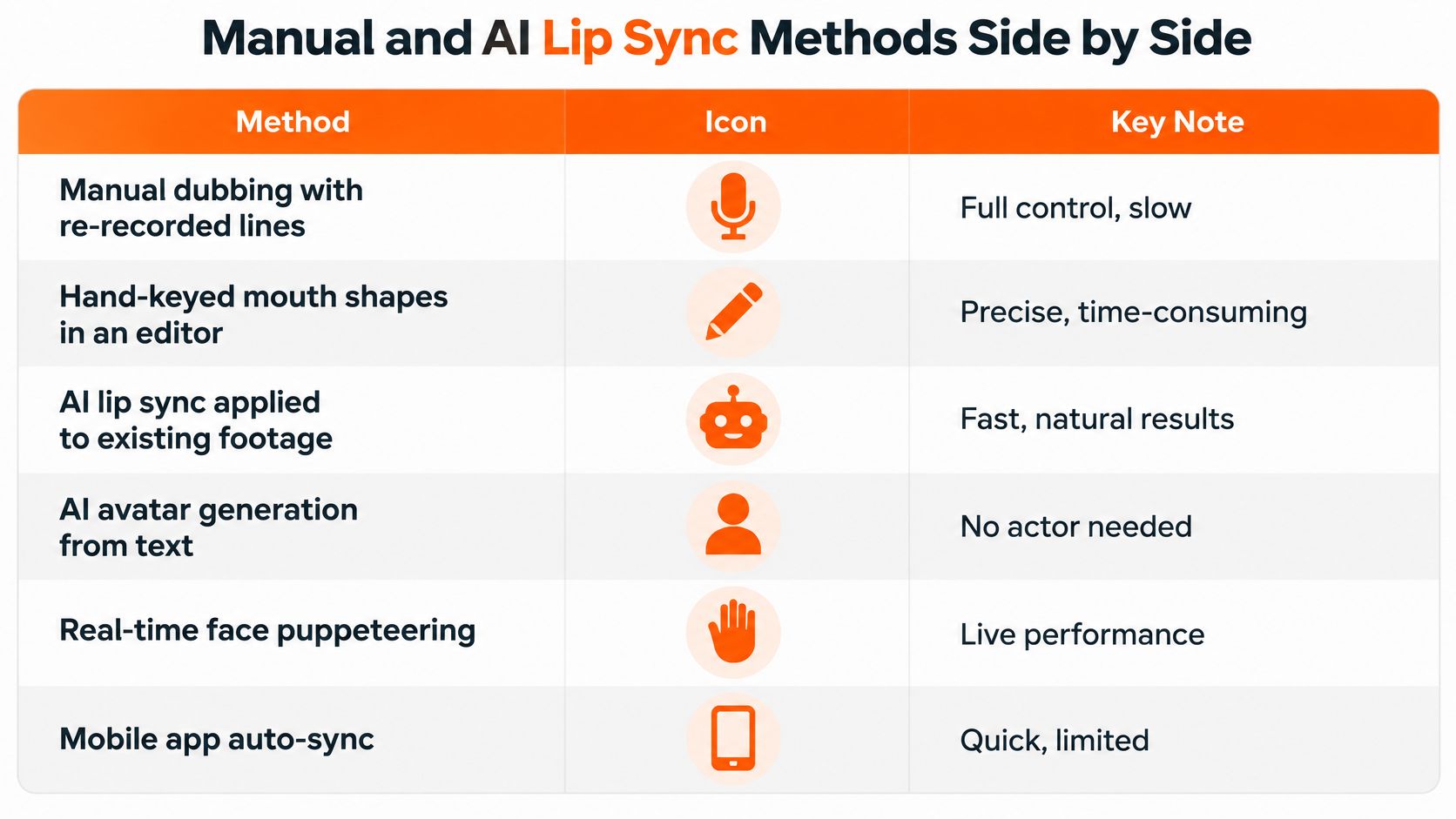
Lip sync methods compared by effort, use, and limits: the main decision is whether you need control over an individual performance or a repeatable workflow across many scenes.
With manual dubbing, you change the delivery to fit the picture. With hand animation, you change the picture yourself. AI methods automate more of that alignment, but automation doesn't remove the need to inspect the result.
The visual comparison also includes live puppeteering and mobile auto-sync, useful alternatives for performance-led projects.
<a id="choose-by-the-work-you-need-to-finish"></a>
Choose by the work you need to finish
The European Commission's discussion of dubbing describes the shift from fitting translated dialogue to existing mouth movements toward modifying facial movement to match new audio. That distinction matters more than whether a tool calls itself an editor, generator, or translator.
Runway, Kling, Veo, and Hailuo are useful starting points for individual shots. HeyGen and Synthesia focus on presenters. InVideo and Pictory offer stock-footage-based template workflows, while Revid, StoryShort, and Zebracat target faceless shorts. ClipNova makes original story scenes with saved characters that can speak with lip sync, assembling videos up to 5 minutes rather than leaving you with disconnected shots.
For broader workflow comparisons, Best Faceless Video Generator's latest articles offer another place to compare faceless production approaches. Evaluate the actual deliverable, not just a polished talking-face demonstration.
Choose manual work when a hero shot needs exact control. Choose AI-assisted production when you need many scenes, recurring episodes, or several language versions.
Neither choice guarantees a clean result. Profile views, rushed speech, and noisy recordings can produce weak AI output, while manual work can still drift if the editor checks only the beginning of a line.
<a id="the-timing-window-that-makes-speech-look-real"></a>
The Timing Window That Makes Speech Look Real
Lip sync is alignment between mouth motion and speech timing, not a voice laid over a face. Viewers notice the relationship between preparation, sound, and release, particularly in close-ups.
The audio-visual synchronization paper reports that viewers can detect mismatches at offsets of roughly +45 to -125 milliseconds; it also describes SyncNet evaluating 25-frame-per-second video and 16-kilohertz audio with 40-millisecond offset resolution. At that frame rate, a video frame lasts 40 milliseconds, and most GRID-4S and TCD-TIMIT-LS samples centered near zero offset, while some differed by approximately a frame.
Those are small intervals in an editing timeline. They're large enough to make a close-up feel detached from its voice.
<a id="natural-anticipation-isnt-accidental-delay"></a>
Natural anticipation isn't accidental delay
A Tilburg University AI lip-sync project notes that visual information in natural speech is generally perceived 100 to 400 milliseconds before the speech sound. That observation concerns natural audiovisual speech, not permission to shift an entire voice track out of alignment.
The distinction is important. Mouth preparation can precede a sound, while the recognizable articulation still needs to belong to the correct syllable. Don't apply a blanket audio delay because natural speech includes visual anticipation.
A believable mouth prepares for speech. It doesn't merely react after the sound has already happened.
<a id="what-that-looks-like-on-screen"></a>
What that looks like on screen
Watch a close-up of someone saying pop. The lips close before the initial release, open, and return toward closure for the ending. If the jaw opens throughout the word, the animation can look lively without matching the articulation.
Now consider laughter. A smile, breath, or facial preparation may appear before you hear the laugh. But repeated laughing mouth movements during silent audio will look disconnected.
Use timing measurements as diagnostic boundaries, not a universal pass certificate. Offset conventions and test conditions matter, and natural preparation isn't the same as a technical synchronization error. A scene passes when complete phrases sound and look like a single performance, including the silence around them.
<a id="how-to-make-a-lip-sync-video-step-by-step"></a>
How to Make a Lip Sync Video Step by Step
Prepare the dialogue before you spend time polishing the picture. Replacing an approved voice track late in production can change pauses, emphasis, and the mouth animation attached to them.
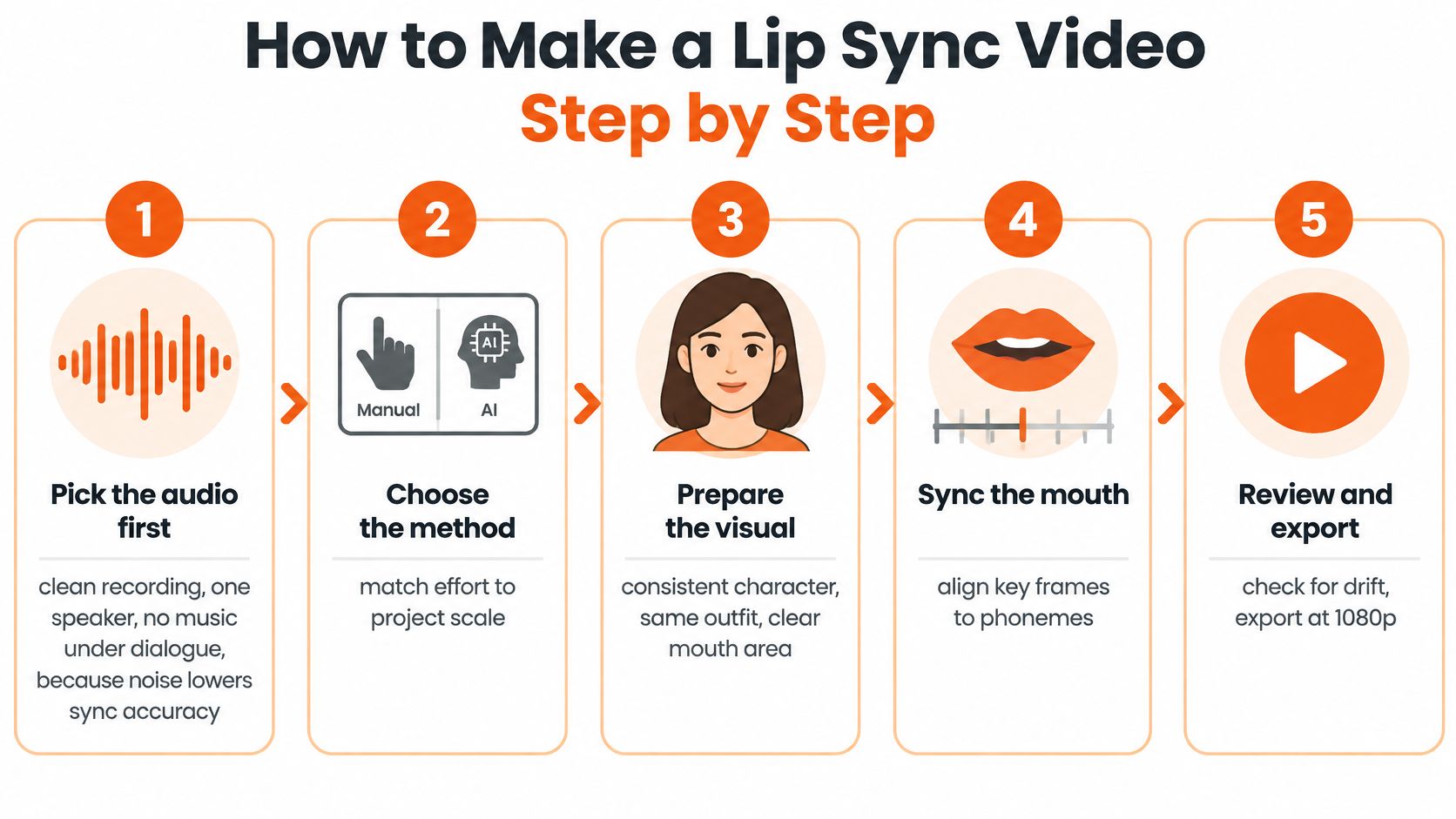
This process graphic gives the broad production sequence, from audio preparation to review.
<a id="prepare-the-performance"></a>
Prepare the performance
-
Pick the audio first. Use a clean recording with an isolated speaker and no background music baked into the dialogue file. Remove distracting noise without cutting off breaths or word endings, and compare AI voiceover tools by pronunciation and delivery rather than voice labels alone.
-
Choose a suitable face. Start with a frontal or three-quarter view where the mouth is unobstructed. Hands, microphones, hair, and props crossing the lips make both generation and inspection harder.
-
Set the framing. Keep the character reference, camera distance, and proportions fixed while you establish the speaking performance. If you change the framing during a repair, you won't know whether the improvement came from better synchronization or a less revealing angle.
-
Shape the script for speech. Break run-on sentences at natural thought boundaries. Read each line aloud, replacing wording that forces rushed delivery or an awkward breath.
Don't flatten every line into the same rhythm. A frightened character may hesitate, while an enthusiastic teacher may stress a particular word. Preserve those choices in the approved recording rather than expecting mouth animation to invent them.
<a id="generate-repair-and-deliver"></a>
Generate, repair, and deliver
-
Apply the chosen method to each scene. Attach the correct dialogue to the correct character, or key mouth shapes manually when a shot needs precise animation. Keep narration separate from on-screen dialogue so a listening character doesn't accidentally speak the narrator's words.
-
Review before approving. Watch the entire phrase, including the entrance and exit of speech. Pay attention to pauses and transitions, not just the most animated word.
-
Repair only the weak scenes. If the audio is approved, keep it unchanged while regenerating the visual layer. Save the previous version so you can compare the repair against a known reference.
-
Export for the destination. Use 9:16 for a vertical TikTok or Shorts delivery, 16:9 for a widescreen YouTube video, or 1:1 for a square feed version. Recheck the crop so neither captions nor the speaking mouth is obscured.
For a practical video reference, use this demonstration alongside your own timeline.
<iframe width="100%" style="aspect-ratio: 16 / 9;" src="https://www.youtube.com/embed/7tEW10Y4coU" frameborder="0" allow="autoplay; encrypted-media" allowfullscreen></iframe>Keep a finished file, source audio, and settings record together. Include the character reference, voice assignment, approved script, and scene versions so a later correction doesn't become a reconstruction job.
<a id="quality-checks-for-hard-sounds-and-fast-dialogue"></a>
Quality Checks for Hard Sounds and Fast Dialogue
A convincing opening sentence doesn't prove that the rest of a story is synchronized. Errors can appear after a head turn, during an emotional line, or when another character starts speaking.
The ReSyncED study used 14 human evaluators to assess synchronization accuracy, visual quality, overall experience, and preference, and found that a larger temporal analysis window improved discrimination between correctly and incorrectly synchronized clips. The practical implication is straightforward: judge complete phrases, not isolated frames.
<a id="scenes-to-check-and-how-to-fix-them"></a>
Scenes to check and how to fix them
| Sound or scene | What to check | Fix if it fails |
|---|---|---|
| Plosives /p/, /b/, /m/ | Lips fully close for the relevant articulation | Regenerate that line at the same framing |
| Rounded vowels such as oo and o | Lips prepare the rounded shape for the vowel | Shorten the line or split it at a pause |
| Fast dialogue | Each phrase stays aligned across its full length | Slow the delivery or split the scene |
| Side angles and head turns | Mouth stays visible and timed | Use a three-quarter or front angle for that scene |
| Overlapping speakers and laughter | Mouth motion belongs to the audible speaker or laugh | Cut to the speaker or regenerate with one voice per shot |
| Scene cuts | Mouth timing restarts cleanly after each cut | Check the first two seconds of each shot |
Treat the opening check after a cut as a practical review routine, not a scientific acceptance threshold. Watch the rest of the shot too, especially if delivery accelerates.
Also distinguish genuine overlap from an error. Both characters may move their mouths if both are audibly speaking. The problem is an unrelated character articulating dialogue that belongs to someone else.
<a id="use-separate-viewing-passes"></a>
Use separate viewing passes
Watch without sound first. You can inspect mouth continuity, strange teeth, frozen expressions, and movement during pauses. You can't verify audio alignment in silence, so don't mistake this for the final sync test.
Then listen without looking. Catch clipped words, pronunciation errors, unnatural breaths, and unwanted voice changes before you blame the picture.
Finally, play picture and sound together at normal phone size for every speaking character. Check the actual export with captions enabled, and use a subtitle preparation workflow that keeps text readable without covering the mouth.
Repair rule: If the voice is correct, fix the picture without replacing the voice.
Keep identity review separate from sync review. The NeRF-LipSync benchmark paper evaluates audiovisual correspondence alongside image similarity and facial geometry, reflecting distinct failure modes. Sharp frames alone don't prove correct articulation or a stable character.
Finish with a scene list marked pass or regenerate, with a specific reason beside every failure.
<a id="consent-and-rights-to-check-before-you-publish"></a>
Consent and Rights to Check Before You Publish
A convincing mouth isn't the main publishing risk. The harder question is whether you can prove permission for that face and voice to deliver those exact words.
The AI dubbing safety guide distinguishes authorized alteration from misuse through consent and recommends retaining permission, source materials, and approvals. A general agreement to appear on camera shouldn't be treated as blanket permission for any synthetic performance.
<a id="match-permission-to-the-source"></a>
Match permission to the source
- Fictional characters: Use original or properly licensed designs and voices. A fictional face doesn't authorize copying a recognizable performer's voice.
- Your own footage: Confirm that you control the recording and any third-party elements, not just your appearance.
- Hired talent: Put synthetic speech, dubbing, and later revisions into the agreement rather than assuming the original booking covers them.
- Public figures: Public visibility isn't permission to fabricate an endorsement or statement.
- Licensed performances: Check whether the license permits altered dialogue, translated versions, and your intended distribution.
Permission should identify the face, voice, languages, distribution scope, duration, and script-change rights. Keep signed permission, source files, and scene approval notes together.
Label materially altered or synthetic speech, and inspect the destination platform's rules for politics, health, finance, and testimonials. Never present a real person as approving words they haven't authorized.
<a id="commercial-use-isnt-the-same-as-copyright-protection"></a>
Commercial use isn't the same as copyright protection
The U.S. Copyright Office's registration guidance requires human authorship and distinguishes potentially protectable human selection, arrangement, and modification from material generated autonomously by AI. Your original script, expressive scene choices, and edits may matter independently from generated mouth motion; character direction alone doesn't guarantee protection.
A provider's commercial-use permission doesn't change that authorship requirement. Don't promise exclusive copyright protection for an entire automatically generated video.
Preserve prompts, scripts, project settings, edit histories, and final assembly records. Those records help identify your creative contribution, but they aren't a guarantee of registration or ownership.
This is general information, not legal advice. For a disputed likeness, sensitive endorsement, or valuable licensing agreement, obtain qualified legal advice before publication.
<a id="start-your-first-lip-sync-video"></a>
Start Your First Lip Sync Video
Choose a manageable first project: a performance clip, an on-screen explanation, a translated scene, or a short character exchange. Write down what the viewer should hear and which visible face should deliver it.
<a id="make-the-production-decisions-in-order"></a>
Make the production decisions in order
- Select the method: Match the workflow to your shots, scene count, and language versions. Don't build a series around a process you can only sustain for a single polished close-up.
- Approve the performance: Lock the audio and framing, then judge articulation and natural preparation rather than imposing a blanket timing shift.
- Clear publication: Mark every scene as approved and keep the relevant permissions beside the project files.
For recurring-character stories, we make finished videos up to 5 minutes at up to 1080p, with script, scenes, voiceover, captions, and background music in one pass. Saved characters retain the same face and outfit across scenes; Series keeps a cast of up to 8 characters across episodes with story memory.
You can choose a narrator or talking characters speaking on screen in their own voices. Talking-character lip sync works with AI Video on Base at 768p or Pro at 1080p; Moving AI Images uses a narrator instead.
Narration is available in 18 languages, with 9:16, 16:9, or 1:1 output. Plans start at $19 per month with commercial rights.
Lip sync still depends on clear speech and a visible face. Keep scene review in the workflow, even when the rest of production is automated.
ClipNova AI makes finished stories with consistent characters, spoken dialogue, captions, and music, so you can review a complete video rather than assemble disconnected shots. Visit ClipNova AI to choose your story format, then make your first video and check each speaking scene before posting.
Ready to ship your own?
Start creating viral videos with AI in under twenty minutes, no credit card required.