
You've found a backing track that feels made for a vocal, and you can already hear how the two might fit. But you don't want to pay for a studio setup just to test the idea, and you're not sure whether you can upload the finished mashup without getting it taken down. Those are two separate problems: making the edit and having the right to share it.
You can handle the production side with free software and a careful workflow. The rights side depends on the recordings and compositions you use, not on the price of your editing tools. A strong mashup starts with both questions in mind.
Table of Contents
- Why Free Mashups Are Worth Making
- Setting Up Your Free Editing Workflow
- Making Your Mashup Sound Musical
- Understanding the Licensing Reality
- Exporting for Social Video Platforms
- Final Checklist Before You Publish
- Frequently Asked Questions About Free Mashups
<a id="why-free-mashups-are-worth-making"></a>
Why Free Mashups Are Worth Making
A mashup doesn't require a commercial studio or expensive software. Free audio editors let you import recordings, cut sections, align tracks, stretch tempo, shift pitch, and mix multiple tracks on an ordinary computer. Audacity is a familiar example: it began as CMU Visual Audio at Carnegie Mellon University and released its first public version as Audacity in 2000. It's free, open-source software for Windows, macOS, Linux, and other Unix-like systems, distributed under the GPL-2.0-or-later license (Audacity project history and details)).
That accessibility matters. A free editor gives you room to test whether a vocal and backing track work together before you invest in anything. You can move a chorus, try a different entrance, or abandon an idea without paying for a commercial digital audio workstation. The software still takes practice, but the core editing isn't locked behind a purchase.
The creative challenge is real, though. Two songs can share a tempo and still clash because their grooves, phrasing, or melodies pull in different directions. A technically aligned mashup can feel awkward if the vocal enters in the wrong place or the backing track leaves no room for the singer. Free tools remove a cost barrier; they don't make those decisions for you.
<a id="editing-is-only-half-the-job"></a>
Editing is only half the job
The other challenge appears when you want to share the result. Free software doesn't grant permission to reuse copyrighted recordings or compositions. A mashup can involve rights in both the recorded performance and the underlying musical work, so a no-cost edit may still need clearance before public release.
That's why a reliable workflow begins with source selection, not just importing files. Use recordings you made yourself, material in the public domain, or tracks whose licenses explicitly allow the kind of remix and distribution you have in mind. Keep a record of where each file came from and what its license permits.
Audacity's reach shows that free audio editing isn't a niche experiment: its project archive reported more than 100 million FossHub downloads by October 2020, alongside more than 120 million downloads previously served through Google Code and SourceForge. Those are download counts, not unique users, but they illustrate how widely accessible editing tools have become. The practical takeaway is straightforward: you can make a capable mashup at no software cost, but the rights to publish it are a separate decision.
<a id="setting-up-your-free-editing-workflow"></a>
Setting Up Your Free Editing Workflow
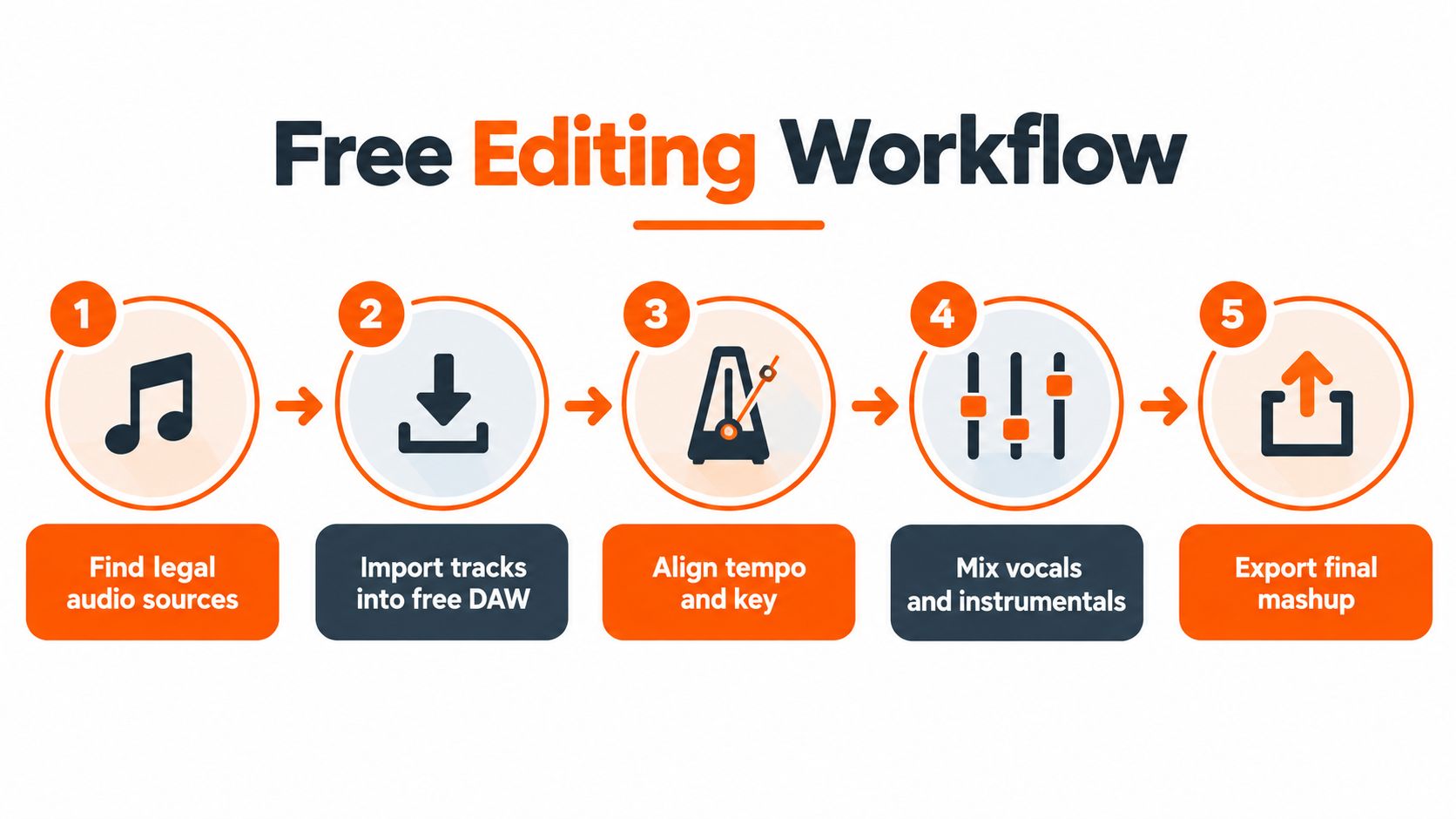
Start with audio you're allowed to use. Save the source files and license information together, then open Audacity and put the vocal and backing music on separate tracks. Keeping elements separate makes it easier to adjust timing, volume, and tone without damaging the rest of the arrangement.
<a id="build-the-arrangement-in-passes"></a>
Build the arrangement in passes
First, listen to both recordings and identify their tempo, key, and phrase structure. You don't need to rely on automatic analysis: tap along to the beat, mark the downbeats, and note where each verse or chorus begins. A vocal may be on beat but still sound unnatural if you drop it into the middle of a phrase.
Next, align the downbeats on the timeline. Use time-stretching to bring the vocal or backing track toward a shared tempo while preserving pitch. Make small adjustments and listen again. Large tempo changes can smear transients and make a full mix sound watery; if you have access to isolated stems, stretching a vocal or short phrase is generally cleaner than stretching an entire stereo track.
Only shift pitch when the parts clash harmonically. Transposing can help, but a large change may make a voice sound unnatural. If the tracks still don't sit together after a modest adjustment, try a different section or a different source rather than forcing the pairing.
Now make space in the mix. A high-pass filter can reduce unnecessary low-end rumble in a vocal, while subtractive EQ can ease competition in the low-mid range. Keep changes restrained: the goal is clarity, not a dramatic change in tone.
<a id="shape-the-transitions-and-check-the-export"></a>
Shape the transitions and check the export
Trim at phrase boundaries and create short overlaps that land in time. Audacity supports crossfading overlapping clips, which can smooth a handoff between sections. Its Beat Finder can help locate possible beats, but the manual describes it as a rough detector that may perform poorly on heavily compressed modern pop recordings. Treat its labels as suggestions and verify the beat positions by ear.
For broader advice on pacing and editing decisions, maxijournal.com editing advice can help you think about how audio choices support a finished video. If the mashup will accompany a visual, this guide to an application for making videos with music offers a related perspective on pairing sound and imagery.
Before exporting, listen on headphones and speakers, then check the mix in mono. Confirm that vocal consonants stay clear, the kick and bass don't produce a doubled or flamming hit, and phrase downbeats feel stable. Save a lossless master first, then make a compressed copy if you need one for distribution.
<a id="making-your-mashup-sound-musical"></a>
Making Your Mashup Sound Musical
A mashup can line up neatly and still feel wrong. The difference between a convincing blend and two recordings competing usually comes down to song choice, phrasing, and restraint.
Start by choosing a short section where the vocal and backing have compatible energy. A sparse vocal phrase may work over a busy backing track, while a dense vocal line can become hard to understand over a crowded chorus. Compare the melodic feel as well as the key; matching labels alone won't tell you whether the phrases truly complement each other.
Groove matters just as much. Two parts can share a beat grid but emphasize different accents, making the rhythm feel lopsided. Listen to the drums in isolation if you can. If the kick patterns fight, use a section with simpler percussion or reduce one layer instead of trying to fix the conflict with more processing.
<a id="make-room-without-stripping-the-character"></a>
Make room without stripping the character
A vocal often needs less low-frequency energy than the backing track beneath it. Use a high-pass filter gently, then listen for competing low-mid sounds that mask the words. Subtractive EQ is usually more natural than boosting the vocal until it overwhelms the backing.
Keep transitions tied to musical phrases. Let a section finish its thought before bringing in the next element, and use an overlap that follows the tempo. A transition can be perfectly synchronized and still feel dull if it cuts across a lyric, a drum fill, or the moment the arrangement should open up.
Listening test: If you can't understand the lyric at a comfortable volume, turn down or simplify the backing before you reach for more vocal gain.
Stem separation, including AI-based separation, can make experimentation faster when you don't have an official vocal or backing track. It can also leave behind faint background bleed, rough edges, or watery artifacts. Listen to isolated stems on headphones, especially around exposed vocal phrases, and don't assume an artifact will disappear in the finished mix.
Here's a useful check before settling on a version: compare the vocal alone, the backing alone, and the combined mix. If each part sounds acceptable in isolation but the blend feels crowded, adjust arrangement and levels before adding effects. A simple, well-chosen phrase often beats a more elaborate edit built from imperfect stems.
For an audio workflow demonstration, you can also watch the video below.
<iframe width="100%" style="aspect-ratio: 16 / 9;" src="https://www.youtube.com/embed/JYRdjR6At1Y" frameborder="0" allow="autoplay; encrypted-media" allowfullscreen></iframe><a id="understanding-the-licensing-reality"></a>
Understanding the Licensing Reality
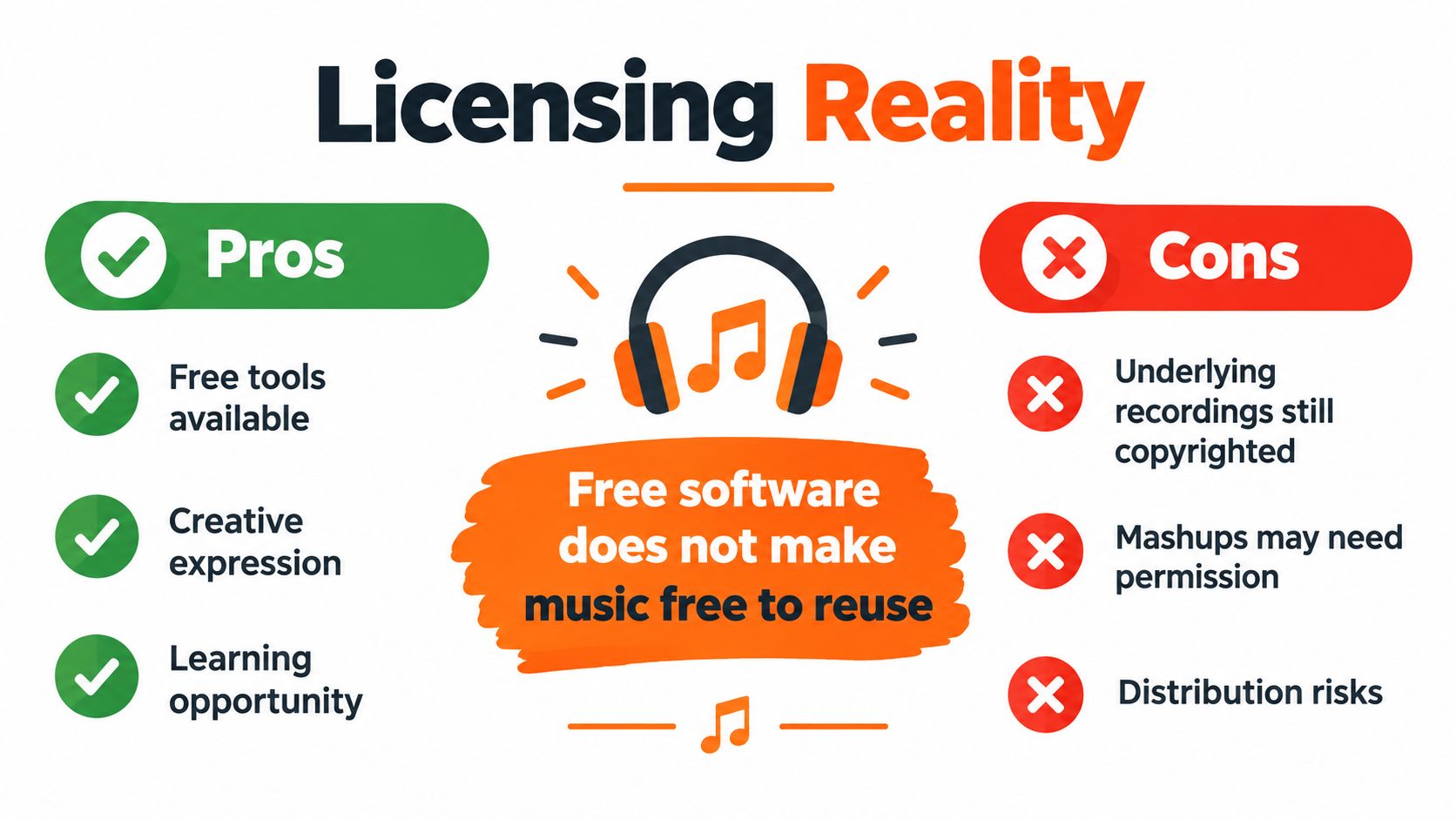
The editing software can be free while the music remains protected. Mashups commonly draw on a sound recording and an underlying musical composition, and those rights may belong to different people or organizations. Getting permission for one doesn't necessarily clear the other.
The distribution risk isn't abstract. In a peer-reviewed study of mashup producers, 96% said platforms had detected copyrighted material in their mashups, 82% had experienced a mashup removal, and 53% had experienced permanent account deletion as a direct consequence of uploading mashups (peer-reviewed research on mashup production and platform moderation). The study also found that 81% said content moderation affected their distribution choices somewhat or to a great extent. Detection and enforcement vary by platform, but a successful upload doesn't establish that you have permission.
<a id="choose-a-publishing-path-before-you-edit"></a>
Choose a publishing path before you edit
There are three practical paths, and they carry different risks:
- Private experimentation: You can use copyrighted songs to practice privately, but don't treat a private edit as cleared for public upload.
- Public sharing: Use platform-cleared material or recordings with licenses that permit remixing and public distribution. Check whether the license allows derivatives, and follow any conditions it sets.
- Commercial use: Use your own recordings, public-domain material, or explicitly cleared recordings and compositions. Confirm that the permissions cover the intended commercial context.
Attribution is not a substitute for permission. Nor does a public-domain composition automatically make a modern recording of it public domain. A license may allow listening or personal use while forbidding remixes, commercial use, or redistribution, so read its terms rather than relying on the word “free.” The Online College of Art & Design's copyright guide for artists provides useful general context for creators learning to handle copyrighted work.
For U.S. releases, don't assume that a short excerpt is automatically fair use. The U.S. Copyright Office explains that fair use is assessed case by case, considering factors including purpose, the nature of the copyrighted work, the amount used, and market effect. It doesn't set a fixed number of notes, seconds, or percentage that guarantees an exception (U.S. Copyright Office guidance on sampling and preexisting music). Laws and procedures differ across countries, so check the rules that apply where you plan to publish.
<a id="exporting-for-social-video-platforms"></a>
Exporting for Social Video Platforms
A mix that sounds balanced in your editor can feel harsh, quiet, or distorted after a platform processes it. Before exporting, measure the complete mashup with an ITU-R BS.1770-compatible loudness meter and listen to both the processed version and your original master.
Spotify publishes a recommendation of approximately -14 dB integrated LUFS and a maximum true peak below -1 dBTP for mastering, while noting that louder masters may be turned down during normalization (Spotify's loudness normalization guidance). These are useful reference points, not a promise that every social platform uses the same target. A dense mashup can appear louder after limiting while losing punch, so compare the versions at matched listening levels rather than choosing the one that seems louder.
<a id="keep-a-master-and-make-distribution-copies"></a>
Keep a master and make distribution copies
Export a lossless 24-bit WAV for your archive. Then create an AAC or MP3 copy if the destination requires a compressed file. Listen to that copy all the way through and check for codec distortion or inter-sample clipping, especially around strong kick hits and bright vocal consonants.
| Setting | Recommended Value |
|---|---|
| Loudness reference | Approximately -14 dB integrated LUFS |
| Maximum true peak | Below -1 dBTP |
| Archive format | 24-bit WAV |
| Distribution copy | AAC or MP3, after checking the compressed file |
| Final review | Listen to the full export and compare normalized and unnormalized versions |
The loudness targets above are Spotify's published mastering recommendations, not a universal social-video specification. For visual delivery, also check the destination's current frame and layout requirements. Scheduler.social's 2026 Instagram video size specs can help you verify video dimensions before you prepare a final post. If you're planning the visual concept as well as the sound, these music video ideas can help you think through how to present the finished mix.
Loudness processing changes how a file plays back. It doesn't change whether you have the rights to use the music. Keep the licensing decision separate from the export decision.
<a id="final-checklist-before-you-publish"></a>
Final Checklist Before You Publish
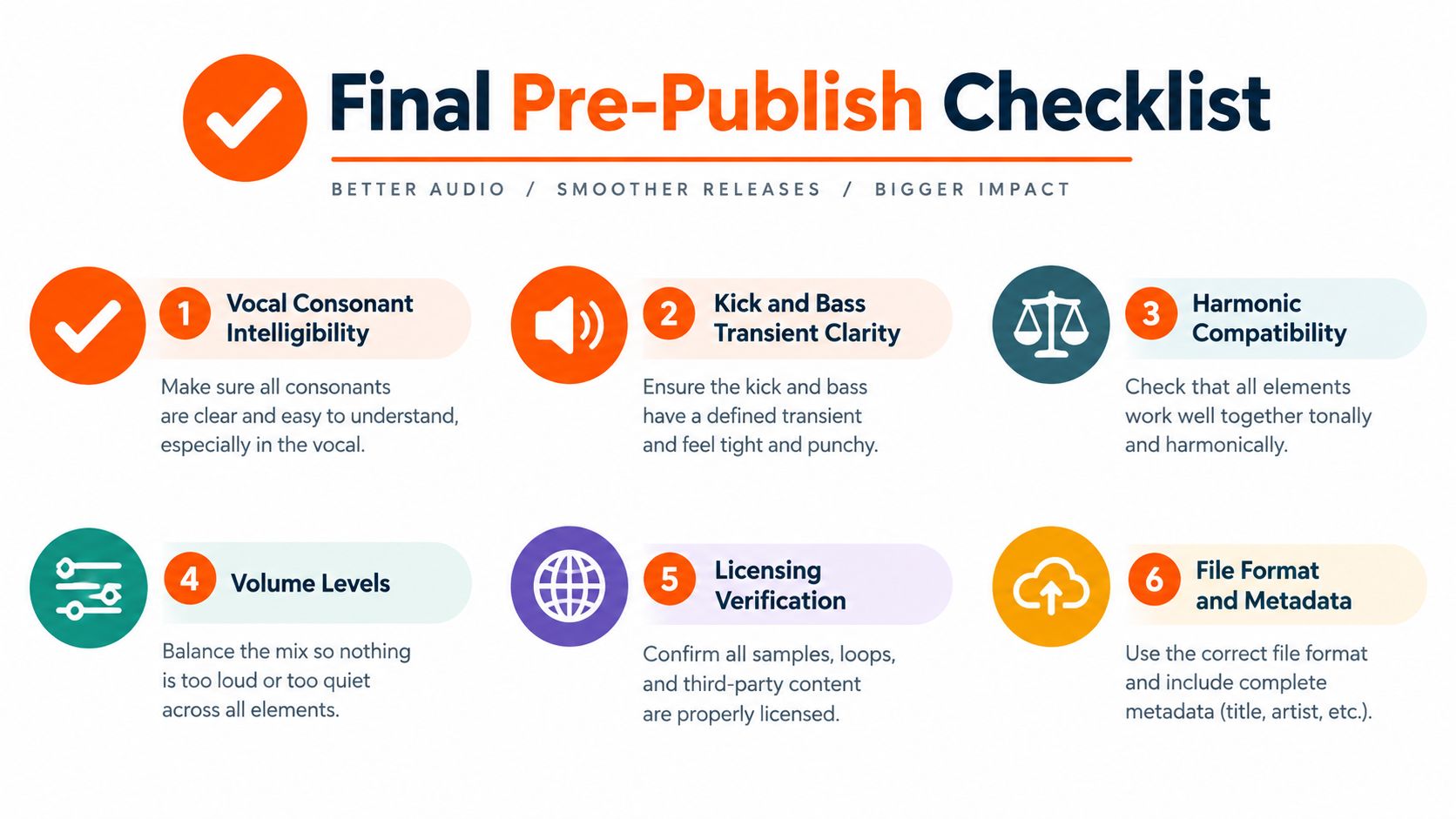
A finished mashup needs to pass two tests: it should sound intentional, and you should be able to explain why you're allowed to publish it. Run through this checklist before uploading:
- Vocal clarity: Listen for consonants that disappear under the backing track. Reduce competing layers before raising vocal gain.
- Rhythm and phase: Check that kick and bass transients don't sound doubled, and that phrase downbeats remain coherent.
- Musical fit: Make sure the vocal phrasing and rhythmic groove feel natural together, not just aligned on the grid.
- Mix balance: Compare the full export on headphones and speakers. Listen in mono for elements that weaken or disappear.
- License verification: Save the source and license records, then confirm that each license permits derivatives and the type of distribution you intend.
- File and platform review: Check the exported file, metadata, and destination requirements. Treat monetization and Content ID exposure as separate questions from audio quality.
Free tools can carry hidden costs in time. A stem tool may restrict exports or produce artifacts that take longer to repair than a manual edit; a straightforward arrangement with clean source material may be the more efficient choice. Keep your project files and source details organized so you can revise the mix or respond to a rights question without rebuilding it from scratch.
If the mashup is part of a video, remember that audio approval and video publishing are separate workflow tasks. This guide to uploading a PowerPoint to YouTube covers a different kind of upload, but it's a useful reminder to check the destination and presentation details before publishing. For any release, decide separately whether you have permission to post, monetize, and accept the platform's content-matching process.
<a id="frequently-asked-questions-about-free-mashups"></a>
Frequently Asked Questions About Free Mashups
<a id="is-ai-stem-separation-good-enough"></a>
Is AI stem separation good enough?
It can speed up early experiments, but separated vocals and instruments may contain bleed or artifacts. Listen on headphones and check the result again after loudness processing, when flaws can become more noticeable.
<a id="does-using-a-short-excerpt-make-a-mashup-safe"></a>
Does using a short excerpt make a mashup safe?
No fixed number of notes, seconds, or percentage automatically qualifies as fair use under U.S. law. The U.S. Copyright Office says fair use depends on the circumstances of each case, including the purpose and market effect of the use, as covered above.
<a id="can-free-software-make-a-broadcast-quality-mashup"></a>
Can free software make a broadcast-quality mashup?
Free software such as Audacity can produce clean results when you use suitable recordings, make careful edits, and check the export. The tool matters less than the source quality and the decisions you make.
<a id="what-if-a-platform-flags-my-upload"></a>
What if a platform flags my upload?
Keep your license records and review the platform's appeal process before responding. Don't dispute a claim unless you have a sound basis for doing so, and remember that an upload being accepted doesn't itself prove you've cleared the rights.
Use ClipNova to turn a music idea into a short-form video with visuals, captions, voiceover, and formats suited to social publishing. Create a video concept around your cleared mashup, then prepare a polished version to share.
Ready to ship your own?
Start creating viral videos with AI in under twenty minutes, no credit card required.