

“Free” is the most popular advice for choosing an AI video generator, and the least useful starting point. A free account might offer recurring credits, a one-time test allowance, a short trial, or access to features that still leave you with a watermark or an unfinished clip. Before signing up, decide what you need to publish: a cinematic scene, a narrated explainer, a social-video draft, or a complete short-form production.
This guide compares ten tools as practical workflows, not just as video models. It covers what you can make, how free access works, and what you'll likely need to do before publishing. A tool that produces an impressive shot isn't automatically the right choice for a finished video with a script, voiceover, captions, music, and export settings.
If you want those steps in one workspace, ClipNova is another option to consider: its studio combines prompt-based video creation with scripting, voiceover, visuals, captions, music, and export. For generation-first tools, the main question is simpler: how much usable work can you complete before you run out of free access?
Table of Contents
- 1. Google Flow
- 2. CapCut
- 3. Adobe Firefly
- 4. Pika
- 5. PixVerse
- 6. Vidu
- 7. Runway
- 8. HeyGen
- 9. VEED
- 10. Canva
- Top 10 Free Text-to-Video AI Tools Compared
- Choose Your First Free AI Video Workflow
<a id="1-google-flow"></a>
1. Google Flow
For cinematic scene-building, start with Google Flow. It turns text prompts and images into video clips, then lets you extend clips and refine scenes. That makes it more useful for developing a sequence than a generator that only returns a single clip and leaves you to start over.
Flow's free access includes 50 daily Flow credits for eligible users, with text-to-video, Veo 3.1, and other creation tools available. That's a recurring allowance, but it isn't a promise of a fixed number of videos: credit costs depend on the model and operation. Check the cost in your account before using credits on a project that needs several takes.
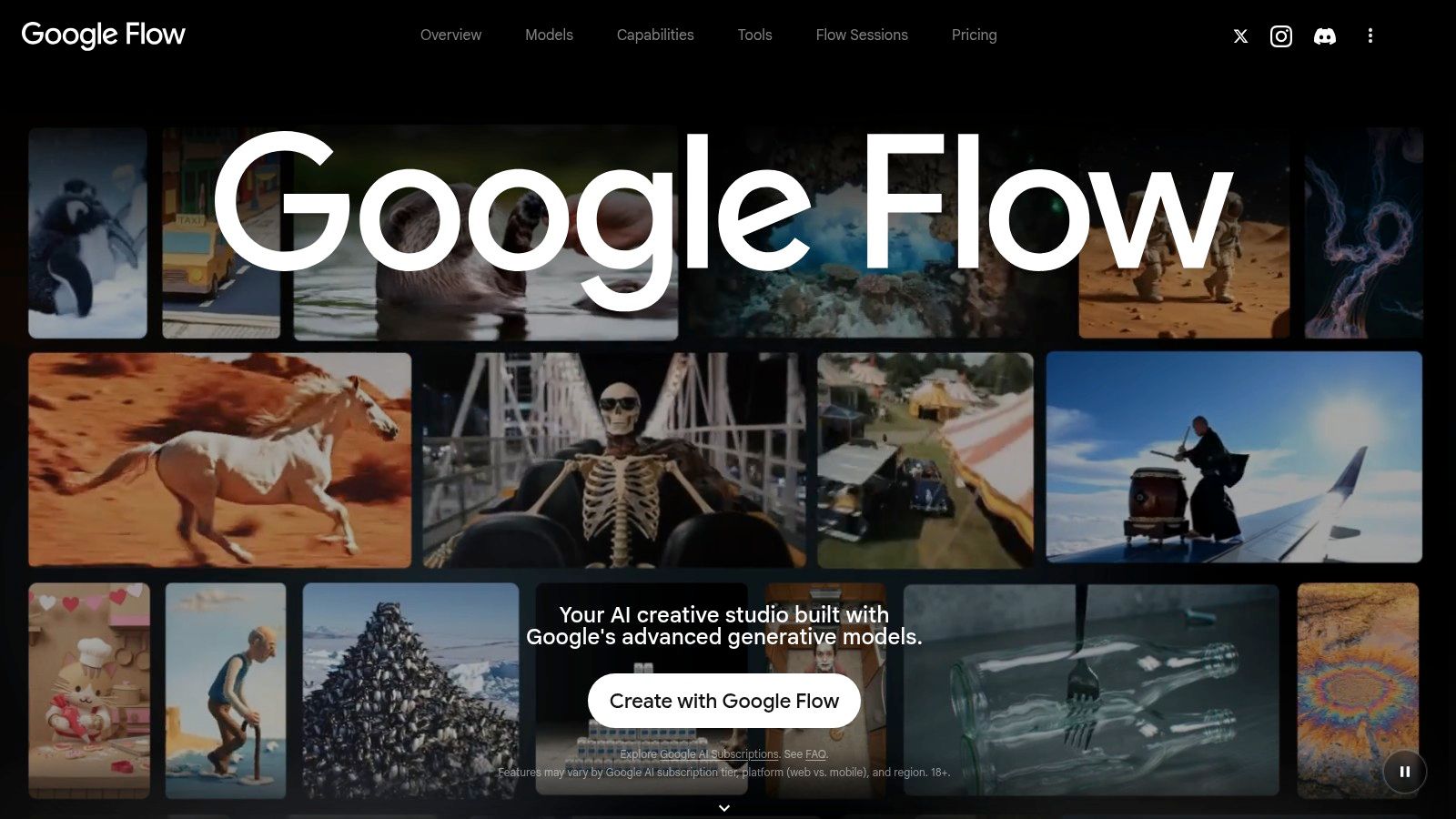
Use Flow for cinematic concepts, visual development, and connected scenes, not as an automatic social-video publishing system. You'll still need to assemble a finished edit and handle elements such as titles, captions, and final formatting. If you're planning a longer visual sequence, this guide to making a movie with AI can help you think beyond a single generated shot.
Best fit: Creators who want recurring access for scene experiments and want tools to refine or extend their clips. Check regional and account availability before building your workflow around it.
<a id="2-capcut"></a>
2. CapCut
Choose CapCut when the edit matters as much as the generated footage. Its prompt- and script-led creation tools sit alongside voiceover, captions, music, transitions, and visual editing, so you can move from a generated idea toward a social-video draft without switching immediately to another app.
That's a practical fit for TikTok, Reels, and Shorts. Instead of treating every generation as a finished video, you can adjust the pacing, add supporting text, and shape the result for a familiar social format. CapCut offers AI video tools for free, but availability and limits can vary by region and platform. Don't assume every AI feature, model, or export option is included or unlimited.

Practical rule: Treat the free tier as a way to test your actual workflow, not a guarantee that every feature will remain free through export.
Before using a finished video for client work or paid promotion, review the applicable terms and confirm what's included in your account. If you're deciding whether the paid version suits a regular editing workflow, you can compare CapCut Pro pricing plans.
Best fit: Social creators who want generation and editing together. Choose another tool if your priority is a standalone cinematic clip or predictable access to every AI feature.
<a id="3-adobe-firefly"></a>
3. Adobe Firefly
Adobe Firefly suits creators who already work in Adobe's creative tools and want to bring generated footage into a broader production process. It supports prompt-based video generation alongside other generative media tools, making it a useful place to explore footage that will later be edited as part of a larger creative project.
The free option includes limited daily video generations, while paid plans add monthly generative credits. Video generation and other premium features use credits, so make a test clip before committing to a larger sequence. The free allowance is best treated as a way to evaluate whether the tool fits your workflow, not as an ongoing production budget.
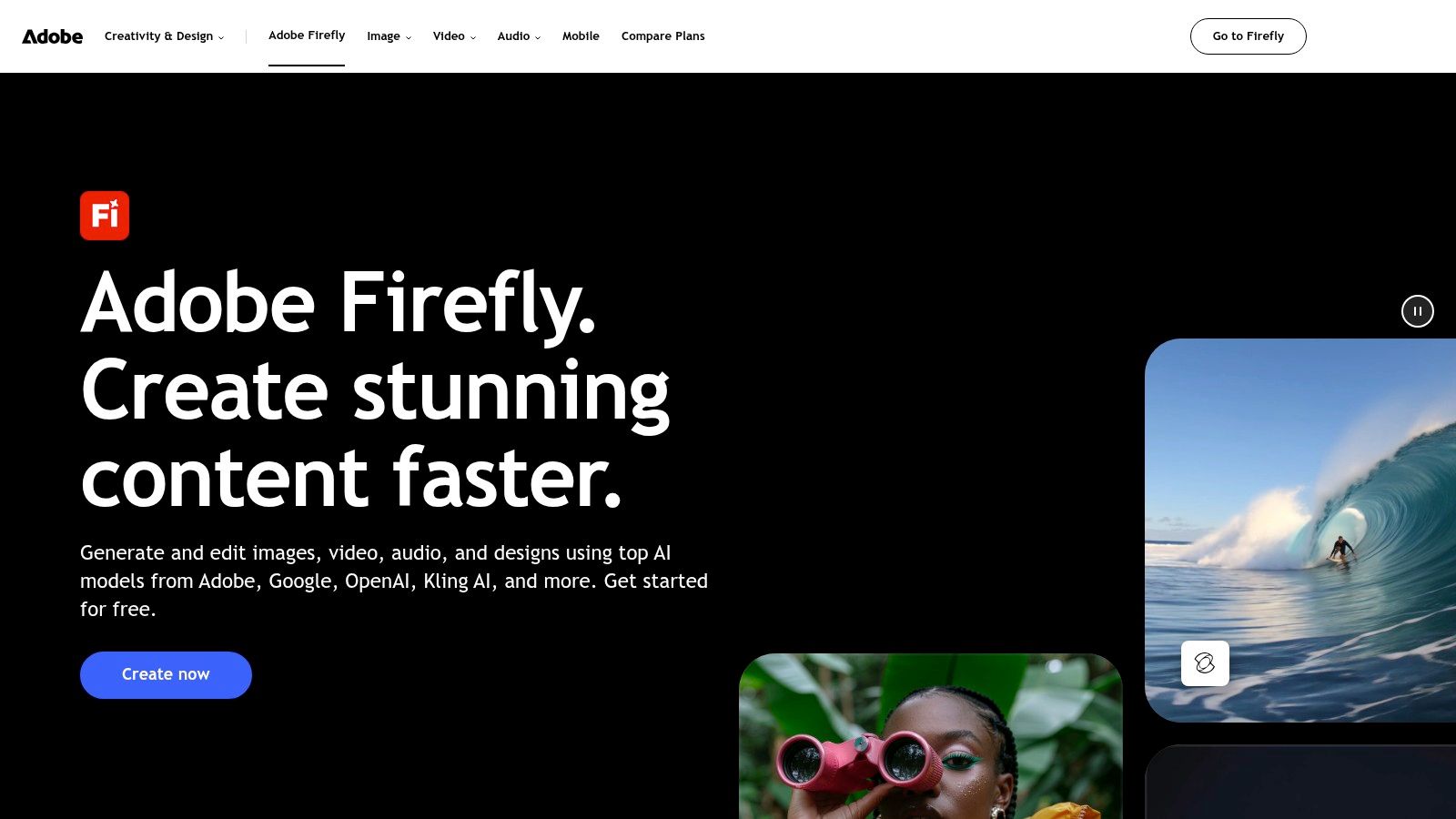
Firefly's main advantage is the path from generated footage into Adobe-centered editing and production. Its trade-off is that a generated clip still isn't a complete social package: you may need to write or refine the script, add narration and captions, and prepare the final export elsewhere. Also check which model you're using. Terms for partner models may differ from those for Firefly models.
Best fit: Adobe users who want to test generated footage inside an existing creative workflow. Look elsewhere if you need a generous, repeatable free allowance or a complete video assembled from a prompt.
<a id="4-pika"></a>
4. Pika
Use Pika for short-form visual experiments, especially when you want to do more than turn a prompt into a straightforward scene. The platform supports text-to-video and image-to-video generation, with effects and scene transformations for trying different visual treatments.
Pika's free-plan details aren't consistent across its official pages: the pricing page lists no monthly credits, while the FAQ describes a Basic free plan with 150 monthly credits. Don't plan a project around either figure until you've checked the allowance shown in your account. Credit use can vary by generation type, so a balance that covers simple tests might not stretch as far when you use different modes.
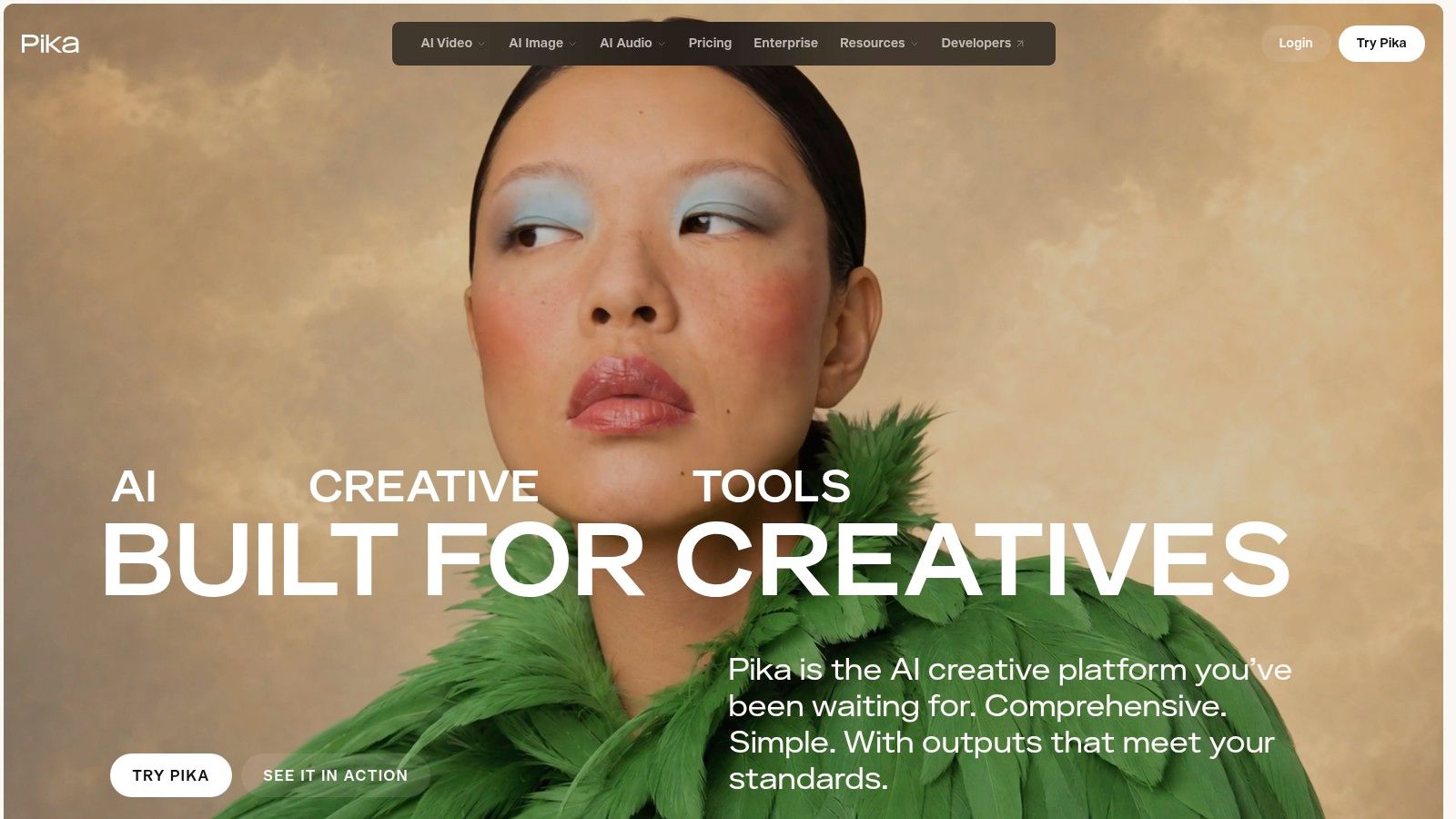
Pika is a better fit for making and comparing short visual ideas than for producing a finished narrated video. If your concept depends on a specific action or look, refine the wording and try the prompt with clear subject and movement instructions. This text-to-video prompt guide offers practical help with writing prompts.
Paid plans list watermark-free exports, and commercial licensing is available on some tiers. Confirm the terms for your account and generation before using a clip in client work.
Best fit: Creators focused on expressive, short clips and effects. Verify current free access before spending time on a project that needs repeatable generations.
<a id="5-pixverse"></a>
5. PixVerse
PixVerse combines text-to-video and image-to-video generation with templates and effects, making it a reasonable starting point for short-form experiments. Its Basic plan lists 60 initial credits and 30 daily credits, so it offers recurring free access rather than only a one-time test balance.
Daily credits come with a practical catch: unused credits expire, and credit costs depend on the model and settings. Check how many credits your chosen generation requires before planning a sequence. A free allowance is more useful when you use it deliberately, for example, to test a specific shot or compare a small number of visual approaches.
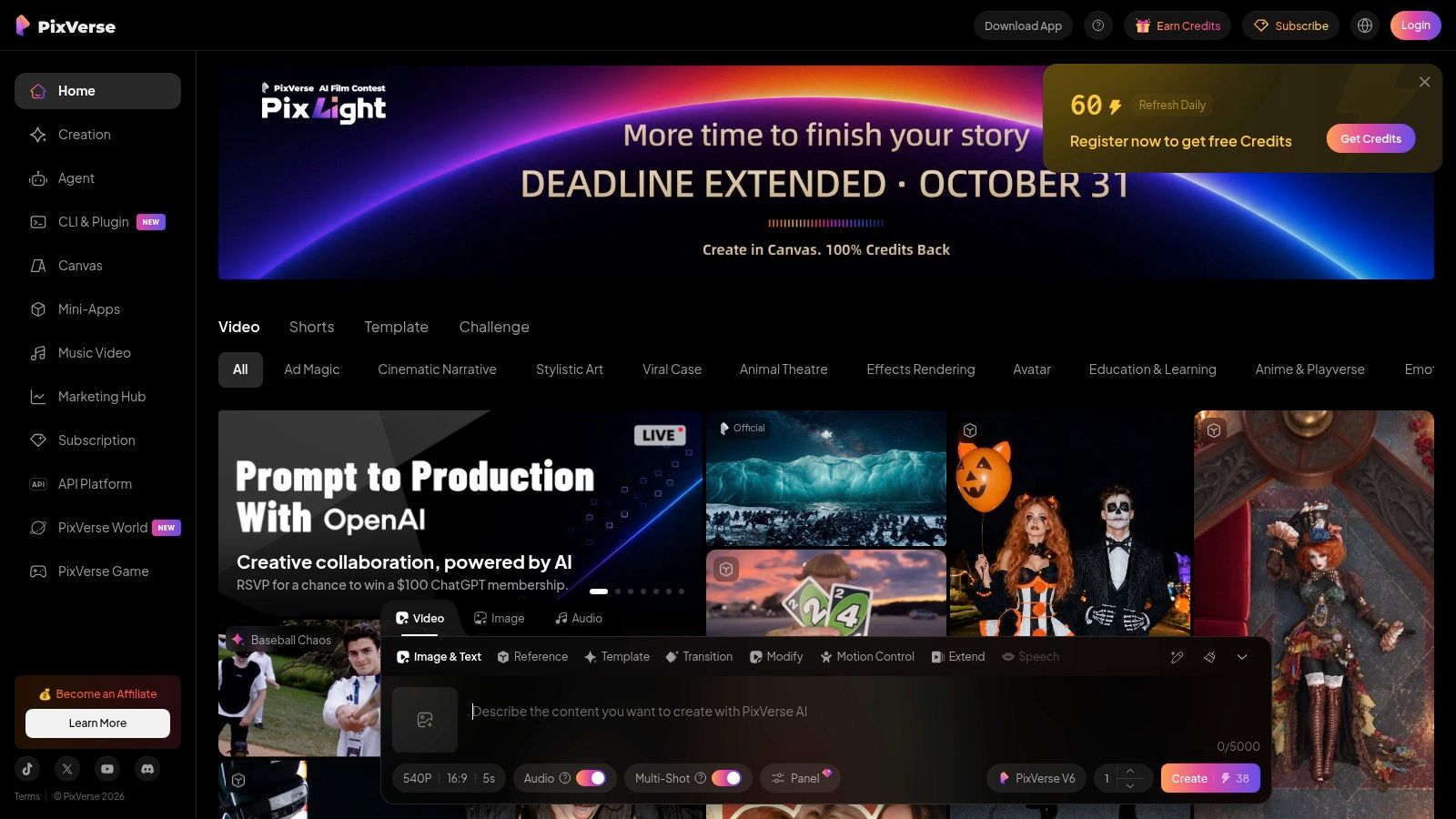
Templates and effects can help you move quickly, but a generated clip may still need narration, editing, and final formatting before it's ready to publish. Paid plans offer higher resolution and more generation capacity, so review the export you need before choosing a plan.
PixVerse makes sense for creators who want to return regularly and try ideas without depending on a single signup balance. It's less suitable when you need the generator itself to deliver a fully narrated, polished social video. For more on choosing a free tool for a practical project, see this guide to free AI video tools.
Best fit: Repeat experimentation on short clips. Spend daily credits on specific tests, not on a vague prompt you haven't refined.
<a id="6-vidu"></a>
6. Vidu
Choose Vidu when you want more control over what the generator starts from. It supports text-to-video, image-to-video, and reference-to-video workflows, giving you options beyond describing a scene from scratch. Reference inputs can help establish a subject or visual direction when a text prompt alone isn't enough.
Vidu also provides settings for duration, movement, and resolution, along with styles and templates. New users can receive free credits, and some offers include daily-login credits, but the available quota depends on the current account offer. Credit costs vary with model, duration, and resolution. Check your balance and generation cost before building a multi-clip plan.
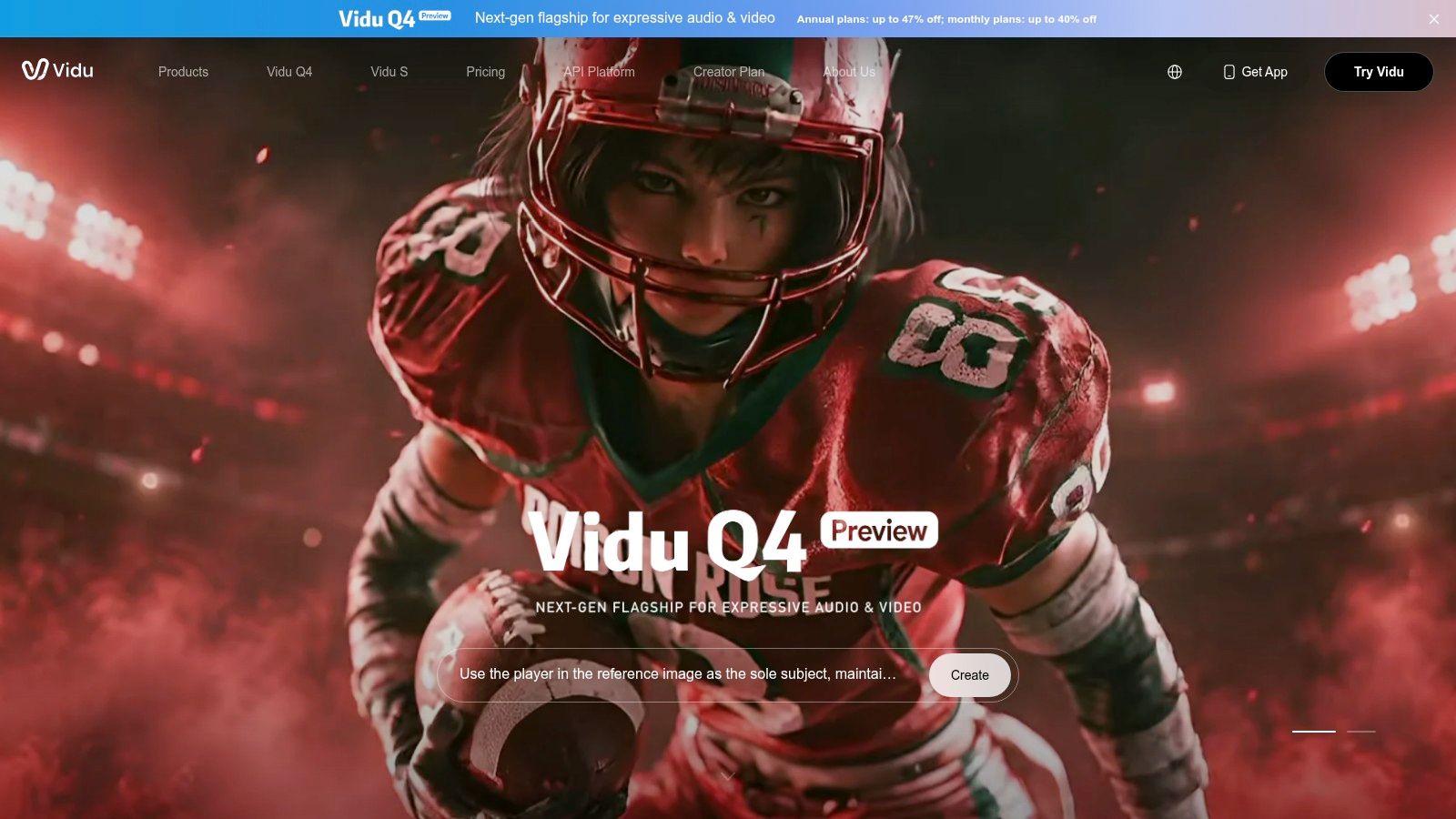
Reference-based creation is useful when your project needs a more consistent visual starting point. It doesn't remove the need to review the result: check that the subject, action, and motion match your brief rather than assuming a reference image guarantees continuity.
Plan to use a separate editor if your finished video needs narration, captions, music, or a sequence of clips. Vidu focuses on generation controls, so production finishing is a distinct step. Free credits are best used to test a specific reference workflow and see whether it produces footage worth developing.
Best fit: Creators who want to generate from text, images, or references and adjust clip settings. Choose an editor-led tool if your main need is a complete video ready to publish.
<a id="7-runway"></a>
7. Runway
Runway gives creators a broader workspace for exploring video generation alongside image, sound, voice, and editing tools. That range can be useful when a project calls for several kinds of creative work, rather than just a text prompt and a single generated shot.
The free plan provides a one-time allocation of 125 credits for selected features. Those credits don't replenish monthly, so treat them as a test budget. Credit consumption depends on the model and clip duration, and some newer or advanced models require a paid plan. Check which tools your free account can access before shaping your project around a particular model.
Runway is a strong choice for trying out a creative interface and deciding whether its wider set of tools suits your process. It's not the right pick if you need a recurring free credit allowance for regular output. Use the initial credits to test the model and task you would use, rather than spending them on unrelated features.
Paid tiers add recurring credits and broader model access. Before upgrading, confirm that the paid access covers the specific generation and editing steps your workflow requires.
Best fit: Creators who want to explore a wider creative workspace and are comfortable with a one-time free allocation. Look for recurring free access elsewhere if you plan to generate regularly.
<a id="8-heygen"></a>
8. HeyGen
If your video needs a presenter rather than a cinematic scene, HeyGen is the clearer fit. It focuses on avatars, narration, and script-led videos, with tools for planning and assembling presenter-style content. That makes it useful for explainers, promotional clips, and other videos where a host delivers the message.
The free plan allows up to three videos per month, each up to one minute, with watermarked exports. That defined allowance is easier to plan around than a credit balance whose cost changes with the model. The cap also makes the use case clear: test a short presenter video, not a larger content series.
HeyGen combines avatars, voice, language options, and captions in a browser workflow, so you can create a message without filming a presenter. The trade-off is creative fit. An avatar-led delivery won't match every brand, and the watermark and length limit may rule out some publishing uses. Advanced generation and higher usage require paid credits.
If the audience needs a human host on screen, test the avatar and voice with your actual script before building the whole video.
Best fit: Short explainers and presenter-led promotions. Pick a general video generator if you need atmospheric footage rather than an on-screen speaker.
<a id="9-veed"></a>
9. VEED
VEED is a practical option when you want to generate a video and finish it in a browser editor. You can start from text, a script, or an image, then work with voiceover, avatars, subtitles, and branding tools. That makes VEED more workflow-oriented than a tool built mainly to generate a raw clip.
The free allowance depends on credits, plan, and model. Check the available balance and the cost of your selected model before you start; “free” access doesn't guarantee that every generation mode is available in the same way. Different models and styles can also mean a different process for getting from an idea to footage.
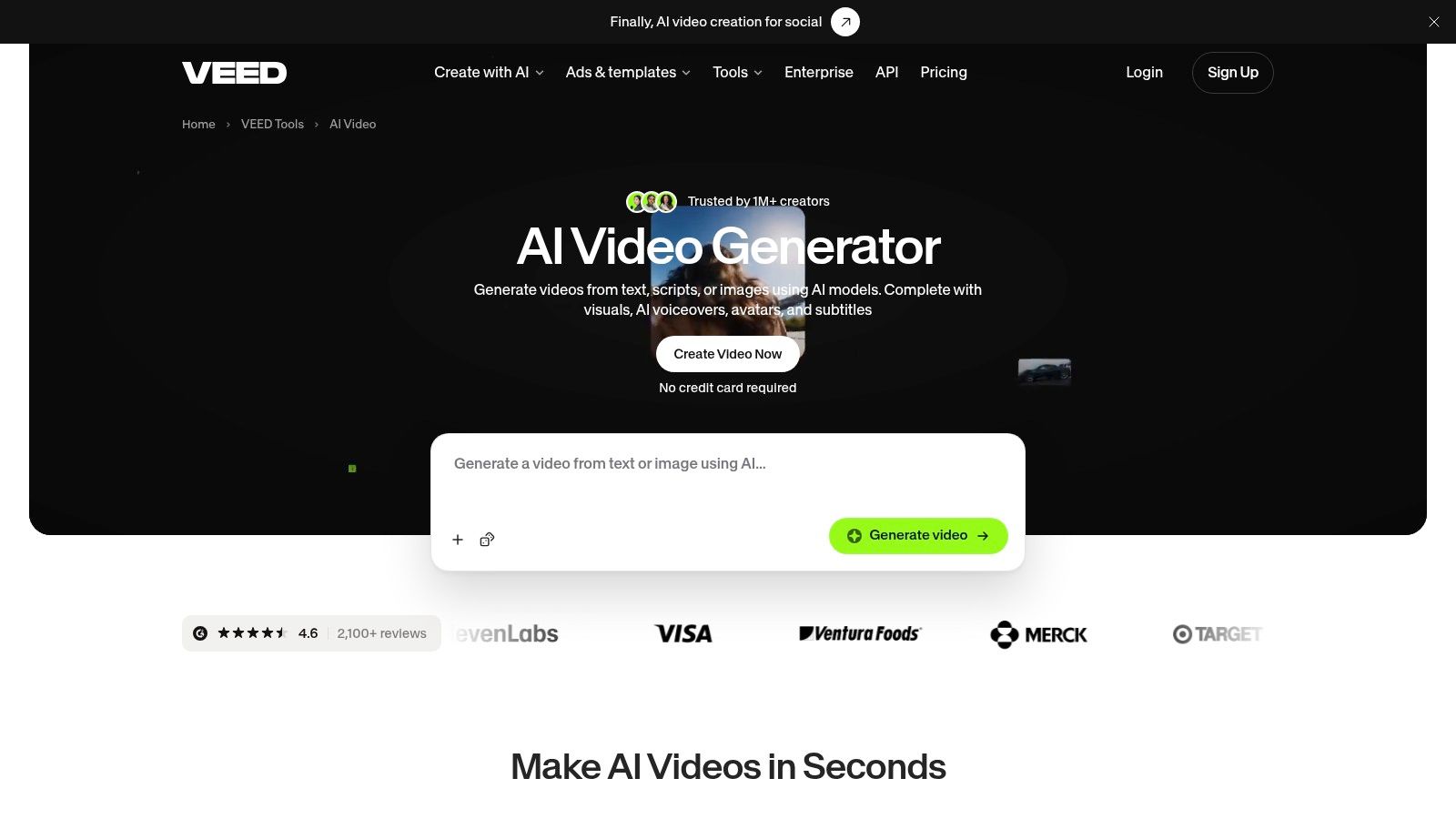
The browser editor is the main advantage. If your draft needs subtitles, narration, or brand elements, you can add them in the same general workspace rather than exporting a clip immediately to another application. Still, review the generated footage yourself. Check the visuals, voiceover, and captions before treating the result as publish-ready.
Best fit: Creators who want generation and finishing edits in one browser workflow. Check the model-specific credit limits first if your project depends on more than a quick test.
<a id="10-canva"></a>
10. Canva
Canva's AI video generator creates short clips from text prompts and places them in a design workflow. You can use the Canva editor to add surrounding text, graphics, and transitions, which is convenient if you already build social assets there.
The feature supports clips of up to eight seconds, with synchronized audio, including dialogue and sound effects. Its availability is the key distinction: limited monthly generations are for eligible Pro, Business, Enterprise, and Nonprofit users. This isn't a generally available feature in the ordinary free plan.
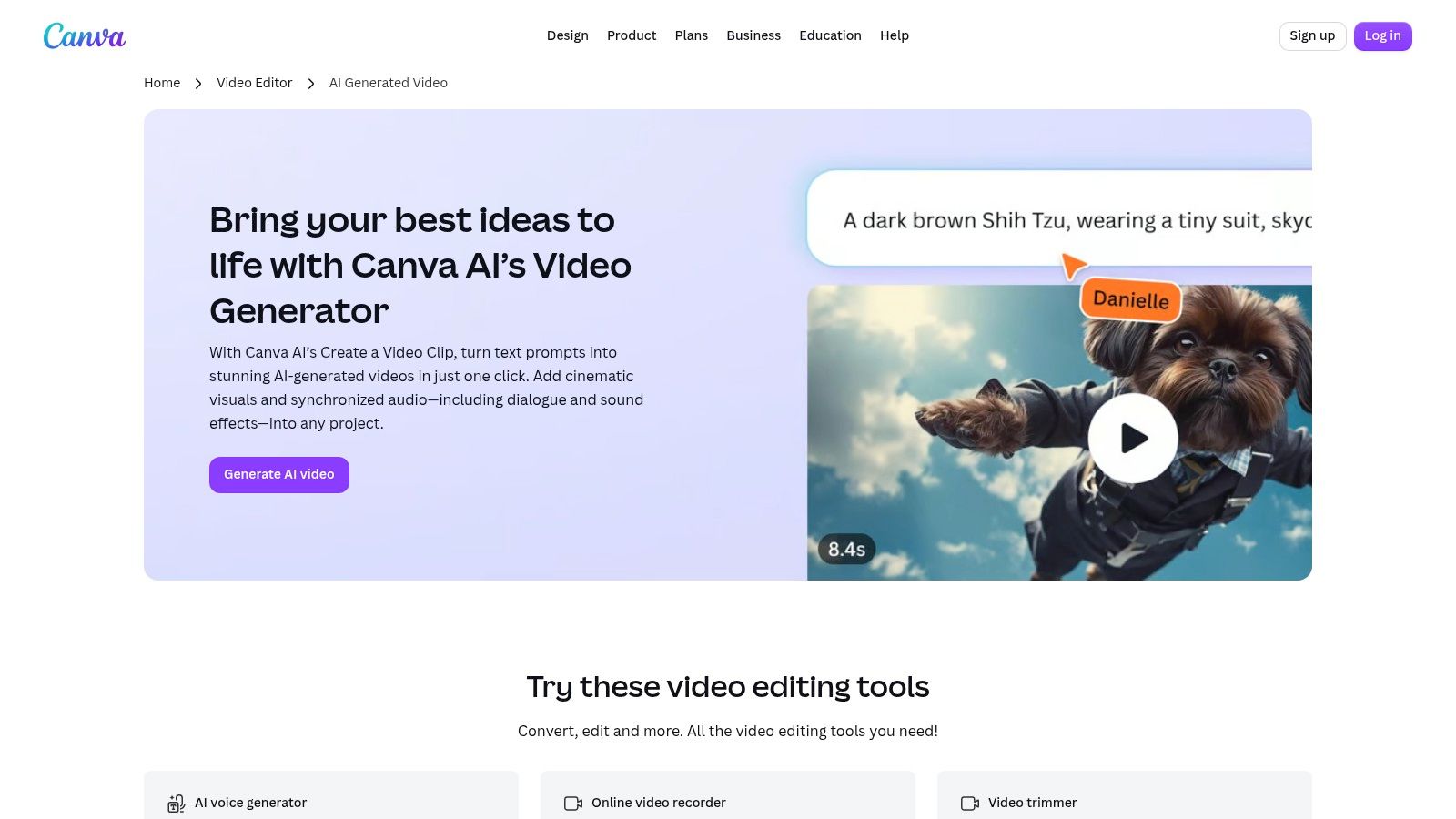
Canva works best when the clip is one element in a larger design, such as a social post with graphics and text. It isn't a shortcut to a complete multi-scene video. Generated content may also not be exclusive or cleared for every commercial use, so check the relevant terms before putting it into a campaign.
Best fit: Canva users who need a short generated clip within an existing design. Don't choose it for general free access or a longer sequence assembled from multiple scenes.
<a id="top-10-free-text-to-video-ai-tools-compared"></a>
Top 10 Free Text-to-Video AI Tools Compared
| Tool | Core Capabilities | Workflow & Output | Best For | Pricing & Value |
|---|---|---|---|---|
| ClipNova | Text-to-video, avatars, ads, images, 32-language voiceovers ✨ | 🏆 Automates scripting, visuals, voice, captions, music, and multi-format exports | 👥 Creators and teams making publish-ready social content | 💰 Hobby to Enterprise subscriptions; paid plans include watermark-free exports and commercial rights |
| Google Flow | Text/image-to-video, Veo models, clip extension, scene refinement ✨ | Cinematic clip creation and scene-building tools | 👥 Filmmakers and concept artists | 💰 50 daily free credits; usage varies by model and operation |
| CapCut | Prompt-to-video, script help, voiceover, captions, music, effects | Generate and polish social videos in one editor | 👥 TikTok, Reels, and Shorts creators | 💰 Free AI tools available; limits and access vary by region and platform |
| Adobe Firefly | Video, image, audio, and other generative tools ✨ | Generated footage can flow into Adobe production workflows | 👥 Adobe users and creative professionals | 💰 Limited free daily generations; paid plans add monthly credits |
| Pika | Text/image-to-video, creative effects, multiple modes ✨ | Quick visual experiments; often needs separate narration and editing | 👥 Creators exploring short-form visuals | 💰 Free-plan allowance is unclear; paid plans add credits and features |
| PixVerse | Text/image-to-video, templates, and effects ✨ | Generates short clips that may need finishing edits | 👥 Social creators seeking quick visual concepts | 💰 Basic plan lists 60 initial and 30 daily credits |
| Vidu | Text, image, and reference-to-video; subject-consistency workflows ✨ | Adjustable short clips; separate tools may be needed for captions and narration | 👥 Creators seeking reference-led scenes | 💰 Limited signup or login credits; paid plans and credit purchases available |
| Runway | Video, image, sound, voice, and editing tools ✨ | Broad creative workspace for generating and refining media | 👥 Creative teams and experienced makers | 💰 One-time free allocation of 125 credits; paid tiers add recurring credits |
| HeyGen | AI presenters, avatars, scripts, voice, and localization ✨ | Presenter-led videos with narration and captions | 👥 Businesses making explainers and promotional videos | 💰 Free: up to 3 videos monthly, 1 minute each, with watermark |
| VEED | Text/script generation, voiceover, avatars, subtitles, multiple models | Browser-based generation and editing in one workflow | 👥 Teams creating narrated or branded videos | 💰 AI generation uses credits; quotas vary by plan and model |
| Canva | Text-to-video clips up to 8 seconds with synchronized audio ✨ | Add generated clips to Canva designs and edit with graphics | 👥 Canva users creating short branded assets | 💰 Limited monthly generations for eligible paid accounts |
<a id="choose-your-first-free-ai-video-workflow"></a>
Choose Your First Free AI Video Workflow
Choose based on the deliverable, not the longest feature list. For cinematic scene-building, start with Google Flow. PixVerse suits recurring daily experiments, while Vidu is the better test for reference-based generation. If your brief calls for a presenter, use HeyGen; choose VEED when you also want narration, subtitles, or branding tools in the same browser workflow.
For social editing, CapCut combines generation and finishing tools. Runway and Adobe Firefly make more sense for creators already interested in broader creative workspaces, though their free access works differently: Runway's free credits are a one-time allocation, while Firefly offers limited daily generations. Canva is most relevant when you already design in Canva and need a short generated clip inside a larger composition, not when you're looking for a generally available free feature.
These options don't all solve the same problem. A generation-first tool can produce footage that still needs scripting, narration, captions, music, editing, and resizing. An editor-led or presenter-led tool may deliver a more complete draft but offer less flexibility for cinematic scene generation. Decide which of those gaps you can handle before you spend time testing models.
Before publishing, take one representative project from prompt to export. Check the account's actual free allowance, model access, watermark, export resolution, commercial-use terms, and the amount of manual editing required. Review the result for prompt fidelity, motion continuity, and legible on-screen text. Don't rely on generated typography for important product names, prices, disclaimers, or calls to action. Add essential copy in your editor and proofread it before export.
If your priority is a complete short-form video rather than isolated clips, compare an integrated workflow such as ClipNova with the generation-first options. ClipNova combines scripting, voiceover, visuals, captions, music, and export formats in one studio. Its free plan offers daily text-to-video generation with a small watermark, so check whether that output and its terms fit your intended use before choosing it.
ClipNova brings prompt-based video creation together with scripting, voiceover, visuals, captions, music, and export formats, making it relevant if you want to move from an idea toward a finished short-form asset in one workspace. Compare its daily free generation with the credit limits and editing needs of the tools above, then visit ClipNova to try a workflow that fits your next video.
Ready to ship your own?
Start creating viral videos with AI in under twenty minutes, no credit card required.