
Can you really animate an image to video for free, or does free just mean free to sign up? That's the gap most roundups skip. You can get real clips without paying, but each tool rations you differently. Some refill daily credits every morning, some give a monthly allowance that vanishes in two tests, some hand you one-time credits and then stop, and at least one gives you no generation credits at all.
This list maps those mechanics first, then quality. You'll see three broad types. Prompt-based generators like Dreamina, PixVerse, Vidu, Runway, Luma and Pika focus on motion from a still. Editor-integrated workflows like Canva, Adobe Firefly and CapCut put generation inside tools you already use for captions, text and sound. Full AI studios like ClipNova assemble script, voice, visuals and export sizing in one run.
Use the numbers below to match a tool to your actual posting rhythm, not to its demo reel. For comparison points, see the 2026 generator rankings from Veo3 AI. If you'll need five publishable clips a week, a one-time allowance won't survive Monday, no matter how good the first render looks.
Table of Contents
- 1. ClipNova
- 2. Dreamina
- 3. Canva
- 4. Adobe Firefly
- 5. PixVerse
- 6. Vidu
- 7. CapCut
- 8. Runway
- 9. Luma Dream Machine
- 10. Pika
- Free-tier comparison
- Choosing Your Free Image to Video Workflow
<a id="1-clipnova"></a>
1. ClipNova
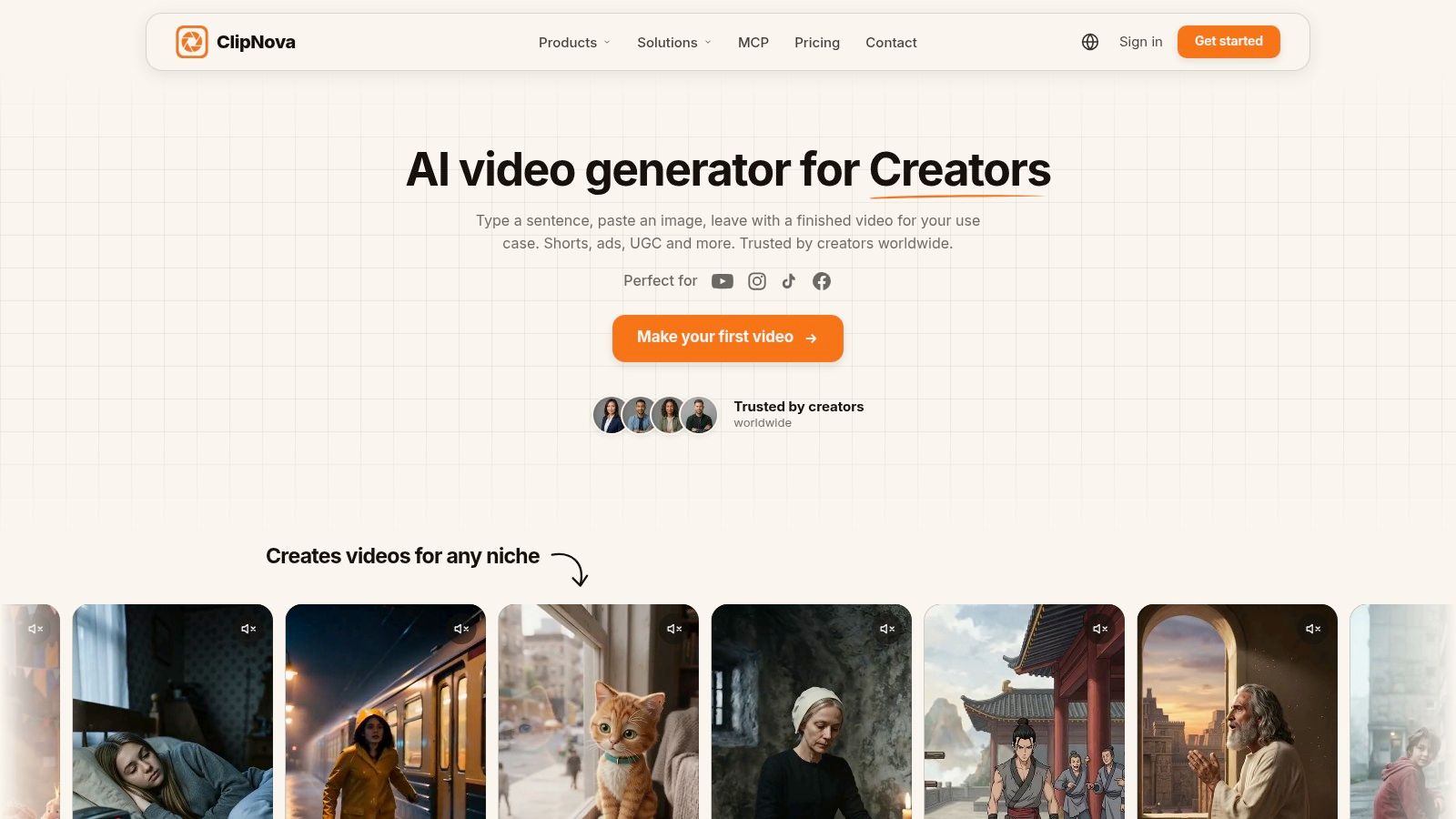
Need an image turned into a post-ready video, rather than a silent motion test? ClipNova is a web-based studio that can turn a prompt, script or image into a finished video with scenes, voiceover, captions and music. It suits creators and marketers who want the assembled video in one file, though it offers less of a credits-per-test comparison than a generator built around free image-to-video trials.
<a id="what-you-actually-get-and-what-it-costs"></a>
What You Actually Get and What It Costs
ClipNova includes an Image to Video Generator, Text to Video Generator, Talking Avatar, AI UGC Video Generator, anime and cartoon tools, and ad-generation options. For image-led clips, you can choose Moving AI Images, which use camera motion, or switch on AI Video for full motion. Moving AI Images cost about a third as much as AI Video per episode, so they can be the more economical choice when camera movement is enough.
Generation produces visuals, B-roll, voiceover and captions automatically in 1080p. You can add your own music, choose 9:16, 16:9 or 1:1, and make a video up to five minutes long. If one scene or line needs work, open the video in Studio and change that part rather than rebuilding the whole piece. Export the finished MP4 and post it yourself.
ClipNova has subscription tiers for creators, teams and businesses. Paid-plan videos come without a watermark and include commercial rights. That makes the key trade-off different from a free-credit tool: assess the subscription against how many finished videos you need, rather than expecting a daily free allowance for repeated tests.
Practical rule: If you need finished, captioned videos regularly, compare the subscription cost with the number of videos you expect to publish.
For a closer look at how to turn a picture into a video with AI, see the differences between Moving AI Images and full-motion AI Video.
<a id="2-dreamina"></a>
2. Dreamina
Dreamina is the most straightforward daily-refill option here. Upload an image, describe the motion, pick a supported model and settings, and generate. Free users are currently offered 120 daily credits for supported image and video workflows, which makes it the easiest place to learn what prompts your images respond to.
The catch is that those credits are shared across workflows. Spin up image generations in the morning and you'll have less left for video in the afternoon. Credit costs also vary by model and settings, so 120 credits doesn't translate to a fixed number of clips. Budget for that variance before you plan a week's content around it.
- Daily refill: You can experiment again tomorrow without paying, which no one-time plan offers.
- Dedicated workflow: Image-to-video isn't buried inside a general editor, so you reach generation quickly.
- Shared balance: Image and video creation draw from the same pool, and free credits don't guarantee access to every model or export option.
Review every output before you schedule it. Generated details can drift, especially on faces, product labels and background text. I recommend Dreamina when you want steady, low-pressure testing volume. It rewards creators who iterate daily in small batches rather than generating a month of content in one sitting.
<a id="3-canva"></a>
3. Canva
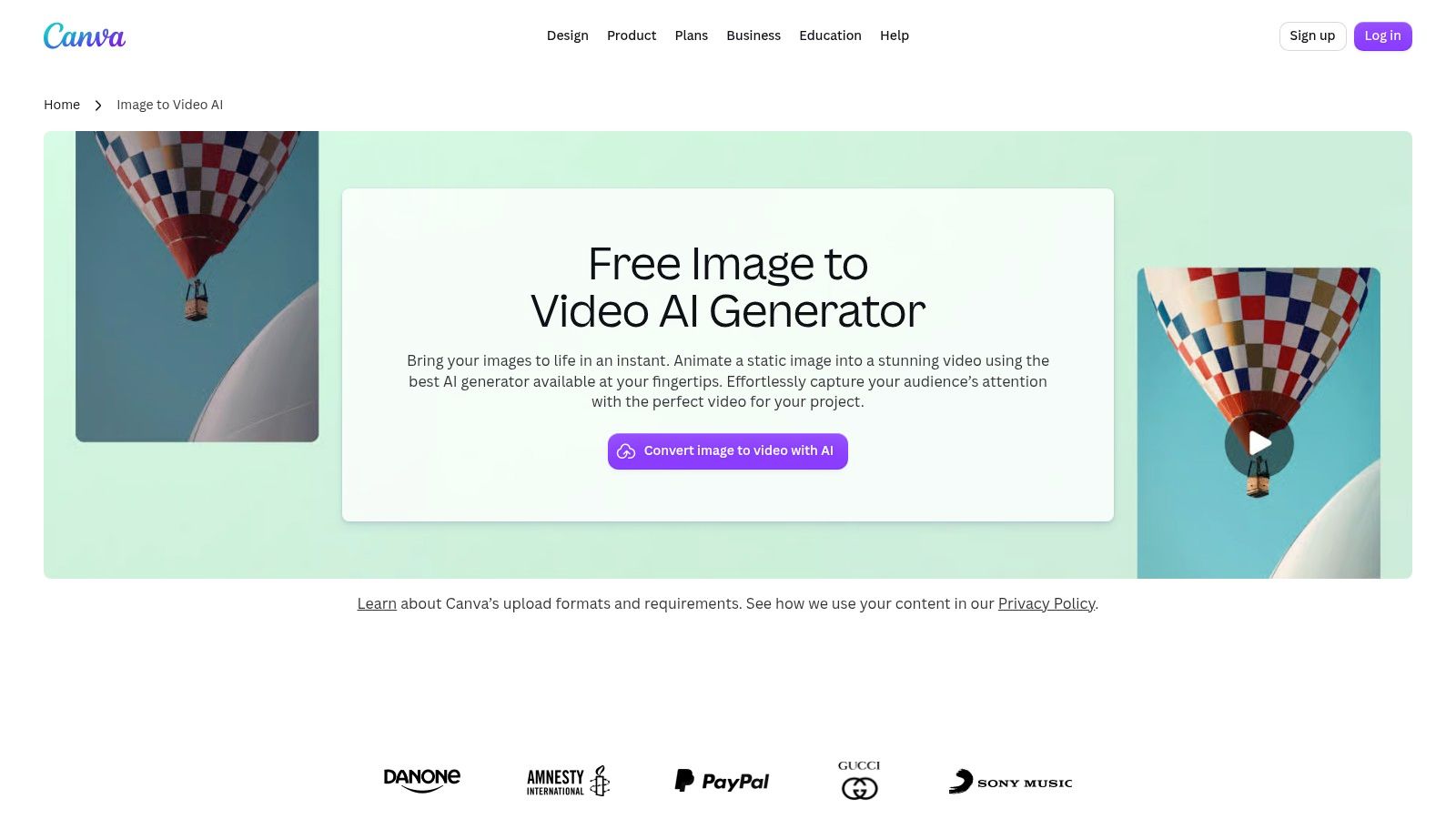
If you already design inside Canva, its image-to-video tool removes the export-and-reimport step entirely. You animate a still with an AI motion effect, and the clip lands in the same project where you'd add text, music and brand elements. It preserves your image's original aspect ratio, which saves awkward cropping for stories and feed posts.
The limits are fixed and you can't negotiate them. Generated clips are five seconds long with no audio, and access on the Free plan lasts only while your monthly AI allowance remains. Some image types, including premium media, aren't supported either. Five silent seconds works as a loop or a background texture. It doesn't work as a standalone explainer.
- Editor integration: You finish captions, overlays and sound effects without leaving the project.
- Short social fit: Quick animated posts and story backgrounds are the sweet spot.
- Hard ceiling: Fixed duration and a monthly allowance mean regular video publishers will outgrow it fast.
Treat Canva as a design tool that animates, not as a video generator that designs. If your workflow starts with a graphic and needs a little movement, it's efficient. If your workflow starts with footage needs, pick a generator first and bring the clip to an editor second.
<a id="4-adobe-firefly"></a>
4. Adobe Firefly
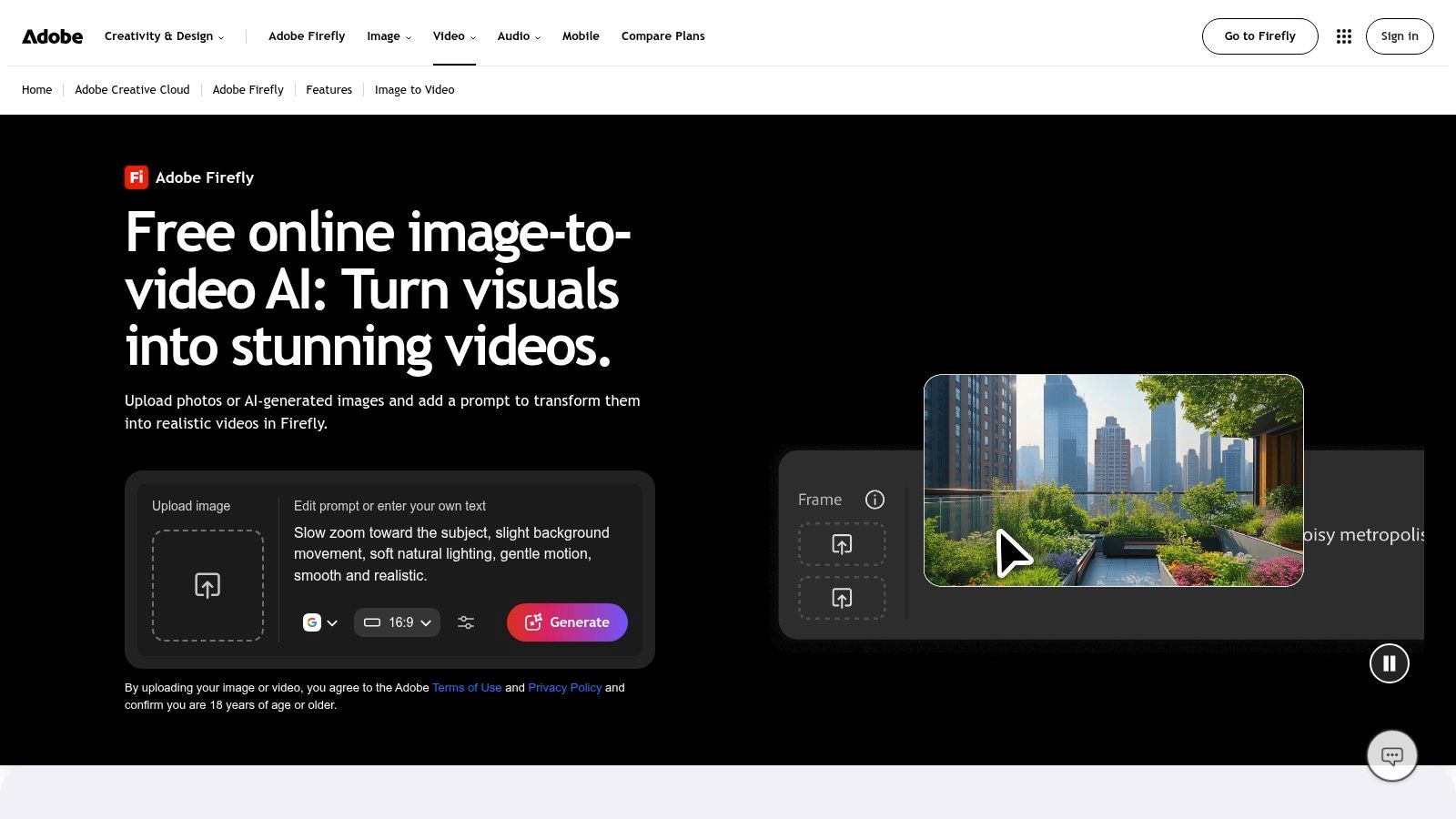
Adobe Firefly turns an uploaded still into a short video using a prompt to direct motion or camera movement, then hands you an MP4 download you can finish in Premiere or other Adobe apps. Adobe offers free daily generations, with more usage on paid plans. Resolution and duration depend on the model you choose, with supported workflows documented up to 4K and about five seconds.
The reason to pick Firefly over a standalone generator is the pipeline around it. If your team already edits in Adobe software, generated clips slot into that post-production flow without format friction. Adobe also describes Firefly-model video outputs as commercially safe when the uploaded image doesn't violate anyone else's rights, which answers a question many free tools leave vague.
<a id="where-firefly-fits-and-where-it-stops"></a>
Where Firefly Fits and Where It Stops
Free generation is limited, so don't plan batch production around it. Model availability varies by plan and workflow, and a short clip still needs editing to become a complete video with pacing, captions and sound. You're buying into an ecosystem. If you don't use Adobe's other apps, part of the value doesn't apply to you.
Use your daily generations deliberately. Test one camera move per render rather than asking for three movements at once, because simpler prompts produce cleaner motion and waste fewer of your limited attempts.
<a id="5-pixverse"></a>
5. PixVerse
PixVerse combines image-to-video and text-to-video generation under one credit system. Its Basic plan lists 60 initial credits plus 30 daily credits, and unused daily credits expire. That structure rewards people who show up often and generate in small amounts. Skip three days and that capacity is gone, not banked.
The free tier's headline limit is resolution. Free-plan video is capped at 540p, which looks soft on a full-screen phone and rougher still if a platform compresses it again on upload. Credit costs vary by model and settings, so your daily 30 may cover a couple of low-cost tests or part of one pricier generation. Paid plans raise resolution and add options such as watermark-free exports.
A 540p clip is fine for judging motion and framing. It isn't fine as a client deliverable, and no caption styling will hide that.
I see PixVerse as a sketching tool on the free tier. Use the daily credits to test which images animate well, which prompts hold a face together, and which concepts survive motion at all. Once a concept proves itself, you face a clear decision. Either upgrade for a resolution you can publish, or rebuild the winning idea in a tool whose free output is already publishable. Don't discover the resolution cap after you've promised someone a finished video.
<a id="6-vidu"></a>
6. Vidu
Vidu gives you more levers than most free tools. Alongside image-to-video, it supports reference-to-video and text-to-video, start- and end-frame options in supported workflows, and controls for duration, resolution and motion amplitude. That last control matters more than it sounds. Lower amplitude keeps products and faces stable. Higher amplitude looks dynamic and breaks details faster.
The free allowance is 40 credits per month, and that's the whole story. How many clips that buys depends on the model and settings you pick, and higher resolutions burn through the balance quickly. Forty monthly credits support careful, planned tests. They don't support casual experimentation, and one afternoon of trial and error can end your month.
- Multiple guidance modes: References and end frames help when visual continuity matters across shots.
- Real controls: Duration, resolution and motion amplitude let you trade drama for stability deliberately.
- Tight monthly cap: Spend credits only after you've written the prompt and checked the source image.
Multi-subject consistency features and both realistic and animated styles make Vidu worth testing for recurring characters or product series. Still review outputs frame by frame. Subjects and scenes can shift mid-clip, and with so few credits you can't afford to catch that after export.
<a id="7-capcut"></a>
7. CapCut
CapCut takes the opposite approach to a pure generator. Its image-to-video workflow is available in desktop and mobile experiences, and generated clips go directly into the editor for trimming, transitions, text overlays, voiceover and audio. That setup is useful when you want to animate an image and finish the post in the same app.
The free feature has usage limits, but availability and caps can vary by account, device or region. You may not know your exact allowance until you try it. Check that the feature appears on your account before relying on it for a client deadline.
Generated clips can still need substantial editing before they are ready to post. CapCut gives you tools for that work, but the editing time belongs in your workflow estimate. Choose it if you already use its timeline and want image animation alongside your edits.
<a id="8-runway"></a>
8. Runway
Runway is a broader generative-media workspace, and its free plan works nothing like the daily-refill tools above. You get 125 one-time credits and 5GB of asset storage. The credits don't expire, but they also never replenish. When they're gone, free generation ends until you pay.
That structure has one genuine advantage. Because nothing expires, you can sit on those credits for months and spend them on a single shot that matters, instead of burning daily allowances on tests you'd never publish. If you're evaluating whether Runway's output justifies a paid plan, our overview of free AI video options puts that decision in context.
- Non-expiring credits: Save them for a deliberate, well-prepared test rather than first-day exploration.
- Broader toolkit: You're evaluating a full AI image and video workspace, not one animation button.
- Watermark on free video: Free-plan outputs carry a Runway watermark, and free model selection is limited and can change.
Prepare before you generate. Finalize your source image, write the motion prompt, and decide what a successful result looks like. People who treat the 125 credits as a playground run out with nothing publishable. People who treat them as a paid audition usually learn exactly what they need to know.
<a id="9-luma-dream-machine"></a>
9. Luma Dream Machine
Luma Dream Machine earns its place on camera control. You start from an image and direct moves such as pan, orbit or zoom, with reference and style options in supported workflows. For testing whether a concept works as a slow push-in or an orbiting product shot, that control beats hoping a text prompt interprets your intention correctly. Prompt craft still matters, and our guide to writing a text-to-video prompt covers the structure that transfers across tools.
The free tier, though, is exploration only. Access is limited to draft video with watermarked outputs, and free use is restricted to personal, non-commercial work. Commercial rights and watermark-free exports require a paid plan. Read that plainly. A watermarked draft can't go in an ad, a client project or a monetized post, no matter how good the camera move looks.
Rights check: Watermark-free doesn't automatically mean commercially safe, and a free download doesn't automatically mean you may sell with it.
Use Luma's free tier the way you'd use a storyboard. Prove the shot, prove the camera move, prove the image holds together in motion. Then decide whether that proof is worth paying for at full quality. For personal concept drafts, it's useful. For any revenue-connected publishing, the free tier is a rehearsal, not a production route.
<a id="10-pika"></a>
10. Pika
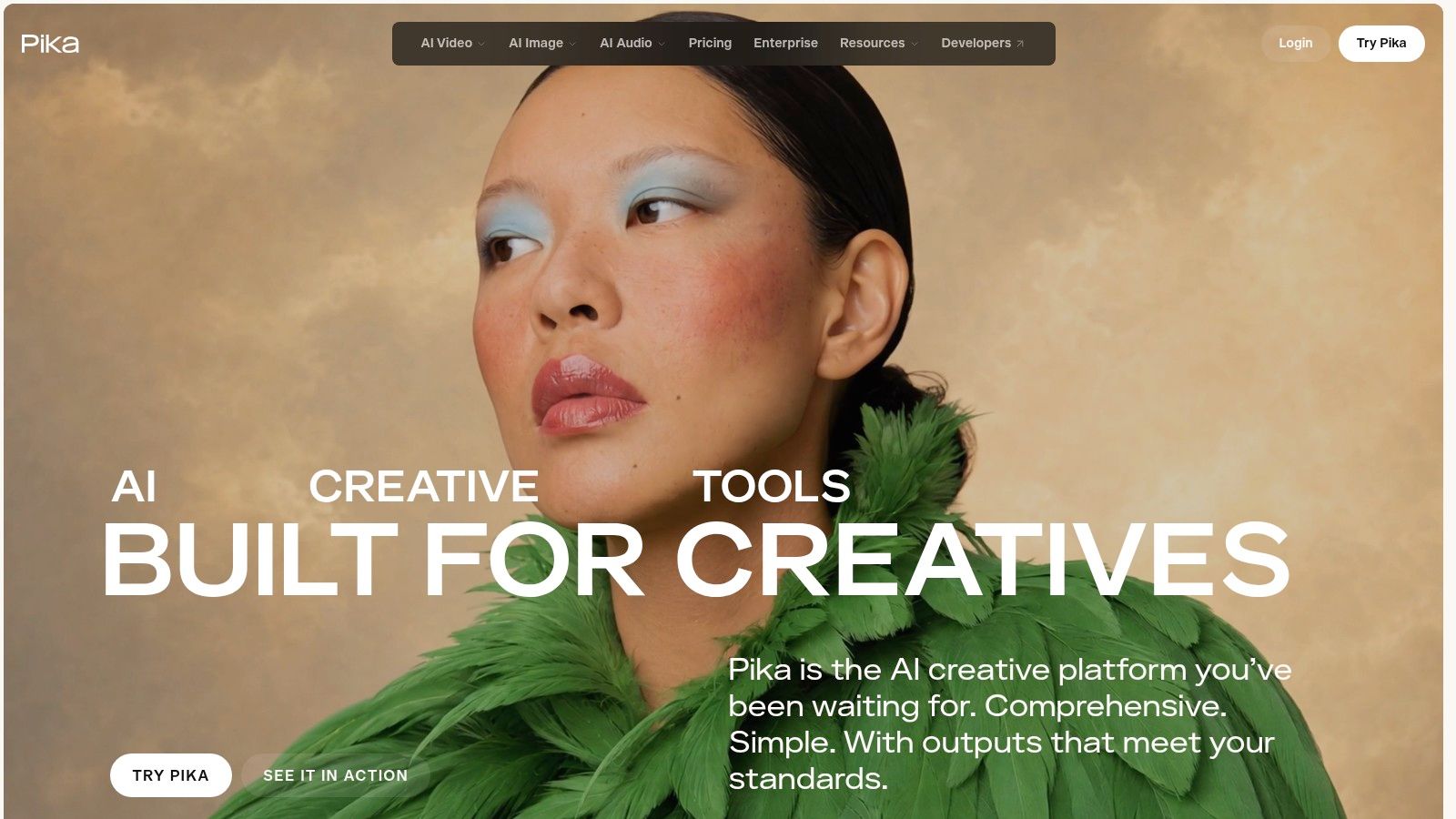
Pika is on this list with an asterisk you need to read first. Its Free plan includes no monthly credit allowance. Generation requires purchased credits, which you can buy in packs without subscribing. Calling that a free generator would mislead you. It's a free account attached to a pay-per-generation tool.
What you get for those credits is more creative range than basic photo animation. Pikaframes generates motion between two and five still images, so you define where a transition starts and ends instead of accepting whatever a model invents. You can also use uploaded photos as references in supported apps, apply image effects and choose among supported models. Downloads on current plans are watermark-free, which is better than several free tiers manage.
- Pikaframes control: Set the beginning and end frames yourself for planned transitions and morphs.
- No subscription required: Credit packs suit occasional projects better than a monthly bill.
- No free generation: Free-plan creations don't include commercial use, and costs vary by app, model and settings.
I recommend Pika only if you've already decided you're willing to pay per clip and you specifically want frame-to-frame control. If your budget is zero, skip it and spend your time on Dreamina or PixVerse, where tomorrow brings fresh credits.
<a id="free-tier-comparison"></a>
Free-tier comparison
Credit refill rules matter as much as the headline allowance: daily credits support repeat attempts, while one-time credits run out. Resolution, watermark and commercial-use terms also determine whether a free generation is ready to publish or only useful as a draft.
| Tool | Free credit type | Free-tier resolution | Watermark | Commercial use allowed |
|---|---|---|---|---|
| ClipNova | Free-tier allowance not stated; paid plans are subscription-based | Up to 1080p | Exports are watermark-free | Full commercial rights on paid plans |
| Dreamina | 120 shared daily credits | Not stated | Not stated | Not stated |
| Canva | Monthly AI allowance; amount not stated | Not stated | Not stated | Not stated |
| Adobe Firefly | Free daily generations; amount not stated | Varies by workflow; up to 4K on supported workflows | Not stated | Firefly-model outputs are described as commercially safe if the uploaded image does not violate others' rights |
| PixVerse | 60 initial credits and 30 daily credits | 540p | Free-tier policy not stated; paid plans offer watermark-free exports | Free-tier commercial terms not stated |
| Vidu | 40 free credits per month | Adjustable; free-tier limits not stated | Not stated | Not stated |
| CapCut | Free usage with limits; credit amount not stated | Not stated | Not stated | Not stated |
| Runway | 125 one-time credits | Not stated | Watermark on free-tier exports | Not stated |
| Luma Dream Machine | Limited free access; credit amount not stated | Not stated | Watermark on free-tier exports | No. Free use is personal and non-commercial |
| Pika | No monthly free credits; generation requires purchased credits | Not stated | Current-plan downloads are watermark-free | No. Free-plan creations do not include commercial use |
<a id="choosing-your-free-image-to-video-workflow"></a>
Choosing Your Free Image to Video Workflow
Start with volume, because volume eliminates most of this list in seconds. Count the publishable videos you need each week, then double it to allow for failed generations, because hands, logos, on-image text and facial identity still break regularly. A tool that looks generous in a demo can be useless at your real cadence.
If you need recurring daily experiments, pick a daily-credit tool. Dreamina's daily refill suits steady iteration across a week, and PixVerse's smaller daily allowance suits quick concept sketches as long as you accept 540p drafts. Adobe Firefly's free daily generations fit creators already finishing work in Adobe apps. In each case, generate early in the day, review while you still have credits left, and never spend your last credits on an untested image.
If you need one polished test rather than a pipeline, use Runway's non-expiring credits and prepare like it costs money, because after 125 credits it does. Luma serves the same rehearsal purpose for camera moves, and Pika only makes sense once you've accepted paying per generation. Canva and CapCut sit in a different lane. Choose them when design and editing integration matters more than raw generation volume, and confirm your actual allowance before you build a schedule around either one.
If you want finished videos rather than raw clips, a full studio changes the maths. ClipNova assembles script, scenes, voiceover, captions and music in one generation, lets you fix a single scene in Studio before export, and outputs watermark-free files with commercial rights on paid plans in 9:16, 1:1 or 16:9. That replaces the separate editor, voice and caption steps that free generators leave to you. It costs a subscription, so judge it against your editing hours, not against a free credit balance.
Before you publish anything from any tool on this list, run the same export check. Confirm the resolution survives full-screen playback on a phone. Confirm there's no watermark you missed in a corner. Confirm the tool's terms allow commercial use for your specific post, and confirm you hold rights to the source image itself, including any person's likeness or trademark in it. Keep a record of the source file, the tool and model you used, your prompt and the generation date. Terms change, allowances shrink and models rotate, so recheck the plan page on the day you generate, not the day you read a roundup.
The right free image to video workflow is the one whose limits you can plan around. Daily credits reward consistency. One-time credits reward preparation. Editor integrations reward people who finish work inside one app. Pick the constraint you can live with, and the tool choice makes itself.
Turn your next still image into a finished, captioned video with voiceover and music already assembled, then fix any single scene before you export in 9:16, 1:1 or 16:9. Visit ClipNova to start from an image, a prompt or a link and publish without stitching five tools together.
Ready to ship your own?
Start creating viral videos with AI in under twenty minutes, no credit card required.