
You've recorded the voiceover, loaded the puppet, and dropped the audio on the timeline. You run lip sync from audio, hit play, and the first line looks convincing. Three sentences later the mouth is chewing through a pause, popping open between syllables, and sitting half a beat behind the words.
Nothing failed. The analysis did exactly what it was told, and what it was told wasn't specific enough. Character Animator can map audio to mouth shapes on its own, but it can't know your voice track has music bleeding into it, that your puppet is missing a lower-lip shape, or that a pause needs a closed mouth instead of a shape carried over from the vowel before it.
Table of Contents
- What You Need Before Importing Audio
- Matching Mouth Shapes to Speech Sounds
- How to Apply Lip Sync from Audio Step by Step
- Timing Each Frame for Clean Sync
- Fixing Mismatched and Jittery Mouths
- Adding Pauses and Expression Around the Mouth
- Choose Character Animator or a Finished-Video Tool
<a id="what-you-need-before-importing-audio"></a>
What You Need Before Importing Audio
Most character animator lip sync from audio problems trace back to the audio file or the puppet, not the analysis. Get those two right and the automatic pass lands most lines with nothing more than small nudges. Get them wrong and you'll spend the session hand-keying a mouth that was never going to line up.
Start with the voice track. Export dialogue as WAV or a high-bitrate MP3, with no music under it. A music bed pushes the mouth open on drum hits and bass notes, which reads as random chewing rather than speech. If you're generating narration instead of recording it, the AI voiceover tools walkthrough covers how to land on a clean single-voice stem before you import.
Keep cleanup light. Heavy noise reduction and aggressive de-essing strip the consonant transients, the t, k and s sounds, that tell the mouth when to open and close. A little room tone is harmless. A gated, over-processed track is not, because the mouth loses the edges it uses to place closures.
| Input | Recommended setting | Why it matters |
|---|---|---|
| Audio format | WAV or high-bitrate MP3 | Keeps consonant transients clear |
| Voice track | Dialogue-only stem with no music | Music leaking into the track moves the mouth on beats |
| Noise cleanup | Light cleanup only | Heavy noise reduction removes t, k and s cues |
| Frame rate | 24 or 30 fps, matched to export | Keeps timing identical across renders and episodes |
| Face framing | Frontal, well lit, mouth clearly visible | Small or turned faces lose lip edge detail |
| Mouth shape set | Closed, wide, rounded, spread and lower-lip shapes | Missing shapes force poor substitutions |
| Rest pose | Neutral closed or relaxed mouth | Gives the mouth a clean place to return during pauses |
Lock the frame rate before you animate. Pick 24 or 30 fps and match your export setting. Changing frame rate after mouth keyframes exist nudges every pose by a fraction of a frame, and those fractions accumulate across a long episode into visible drift between scenes.
Then check the art. The face needs to be frontal and well lit, and the mouth needs enough pixels on screen to show a lip edge. A mouth occupying 40 pixels across can't show a lower lip meeting teeth. Confirm the shape set is complete, including a closed shape for p, b and m and a lower-lip shape for f and v, and confirm the puppet has a neutral rest pose it can return to in silence.
Play the dialogue alone once before you touch the timeline. You want to know where the plosives, the pauses and the fast runs are, so you can tell whether a bad frame belongs to the puppet or to the sync.
<a id="matching-mouth-shapes-to-speech-sounds"></a>
Matching Mouth Shapes to Speech Sounds
Speech arrives as phonemes, the individual sound units, and the puppet moves in visemes, the visible mouth shapes. Several acoustically different phonemes look identical on a face, and that collapse is what makes a compact shape set workable. A phoneme-by-phoneme map would be unmanageable to key by hand.
Research on audio-driven 3D face animation describes the process as parametric viseme fitting: phoneme information from speech video estimates mouth-shape parameters, viseme blendshapes then drive the facial motion, and the reported output resembles real speech movement rather than a jaw flapping open and shut (audio-driven 3D face animation research). That's the control layer you're editing every time you nudge a line.
| Mouth shape | Typical sounds | What the viewer sees |
|---|---|---|
| Lips closed | p, b, m | Lips pressed together, then released |
| Lower lip to teeth | f, v | Lower lip touches the upper teeth |
| Wide open | ah, aa | Jaw drops, mouth open wide |
| Spread | ee, ih | Corners pull back, teeth may show |
| Rounded | oo, w | Lips push forward into a small circle |
| Narrow open | eh, s, z | Small opening with teeth close together |
| Rest | silence, pauses | Mouth relaxed and closed or neutral |
Say one short word slowly and check it against the table. Take "map": the m closes the lips, the a drops the jaw wide, the p closes again and releases. If the puppet can't do one of those three, substitute the nearest group and apply that substitution consistently for the whole episode, so the character's mouth stays one mouth instead of a new one every scene.
<a id="where-poor-shapes-show-first"></a>
Where poor shapes show first
Three groups do the most damage in close-ups: closed stops (p, b, m), lower-lip sounds (f, v) and wide vowels. Land those and viewers forgive the rest, because the eye checks the shapes it knows.
The other useful habit is a script test. Pick three words from the episode you're about to animate, one with a closure, one with a lower-lip sound and one with a long open vowel. Run them through the puppet before you start the main pass, and you'll learn which groups this character needs most within about a minute of work.
<a id="how-to-apply-lip-sync-from-audio-step-by-step"></a>
How to Apply Lip Sync from Audio Step by Step
A line can have accurate mouth shapes and still feel wrong if the face ignores the actor's pauses and emphasis. In Character Animator, treat automatic lip sync as a first pass: establish the timing, then review how the mouth plays as part of the performance.
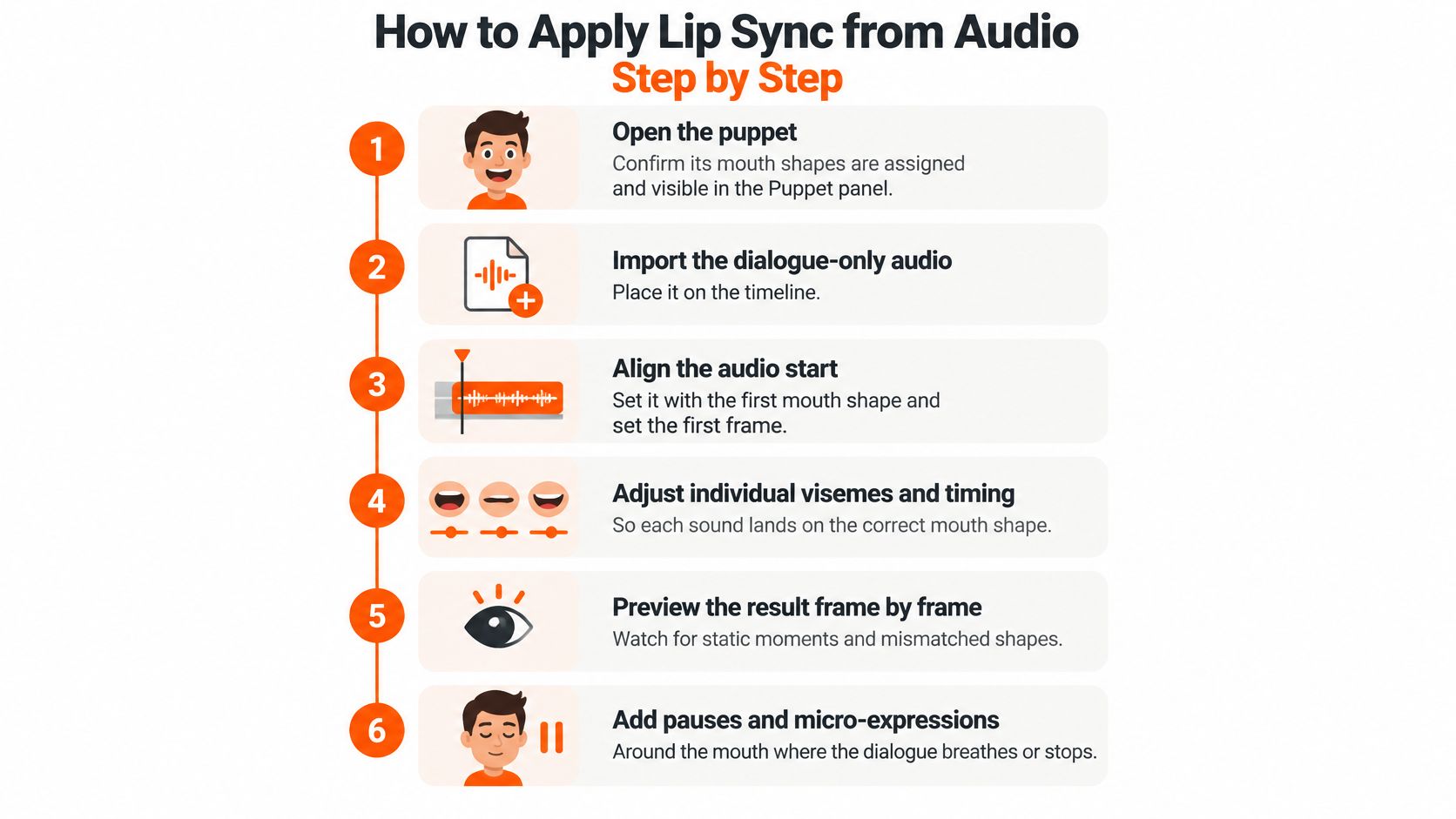
- Open the puppet and check its mouth shapes. Confirm the shapes are assigned and visible in the Puppet panel before running analysis. A missing shape can make the software substitute a poor match throughout the line.
- Import the dialogue audio and align it to the speech. Place the clip where the line begins, using the waveform rather than a rounded timestamp. A one-second placement error equals 24 frames in a 24 fps project or 30 frames in a 30 fps project.
- Select the puppet and apply lip sync to the audio. Let the analysis finish before scrubbing the timeline. Then play the line with sound and watch the performance at full speed.
- Find the earliest clear mismatch. Note the first word where the mouth looks early, late, or wrong for the sound. Start there instead of stopping on every frame.
- Correct the overall offset before editing individual words. If the whole mouth track is early or late, shift it first. A global adjustment changes every word, so editing individual timings beforehand can mean repeating the work.
- Review the line's pauses and emphasis. Check whether the mouth settles during silence and whether the character's expression supports the delivery. Matching shapes to sounds is only part of making the line believable.
- Check the result at the intended viewing size. Render a short test at the project frame rate and watch it on a phone-sized screen. Fine timing problems can be harder to spot at a large monitor size.
For a different editor's approach to alignment, the lip sync workflow in Nim offers a useful comparison of automatic syncing and frame-by-frame timing decisions.
The line is ready when its mouth follows the speech and its expression supports the performance. Judge the whole phrase, including the pauses, rather than treating each mouth shape as an isolated target.
<a id="timing-each-frame-for-clean-sync"></a>
Timing Each Frame for Clean Sync
A syllable can start on time and still look wrong if the mouth holds the wrong shape through its emphasis or pause. Use the waveform to place visemes, then judge how those shapes play as a performance. Recorded speech rarely follows the script exactly: a speaker may add a breath, swallow a syllable, or stretch a word.
<a id="hold-the-vowel-switch-on-the-consonant"></a>
Hold the vowel, switch on the consonant
Hold a stable mouth pose across a sustained vowel. Change shapes around consonant boundaries rather than on every phoneme; constant switching makes the mouth flutter. Match the change to the sound, but let the pose last long enough to read.
Timing and appearance are separate checks. A mouth can align closely with the audio while the rendered face differs visually, or look similar while its speech shapes arrive late. Treat automated sync as a first pass, then review the line at full speed for emphasis, rests, and expression.
Captions can provide a second timing reference. Compare their word changes with the waveform and mouth movement to spot a likely offset without inspecting every frame. The video caption generator guide explains how captions can be timed to speech.
If only one shot drifts, retime that shot rather than rebuilding the episode. Keep the correction local, then watch the full line again to make sure the fix has not flattened a pause or shifted the emphasis.
<a id="fixing-mismatched-and-jittery-mouths"></a>
Fixing Mismatched and Jittery Mouths
When a line looks wrong, isolate the shot and identify the failure before changing the timing. A global offset, a missed closure and a mouth that keeps moving through silence need different fixes.
| Symptom | Likely cause | Fix |
|---|---|---|
| Mouth moves before the word starts | Global audio offset | Move the whole mouth track by one or two frames |
| Mouth stays open through pauses | Sustained vowel carried into silence | Add a closed rest pose at each pause |
| Mouth flutters on every syllable | Shape changes on every phoneme | Hold poses through long vowels and switch at consonant edges |
| Mouth moves to music | Music included in the voice track | Use a dialogue-only stem for the sync pass |
| p, b or m looks open | Closure is late or missing | Retiming the word can help, but check the closed pose at the project frame rate |
| Face jitters during head turns | Turn exceeds what the puppet supports | Limit the turn or cut to a frontal angle |
| Teeth or lip color change | Mouth region is too small in frame | Reframe closer or use higher-resolution artwork |
For a timing problem, shift the mouth track by a small amount and replay the whole phrase. For an articulation problem, adjust the shape at the sound boundary instead. Moving an entire track to fix one missed consonant can throw the rest of the line out of sync.
Lip-sync metrics can help flag a shot for review, but they do not replace checking the mouth on screen. Look for a mouth that freezes, a consonant that arrives late, or a shape that does not fit the sound. Then correct the affected segment and watch it again at normal speed.
<a id="two-checks-not-one"></a>
Two checks, not one
Ask two questions for each shot: does the mouth move at the right time, and does it form the right shape? A line can be well timed yet still look wrong if the mouth stays open on a closed consonant or changes shape too often.
Finish with a dialogue-only playback of the full episode on a phone-sized screen. That makes local sync errors easier to judge in context and catches distracting changes between shots.
<a id="adding-pauses-and-expression-around-the-mouth"></a>
Adding Pauses and Expression Around the Mouth
A character can form every mouth shape on time and still look lifeless. A vowel held through a pause, a smile on the wrong word, or a fixed head during a long line can make accurate lip sync feel mechanical. The mouth is part of the performance, not the whole performance.
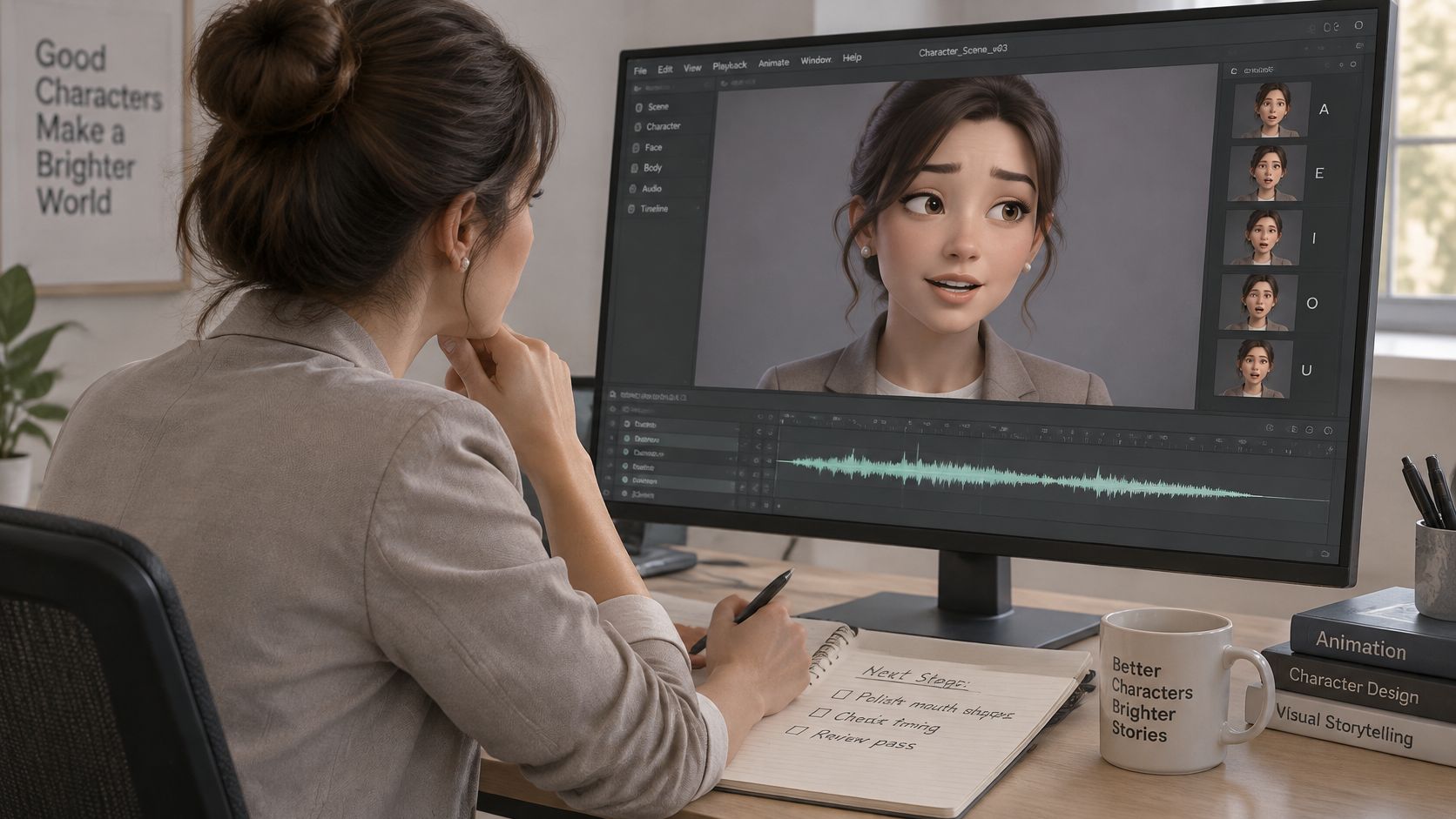
In Character Animator, finish the mouth timing first, then make a separate pass for pauses and expression. Mark silent beats, stressed words and emotional shifts in the script. Adjust the puppet's eyes, brows, head and hands around those marks, while keeping the mouth relaxed during silence. A face that freezes completely can read as a broken puppet; too much motion, though, competes with the dialogue.
A useful division of labor is phonetic accuracy, prosodic timing and performance continuity. Lip-sync analysis can help with mouth shapes and closures. You still need to judge the rhythm of the line and decide how the rest of the character responds. A small brow lift or gaze shift may suit a quiet beat; a nod or hand gesture may support an emphasized word.
The clip below is useful for studying expression timing alongside speech. Watch how facial movement supports the line, rather than judging mouth accuracy alone.
<iframe width="100%" style="aspect-ratio: 16 / 9;" src="https://www.youtube.com/embed/6l3mVMqYJ4g" frameborder="0" allow="autoplay; encrypted-media" allowfullscreen></iframe>A 2019 study on speech-driven facial animation describes synchronized mouth movement alongside blinks and eyebrow movement, and emphasizes temporal alignment in generating facial behavior (speech-driven facial animation study). The practical takeaway is to check what happens between words as well as during them. Across a long episode, vary small gestures to fit each line; repeating the same brow movement can make different moments feel copied.
<a id="choose-character-animator-or-a-finished-video-tool"></a>
Choose Character Animator or a Finished-Video Tool
Choose Character Animator when you want to shape a performance frame by frame and are prepared to time each line by hand. That control suits a few carefully staged shots. Across a full episode, analysis, closure checks, pause adjustments and retakes add up.
A finished-video tool suits a different job: producing the whole story rather than animating one shot. ClipNova makes videos up to 5 minutes long at up to 1080p, assembling the script, scenes, voiceover, captions and background music in one pass. Saved characters keep the same face and outfit across scenes. On Base (768p) or Pro (1080p), talking characters speak on screen with lip sync in their own voices. Plans start at $19/mo, and every plan includes commercial rights. Try one finished line before committing a whole series, and judge both the mouth timing and whether pauses and emphasis feel convincing.
If you're starting with a photo and a voice track rather than a rigged puppet, the talking avatar workflow may fit better. For a broader look at how review criteria are assembled, see product discovery platforms compared for 2026.
A synced mouth is only one part of a believable performance. ClipNova combines it with scenes, voiceover, captions and music, then lets you fix or regenerate a single scene before posting. Make your first video at ClipNova AI.
Ready to ship your own?
Start creating viral videos with AI in under twenty minutes, no credit card required.