
You've got a 5-minute video idea, a publishing schedule, and no interest in spending half a day stitching clips together. That's the point where most AI YouTube video generator tools split into two camps. One camp makes a strong shot or a quick rough cut. The other camp gets you closer to a finished upload with script, voiceover, captions, and scene flow in one place.
Creators are already using generative tools at scale. Adobe and The Harris Poll surveyed more than 16,000 creators across eight markets, and 86% said they were actively using creative generative AI, while 81% said it helped them make content they otherwise couldn't have made. Adobe and Harris Poll creator survey Google also reported more than 275 million videos from Flow in about five months by October 2025, which shows how fast text-to-video has moved into normal production habits. Flow output milestone summary
That context matters because YouTube itself now cares about more than output volume. Retention still decides whether people keep watching, and disclosure rules still matter when synthetic media could be mistaken for something real. YouTube's AI disclosure guidance If you want a guide to AI content distribution tools, that helps too, but here the job is simpler. Which platform gets you to a finished video you can post?
Table of Contents
- 1. ClipNova AI
- 2. InVideo AI
- 3. Pictory
- 4. Fliki
- 5. Kapwing AI
- 6. VEED
- 7. Descript
- 8. HeyGen
- 9. Synthesia
- 10. CapCut
- Top 10 AI YouTube Video Generators, Features & Pricing Comparison
- Matching the Tool to the Video You Need to Publish
<a id="1-clipnova-ai"></a>
1. ClipNova AI
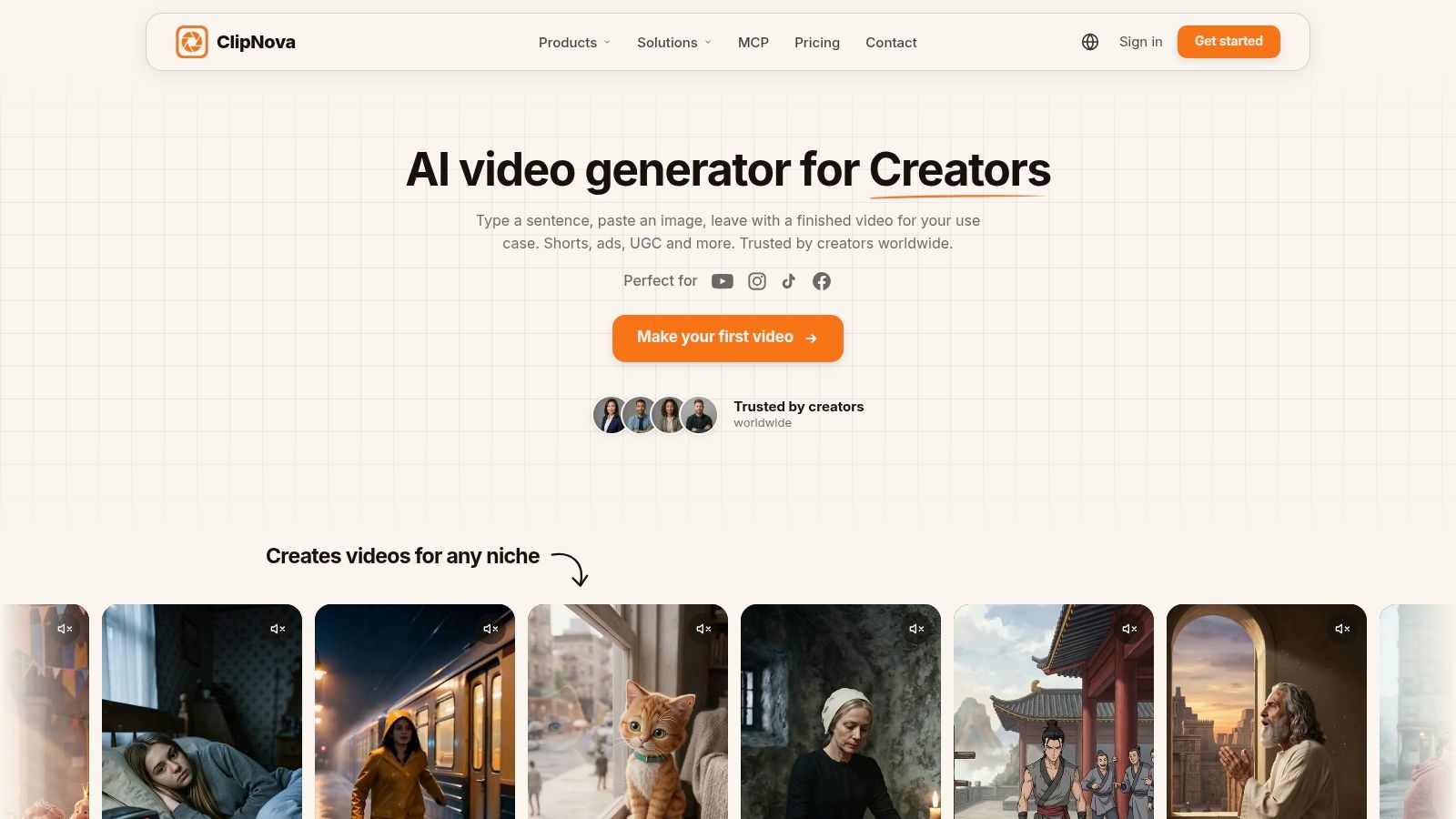
ClipNova AI is the tool I'd use when the goal is a finished long video, not a single shot. It turns one idea or script into a post-ready upload with script, scenes, voiceover, captions, and background music in one pass. That matters for faceless channels, story channels, kids content, documentaries, and UGC-style ads where continuity is the hard part.
<a id="where-it-wins"></a>
Where it wins
ClipNova keeps the same character face and outfit across scenes once you save them. With Series, you can bring back the same cast of up to 8 characters and keep story memory across episodes. That separates a tool that can generate a nice scene from one that can support a real channel format.
The workflow also saves time in practical ways. You do not need a separate writer, voice tool, caption pass, and music pass just to publish one video. Narration is available in 18 languages, and exports work in 9:16, 16:9, or 1:1, so the same project can work on YouTube and Shorts without rebuilding it. Plans start at $19/mo, and paid plans include commercial rights.
Practical rule: If you need recurring characters, start here before you test anything else. Clip generators can give you a stronger shot, but they do not solve scene continuity.
For marketers, the useful angle is UGC-style ads and product videos from a creator photo and a product image. That workflow helps when you want the same face and the same product across variants without filming each version again.
<a id="where-it-still-has-limits"></a>
Where it still has limits
ClipNova tops out at 1080p, so it is not built for teams that need higher-resolution delivery. It is also a long-form system, which means it is focused on complete narrative output, not the fastest way to make one isolated shot. The voice options are curated rather than fully open-ended, so if you need a very specific custom voice, that is a real constraint.
Pros
- End-to-end long-form output up to 5 minutes, with script, scenes, voice, captions, and music in one workflow
- Persistent characters and Series mode, with the same cast and story memory across episodes
- 18-language narration plus 9:16, 1:1, and 16:9 exports, with commercial rights on paid plans
- Single workspace that replaces several tools in a creator workflow
Cons
- Max export resolution is 1080p
- Credit-based usage can push heavy creators into higher tiers
- Curated voice library may not match every custom voice need
Website: clipnova.io
<a id="2-invideo-ai"></a>
2. InVideo AI
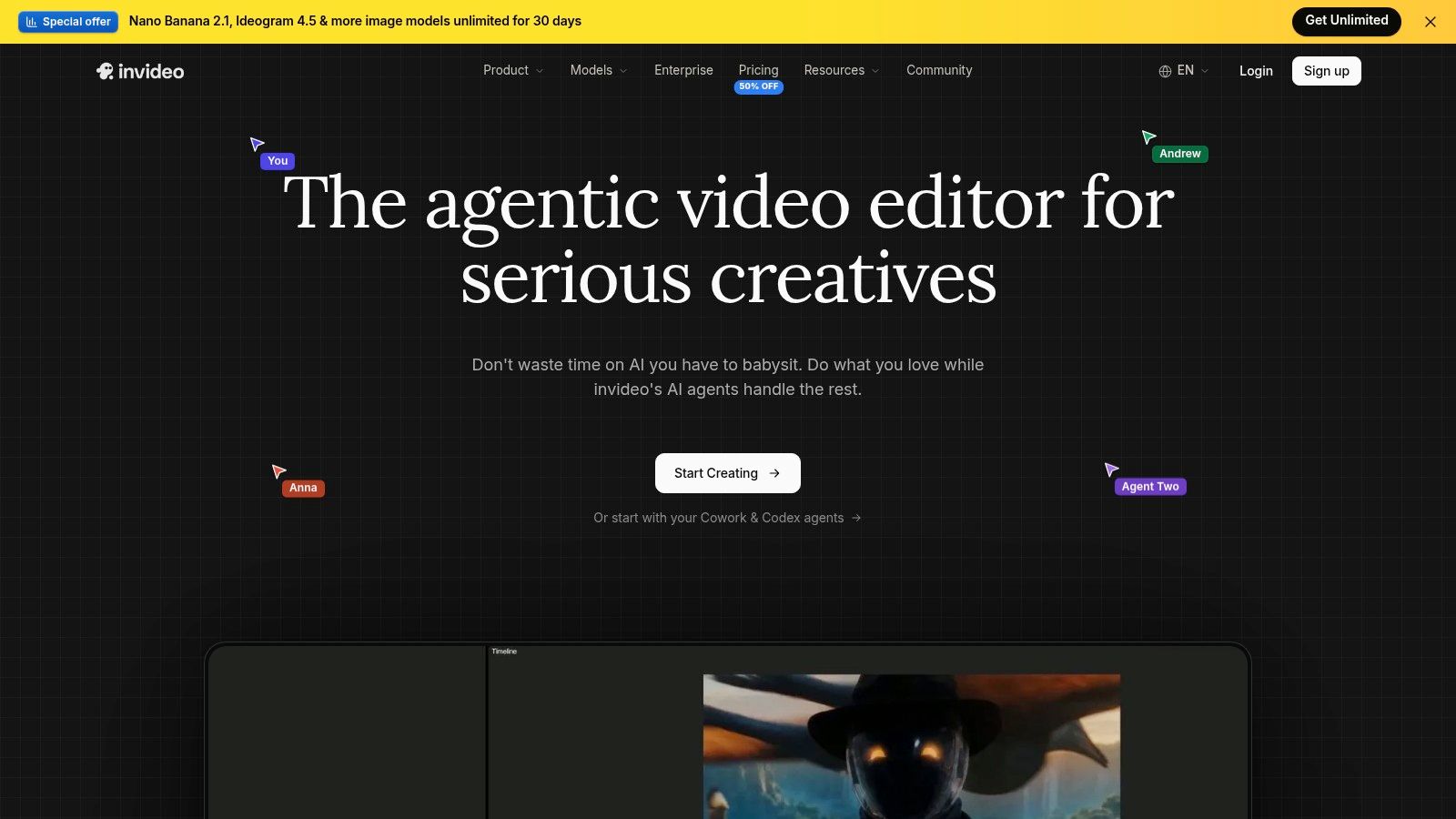
InVideo AI works better as a browser-based production room than a single-shot generator. It takes a prompt, script, or URL and builds a multi-scene video with stock, AI footage, voiceover, captions, and music. That makes it useful when you want a rough-to-finish workflow in one tab.
<a id="what-it-does-well"></a>
What it does well
The value is in the handoff between generation and editing. The system can draft the structure, then you move into the timeline and clean up pacing, scene order, and wording without switching tools. For creators who want AI to handle the first pass, that workflow makes sense.
It also suits teams that need to split work. Writing, review, and editing can happen in the same studio, which is better than treating AI output as a one-person draft that has to be rebuilt elsewhere.
The strongest part is not raw generation speed. It is the ability to fix the cut without exporting to another app.
If you are comparing it with a dedicated long-video tool, InVideo's AI movie maker guide is a useful reference point. It sits closer to finished editing than to a pure prompt-to-shot generator.
<a id="where-it-breaks"></a>
Where it breaks
Credits are the first limit. If you publish often, plan choice matters, and you need to check current credit costs for AI scenes before you commit, because InVideo has repriced AI generation features more than once. The tool handles multi-scene output well, but it is still not a purpose-built system for long story arcs with recurring characters.
The other limit is control. You get manual timeline edits, but the output still depends on the quality of the prompt, the source material, and the stock choices the system makes for you. That is fine for explainer-style videos and straightforward marketing cuts. It is less useful if your channel depends on strict character continuity.
Pros
- Produces complete, multi-scene edits instead of a single shot
- Script, text, or URL to video in one editor
- Manual timeline controls plus AI cleanup
- Team collaboration inside the web studio
Cons
- Credit-metered usage
- Plan rules can change, so current terms need a fresh look
Website: InVideo AI
<a id="3-pictory"></a>
3. Pictory
Pictory works well if you start with a script, a blog post, or a URL and want a usable video without rebuilding the whole piece by hand. I use it for explainers, repurposing, and faceless channels where the source material already exists. It moves fast, but the result is still stock-led.

<a id="where-it-fits"></a>
Where it fits
The transcript editor is the main reason creators stick with it. With a long recording or rough draft, you can cut from the transcript instead of dragging clips around the timeline. That matters when the job is tightening, trimming, and repurposing the same source fast.
It also handles auto-captions and format changes between 16:9, 9:16, and 1:1. That makes it useful for YouTube videos, Shorts, and simple cross-posting. If your channel runs on commentary, summaries, or educational content, that is enough to keep output moving.
<a id="where-it-breaks-1"></a>
Where it breaks
The limit shows up in the visuals. Stock footage carries most of the load unless you add your own media or build custom pieces elsewhere. For simple explainers, that is fine. For channels built around original characters or a consistent story world, it can feel generic.
Check how many credits a generative scene costs on your tier before planning a daily publishing cadence, since stock-based projects and AI-generated scenes are billed differently. That matters more than the headline features if you publish often.
Pros
- Fast script-to-video and URL-to-video workflows
- Transcript-based editing for long explainers
- Auto-captioning and resizing for common YouTube formats
- Useful for repurposing long content into shorter assets
Cons
- Stock-driven visuals unless you add your own media
- Credits matter for ongoing use
Website: Pictory
<a id="4-fliki"></a>
4. Fliki
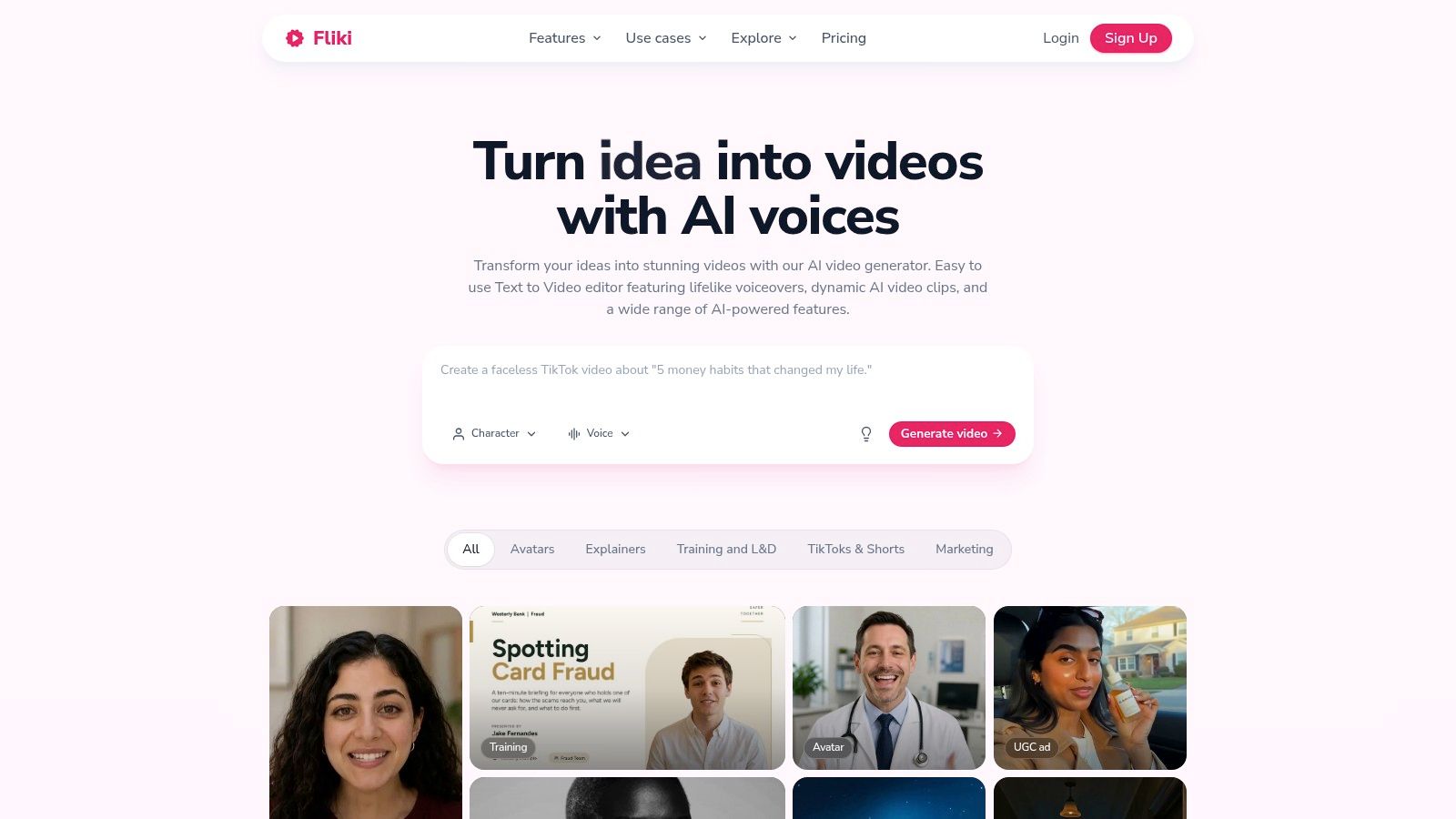
Fliki makes the most sense when narration carries the video. If you build around voice first, it gives you room to work with a large voice library, translation and dubbing tools, and access to third-party video models for generated footage. That mix suits explainer channels, history narration, and multilingual publishing.
<a id="why-creators-use-it"></a>
Why creators use it
The strongest part is narration coverage. You can build the video around speech first, then adjust the visual layer to match the script. For channels that live or die on voice delivery, that trade often makes more sense than chasing perfect visuals.
Fliki also lets you publish to YouTube or Shorts from inside the platform, which keeps the workflow contained. Its credit structure is clear enough that cost planning is easier than with tools that hide usage behind looser limits.
<a id="where-it-falls-short"></a>
Where it falls short
Visual quality still depends on the model you choose, and generated footage can be uneven. Lower tiers add a Fliki watermark to exports, so plan for that if you publish under your own brand. The tool is dependable for narrated videos, but it is less convincing for channels that need highly original scenes or recurring character continuity.
For creators who want voice depth first, Fliki still earns a place. It works best as a narration-led production tool, not as a substitute for a fully controlled visual pipeline.
Pros
- 2,000+ voices and translation/dubbing tools
- Model hub with third-party video models
- Clear credit rules for budgeting
- YouTube and Shorts publishing from the platform
Cons
- Watermarking and feature limits on lower tiers
- Visual quality varies by selected model
Website: Fliki
<a id="5-kapwing-ai"></a>
5. Kapwing AI
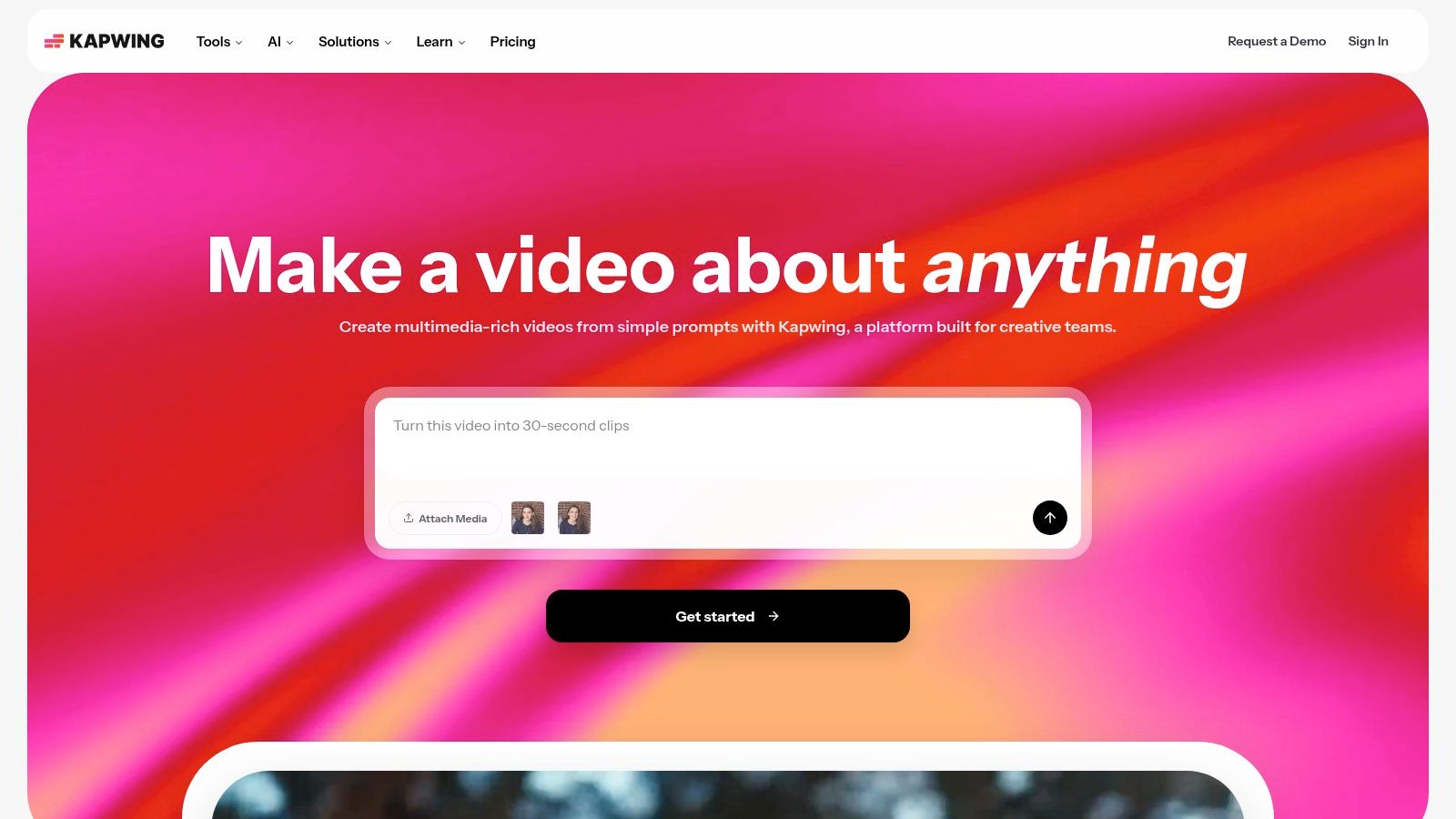
Kapwing AI works well if you want generation and editing in the same place. Kai can build multi-scene videos from prompts or scripts, then the editor lets you clean up pacing, subtitles, and scene order when the first pass is not ready to publish.
<a id="where-it-fits-1"></a>
Where it fits
Kapwing suits creators who start with generated footage and still expect to edit like a real production team. It accepts reference media, supports dubbing with lip sync, and keeps the work inside one editor, so you do not have to move between separate tools. The published plan limits are clearer than on some rivals, which helps if you are trying to judge whether a channel can scale without surprises.
It is useful when a human review is still part of the process. Generated scenes are only the start. The core value is being able to fix timing, subtitles, and scene order in the same workspace before you export.
<a id="where-it-can-frustrate"></a>
Where it can frustrate
The heavier AI features burn through credits quickly. If you dub often or rely on lip sync, cost control matters. Output quality still depends on the model and the prompt, so weak input does not turn into polished video by default.
Pros
- Generation plus an online editor
- Lip-sync dubbing in a multilingual workflow
- Long exports on higher plans
- Clear published limits and tier structure
Cons
- Credit consumption rises quickly
- Quality depends on prompt and model choice
Website: Kapwing
<a id="6-veed"></a>
6. VEED
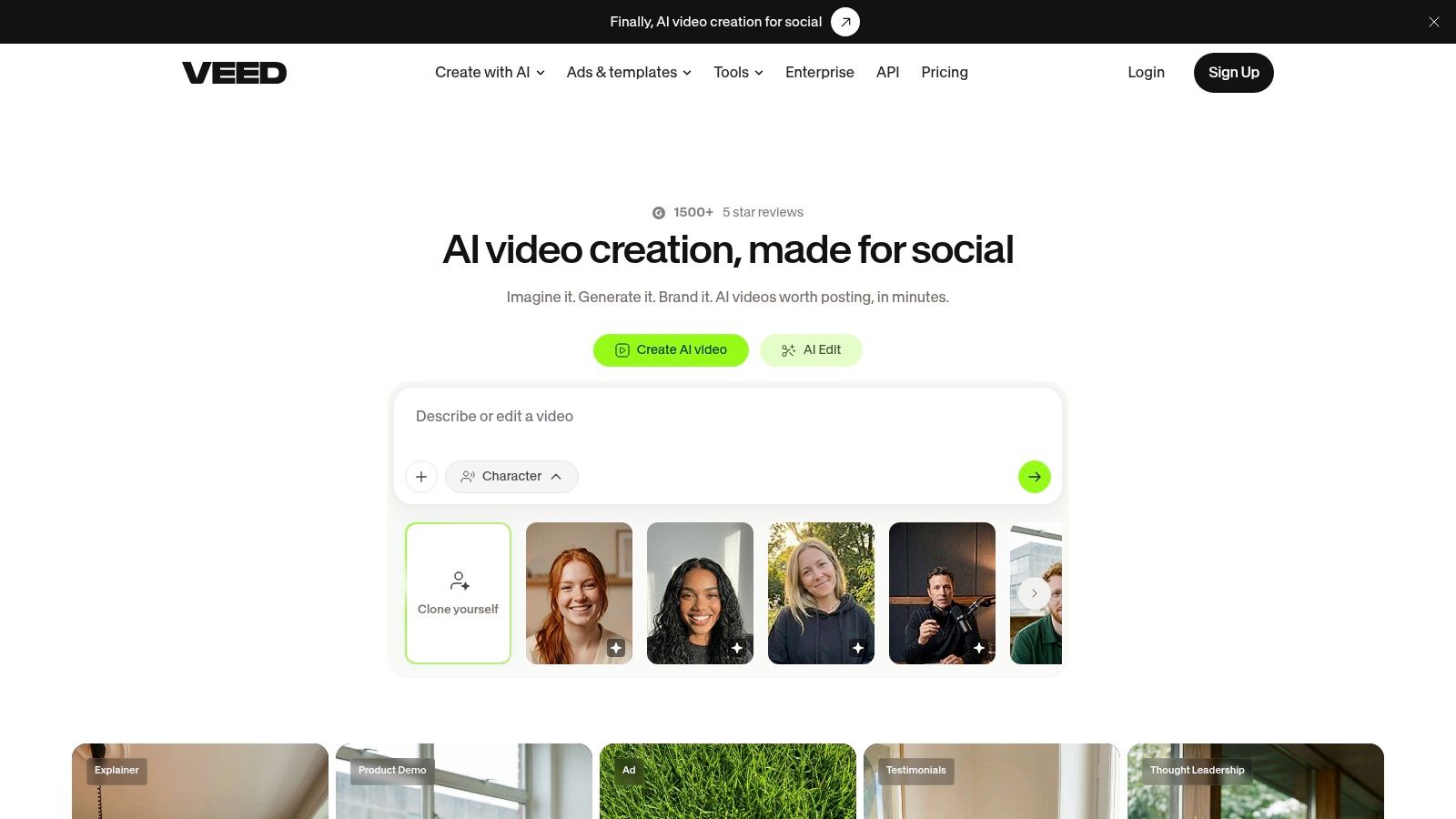
VEED works best if you want text-to-video, avatars, TTS, captions, and translation in one browser tab. It also includes an AI Playground with multiple models inside the same editor, so YouTube teams can compare outputs without moving between tools.
<a id="why-it-stands-out"></a>
Why it stands out
The main strength is workflow control. You can generate, fix captions, change aspect ratio, and move into the timeline without switching context. For channels that repurpose a lot of footage, that saves time.
VEED also surfaces multiple models inside the product. That helps when you want to compare results before committing to a cut. The docs are fairly clear about what is included on each tier, which matters because AI pricing changes often.
<a id="the-trade-off"></a>
The trade-off
AI generation is still credit-metered, and free-plan credits vary by region. If you plan to publish full-time, the question is not whether VEED can start a draft. It is whether the current credit limits fit the volume you need. If your use case is full-time publishing, check the current plan terms before you build a workflow around it.
Pros
- Multiple video models in one editor
- Text-to-video, avatars, TTS, captions, and translation
- YouTube-oriented aspect controls
- Centralized workflow for generation and editing
Cons
- Credit-metered AI generation
- Plan limits can shift by region and tier
Website: VEED
<a id="7-descript"></a>
7. Descript
Descript fits narration-heavy YouTube work. You edit the transcript, and the timeline changes with it, which saves time after a long recording session. For podcasts, interviews, and voiceover-led videos, that is a practical workflow.
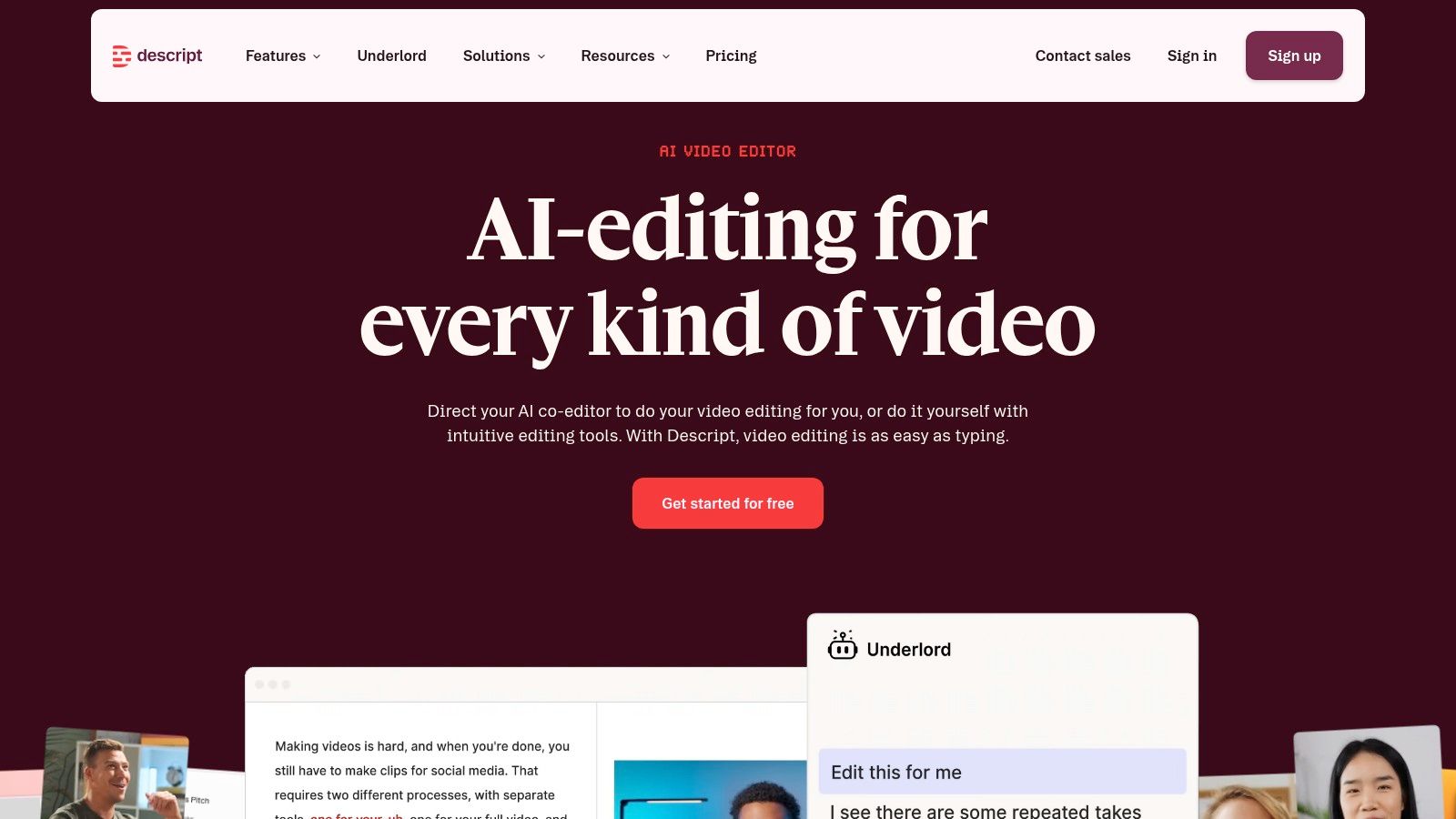
A 40-minute interview that needs a 10-minute cut is a transcript-trim job, not a timeline rebuild. Remove a sentence in text, and you remove the matching video and audio. That is the main reason creators keep it in rotation.
Descript also includes overdub and translation, plus cleaner export tiers than many lighter AI tools. If you already record solid voice-led material, it helps you tighten the edit without reworking the whole piece. For captions, the workflow overlaps with tools like ClipNova's caption guide, since both aim to get spoken content ready for viewers faster.
<a id="where-its-weaker"></a>
Where it's weaker
It does not build cinematic scenes or recurring characters. If you need original visual storytelling, this is the wrong fit. Its job is to clean up spoken material, not invent a full story world.
Pros
- Edit by editing text
- Automatic filler-word removal
- Overdub and voice cloning
- 25+ language translation
Cons
- Not built for cinematic multi-scene generation
- Heavy AI use can require more credits or top-ups
Website: Descript
<a id="8-heygen"></a>
8. HeyGen
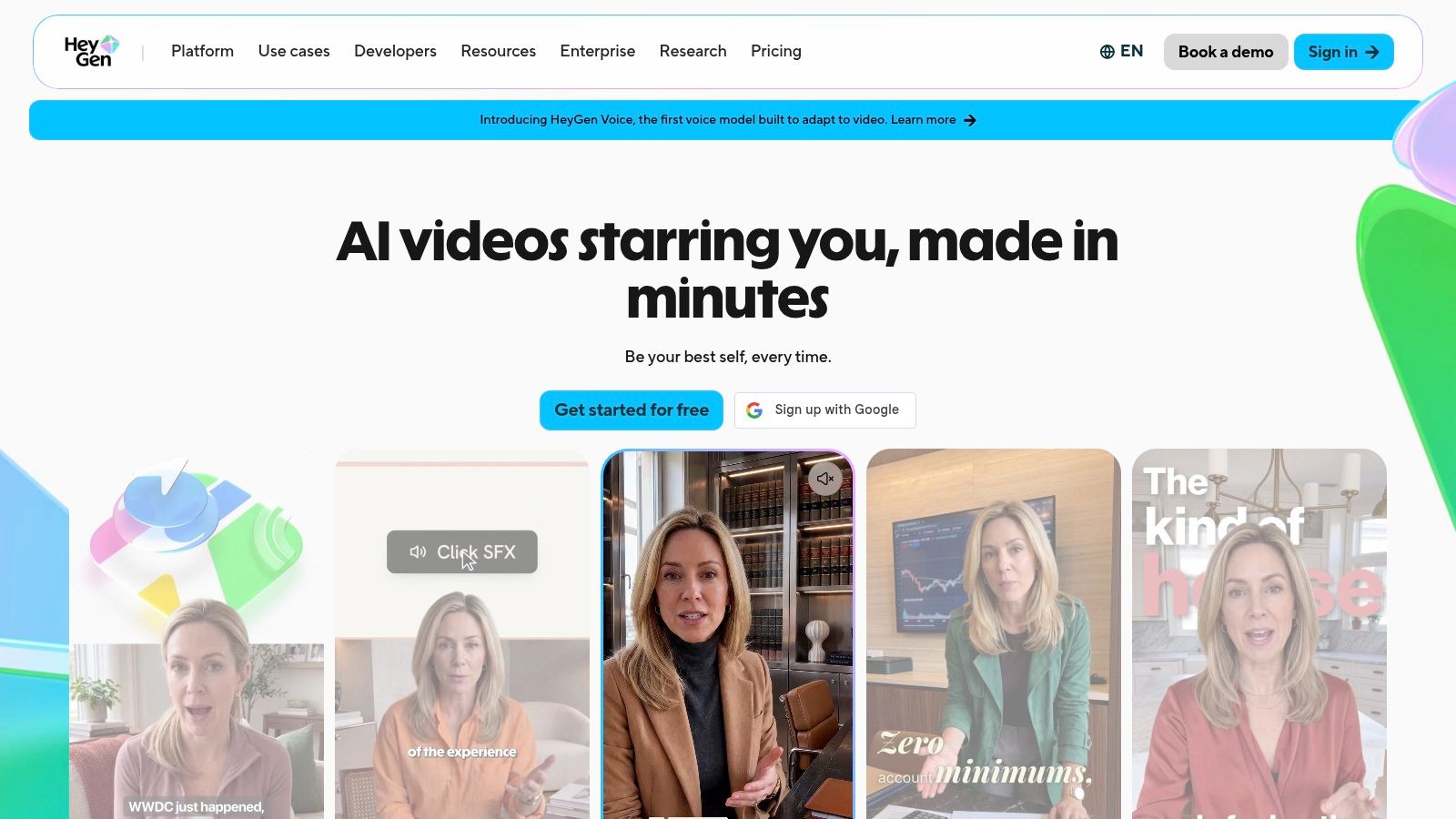
HeyGen fits presenter videos first. If your channel needs a talking head that speaks clearly in multiple languages, it handles that job well. The avatar library, lip-sync, and translation make localized explainers easier to ship.
<a id="when-it-makes-sense"></a>
When it makes sense
Tutorials, product explainers, onboarding, and internal training are the clearest use cases. You keep the presenter consistent, localize the delivery, and skip filming. That is practical if the output is a talking avatar, not a full scene build.
For a deeper look at this presenter format, see the guide to talking avatar AI tools. HeyGen also helps when a brand needs multilingual versions without rebuilding the script by hand. The lip-sync and voice cloning save time across regions, but they still serve the presenter format.
<a id="where-it-doesnt"></a>
Where it doesn't
HeyGen can feel flat for story-driven channels. Horror stories, Bible stories, and episodic fiction need more than a speaking avatar. Once the video needs a story world instead of a presenter, the fit starts to break.
Pros
- 1,100+ AI avatars
- 175+ languages and dialects for translation
- Lip-sync and voice cloning
- Fast presenter-style production
Cons
- Not ideal for cinematic storytelling
- Credits scale with volume and length
Website: HeyGen
<a id="9-synthesia"></a>
9. Synthesia
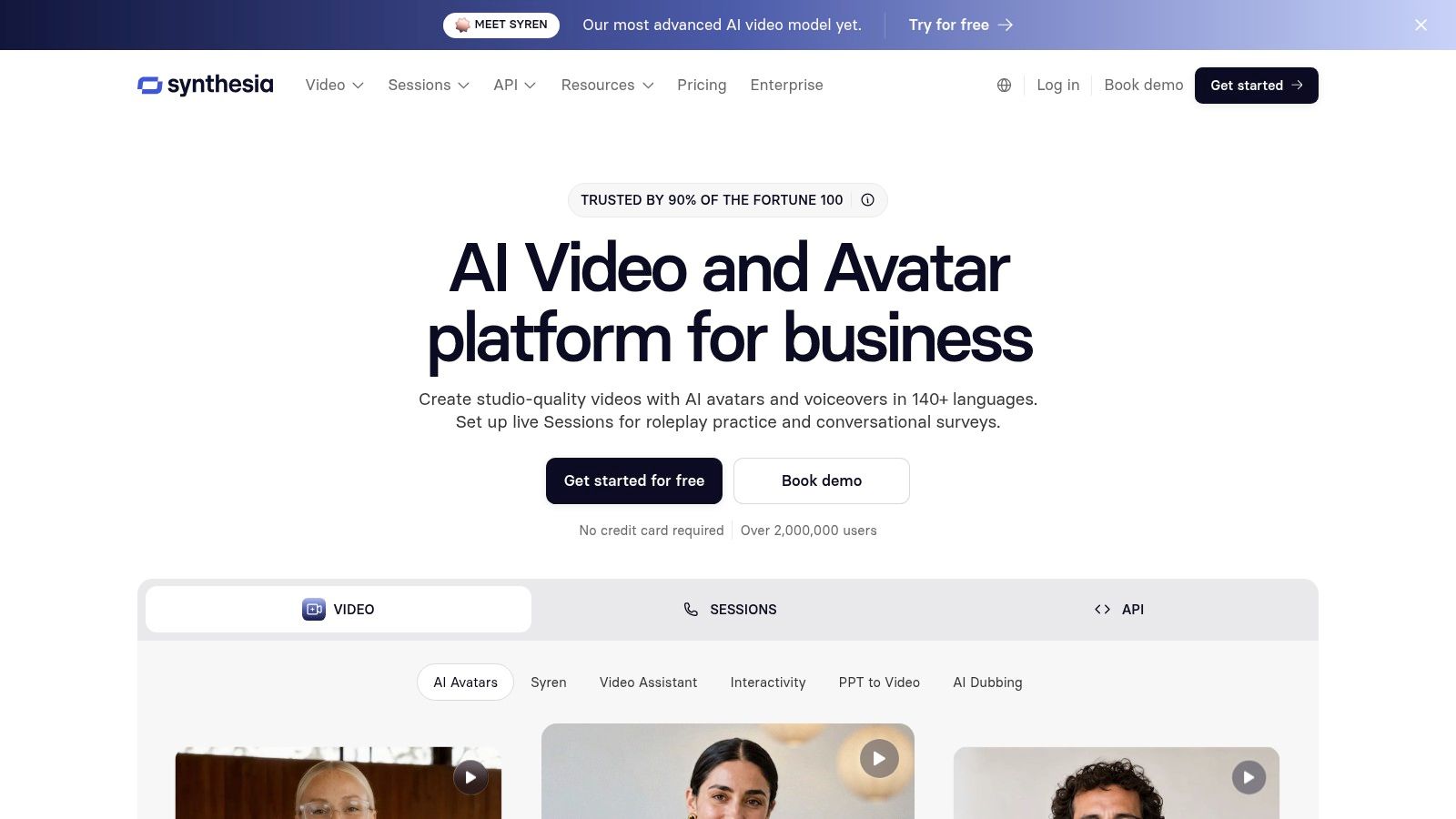
Synthesia fits teams that need the same presenter output every time. It is built for repeatable avatar videos, multilingual delivery, and team controls, so the result stays consistent across departments.
<a id="best-fit"></a>
Best fit
Training, onboarding, explainers, and brand-safe communications are the cleanest uses. The platform supports 100+ languages, and credits work as a shared currency across creation and dubbing. That makes budget and output easier to track in a larger team.
The enterprise setup matters too. Self-serve plans sit beside controls such as SSO and team features, which suits organizations that need predictable production without a lot of setup.
<a id="main-limitation"></a>
Main limitation
Synthesia optimizes for brand-safe repeatability, so scene variety and narrative pacing are deliberately out of scope. It gives you reliable presenter output, not a tool for complex story worlds or shifting characters. If your YouTube strategy depends on recurring story arcs, you will hit that ceiling quickly.
Pros
- Stable, repeatable presenter content
- 100+ language support
- Credits shared across creation and dubbing
- Enterprise controls and self-serve tiers
Cons
- Avatar-centric, not cinematic
- Pricing and billing depend on region and plan
Website: Synthesia
<a id="10-capcut"></a>
10. CapCut
CapCut is a full editor with AI generation attached, so you still assemble the long video yourself. It gives you text-to-video, auto-captions, templates, background removal, and current video models in one app. For YouTube and Shorts, that mix saves time.

The practical value shows up in editing, not in single-shot generation. You can combine AI clips with graphics, overlays, timing fixes, and cleanup in the same workflow. That matters if you already know how to edit and want AI to handle some of the repetitive steps.
The limit appears fast for long-form work. Clip generation per run is short, so scenes often need to be stitched together. Recurring characters, voiceover flow, and a finished narrative still take manual assembly.
<a id="where-capcut-fits"></a>
Where CapCut fits
Use it for creator workflows that need speed plus control. It handles mixed manual and generated edits well, but it does not finish the whole job in one pass. If your goal is a complete long video with consistent story structure, you will still do the assembly yourself.
Pros
- Deep editing tools alongside AI generation
- Auto-captions and aspect presets
- Good for mixed manual and generated workflows
Cons
- Short generation lengths per run
- Scenes often need to be combined
Website: CapCut
<a id="top-10-ai-youtube-video-generators-features-and-pricing-comparison"></a>
Top 10 AI YouTube Video Generators, Features & Pricing Comparison
| Product | Primary strength | Output & quality | Target audience | Unique selling points | Pricing / cost model |
|---|---|---|---|---|---|
| ClipNova AI | End-to-end long-form story generation: script, scenes, voice, captions, music | Up to 5 min, 1080p, 9:16/16:9/1:1, consistent characters, 18 narration languages | Creators, small brands, UGC ad makers, episodic series | Persistent characters, Series mode with story memory, finished ads from photos | Starts at $19/mo, commercial rights included, credit-based for heavy use |
| InVideo AI | Agent-style AI plus manual timeline editor | Multi-scene edits combining AI footage and stock, credit-metered | Creators who mix AI generation with hands-on timeline editing and teams | Agentic workflow, built-in collaboration and manual tweaks | Subscription with credits; plan choice affects heavy output |
| Pictory | Script/blog/URL-to-video with transcript editing | Longform assembly from stock visuals, captions, auto-highlights | Faceless channels, repurposing podcasts and long content | Transcript-based editing and auto-highlights for long videos | Subscription tiers with generation credits and limits |
| Fliki | Strong text-to-video with extensive voice/dubbing tools | Multi-scene video, strong narration quality, model hub access | Narration-heavy and multilingual creators | 2,000+ voices, translation/dubbing, clear per-voice credit rules | Credits per voice/scene, watermarking on lower tiers |
| Kapwing AI | AI generation plus a robust online editor (Kai) | Multi-scene generation, dubbing, lip-sync, supports long exports and 4K on Pro | Creators who want generation plus manual editing and long exports | Integrated editor for revisions, 60+ languages for dubbing | Credit-metered; Pro adds long/4K exports and higher limits |
| VEED | Multiple frontier models exposed inside one editor | Multi-model generation, avatars, TTS, stock media and aspect controls | Production workflows needing both generation and detailed editing | Centralizes Veo/Kling/others with visible credit costs before generation | Credit-based with regional free-plan differences |
| Descript | Transcript-centric editing with overdub and voice cloning | Suited for narration-driven videos, 1080p hobbyist, 4K on higher tiers | Podcasters, creators repurposing spoken content into video | Edit-by-text workflow, overdub voice cloning, smart retakes | Plan tiers define media hours and AI credits; top-ups available |
| HeyGen | Avatar-first presenter videos with strong lip-sync | Presenter-style outputs, 1,100+ avatars, localized lip-sync and voices | Tutorial, explainer, and localized presenter channels | Precise lip-sync, voice cloning, fast multilingual presenter production | Credit-based; costs scale with volume and length |
| Synthesia | Enterprise-ready avatar platform for presenter content | Stable presenter videos, multilingual dubbing, credits system | Teams, training, brand-safe presenter needs | Enterprise controls (SSO), repeatable brand-safe presenters | Self-serve and enterprise plans; pricing and credits vary by plan |
| CapCut (Web/Desktop) | All-in-one editor with AI text-to-video and strong polishing tools | Text-to-video, auto-captions, background removal, integrated editing | Creators mixing generated clips with manual pacing and graphics | Deep editing toolset alongside AI generation and templates | Feature availability varies by plan and region; some limits apply |
<a id="matching-the-tool-to-the-video-you-need-to-publish"></a>
Matching the Tool to the Video You Need to Publish
Choose the tool that matches the finished output you need, not the one with the longest feature list. If your goal is a story video of up to 5 minutes with recurring characters, voiceover, and captions produced in one pass, start with a long-form workflow and check the export and language limits before you commit. That's where ClipNova is built to sit, because it's designed around finished long AI videos instead of isolated shots.
If your channel lives on presenter content, HeyGen and Synthesia are easier fits. If you work from scripts, blogs, or transcripts and want a fast edit path, Pictory, Descript, and VEED do that job well. If you want more control and don't mind spending time inside the editor, InVideo AI, Kapwing, and CapCut give you more hands-on room.
The retention side still matters. A 2025 benchmark covering more than 10,000 YouTube videos reported average audience retention of 23.7%, with over 55% of viewers leaving in the first 60 seconds and only 16.8% of videos retaining more than half their audience. YouTube retention benchmark That means the opening matters as much as the tool. The first scene has to earn the next one.
There's also a trust layer. YouTube says disclosure is required when realistic altered or synthetic media could be mistaken for a real person, place, scene, or event, while clearly unrealistic animation and ordinary production assistance don't need the same label. YouTube disclosure guidance That's why long-form tools with scene control are useful. They help you make original content while keeping the format honest.
If you want recurring characters, a repeatable series format, and a workflow that gets you from idea to posted video without stitching five tools together, make your first video at ClipNova AI. It's the straight path for creators who need the whole story, not just a shot. Spend your next session building one finished episode, then see how much faster the channel gets when the workflow stops fighting you.
ClipNova AI is built for creators who want a finished YouTube video, not a pile of clips to assemble later. If your next upload needs recurring characters, narration, captions, and a clean export in one pass, start with ClipNova AI and make the whole story in one place.
Ready to ship your own?
Start creating viral videos with AI in under twenty minutes, no credit card required.