
You've finished the song, played it through headphones, and decided it's ready to release. Then you open a video generator and face a different job: choosing scenes, keeping the singer recognizable, and making the chorus arrive with something stronger than another random camera move.
A convincing AI music video starts with the song, not the visuals. Treat the final audio as the timing master, build scenes around its structure, and make synchronization checks and rights documentation part of production. That's how you turn generated footage into a video that feels made for the track.
Table of Contents
- AI Music Video Formats at a Glance
- Tools by Workflow and Which One Fits Your Song
- How to Make an AI Music Video, Step by Step
- Keeping the Same Characters and Scenes Across a Video
- Creator and Brand Use Cases That Work
- Rights, Disclosure and Commercial Use
- Start Your First AI Music Video Today
<a id="ai-music-video-formats-at-a-glance"></a>
AI Music Video Formats at a Glance
An AI music video is a video built around a song, with generated or AI-assisted visuals timed to the music. It can be a lyric video with animated text, an abstract visualizer, or a multi-scene story featuring recurring characters.
The format matters more than the visual style at the beginning. A watercolor lyric video and a photorealistic performance video need different production methods, even if they use the same recording.
AI music video formats by goal
| Format | What viewers see | Audio source | Best goal |
|---|---|---|---|
| Lyric video | Styled or animated text timed to the vocals | Your original or licensed track | Single releases that need no story |
| Visualizer | Abstract motion locked to the beat and rhythm | Your original or licensed track | Loops for streaming pages and social previews |
| Narrative music video | Recurring characters acting out a story across scenes | Your track, with optional narration | Story channels, series and brand stories |
| Performance video with an AI character | A character lip syncs or performs the song on screen | Your track, or a cloned voice used with permission | Artists who want a face on the song without filming |
<a id="choose-the-effort-before-the-aesthetic"></a>
Choose the effort before the aesthetic
A lyric video or visualizer can start with a single generation pass, followed by timing corrections. A narrative needs a storyboard, saved character references, and scene-by-scene review. A performance adds another demanding check: whether the mouth and physical gestures match the recording.
Existing artwork can be a useful starting point for restrained motion. A picture-to-video workflow suits a cover image that needs atmosphere, but it won't automatically supply a story arc.
Audience interest in generative media predates this production choice. According to TrendReport's AI music video overview, YouTube reported more than 1.7 billion views on videos related to generative AI tools in 2023. That measures broader generative-AI interest, not music-video demand.
Format rule: Choose the simplest format that delivers the song's message. More scenes aren't a substitute for a clear idea.
For a single release, prioritize the lyrics or performer. For channel growth, choose a repeatable visual format. For a story series or brand message, plan an actual narrative, then check whether the song's runtime gives that narrative enough room.
<a id="tools-by-workflow-and-which-one-fits-your-song"></a>
Tools by Workflow and Which One Fits Your Song
Does your song need one striking shot, a fast template, a presenter, or a complete story with a recurring cast? Answer that before comparing image quality.
A clip generator can produce an excellent hero shot while leaving the rest of the production to you. Conversely, a finished-video tool may remove assembly work, but you still need to judge the generated scenes against the song.
Tool categories for AI music videos
| Category | Examples | Best at | Limit for a music video |
|---|---|---|---|
| Clip generators | Runway, Kling, Veo, Hailuo | Strong single shots with motion | You assemble scenes, cast and timing yourself |
| Template editors | InVideo, Pictory | Long videos built fast from templates | Stock footage, so characters are not original |
| Faceless shorts tools | Revid, StoryShort, Zebracat | Vertical short videos | Shorts only, no long-form story |
| Avatar tools | HeyGen, Synthesia | Presenter and talking-head videos | Built around a presenter, not story scenes |
| Long AI story video | ClipNova | Up to 5 minutes at up to 1080p in one pass | Each scene still needs review before posting |
<a id="match-the-tool-to-the-work-youll-retain"></a>
Match the tool to the work you'll retain
Use Runway, Kling, Veo, or Hailuo when you want to direct individual shots and assemble the cut in a timeline editor. That workflow gives you control over shot selection and pacing, but also makes you responsible for matching locations, performances, and transitions.
InVideo and Pictory fit template-led assembly. Stock footage can communicate a general mood quickly; it's less suitable when the audience must recognize the same fictional protagonist throughout the song. HeyGen and Synthesia fit presenter-led delivery rather than a cast moving through story scenes.
ClipNova makes the whole story rather than supplying isolated shots. It generates original scenes with your characters instead of building the video around stock footage. Series keeps a cast of up to 8 characters across episodes with story memory, while narration in 18 languages supports a recurring music-led series aimed at different audiences.
Those features don't remove creative review. A tool can deliver a complete sequence while a particular gesture, caption, or transition still needs fixing.
<a id="make-a-practical-test"></a>
Make a practical test
Before committing a full song, test the hardest moment: the chorus entrance, a close-up performance, or a recurring character entering a new location. Don't judge the tool only by an atmospheric opening shot.
- Choose a clip generator for a loop or hero shot you're happy to edit yourself.
- Choose a template editor when speed matters more than original characters.
- Choose a long-form story tool when the full song needs a recurring cast and a connected beginning, middle, and ending.
<a id="how-to-make-an-ai-music-video-step-by-step"></a>
How to Make an AI Music Video, Step by Step
Work in this order: final audio, timed scene plan, references, generation, synchronization review, export, publishing records. Reversing that order creates avoidable revisions, especially when a replacement mix changes the intro or chorus timing.
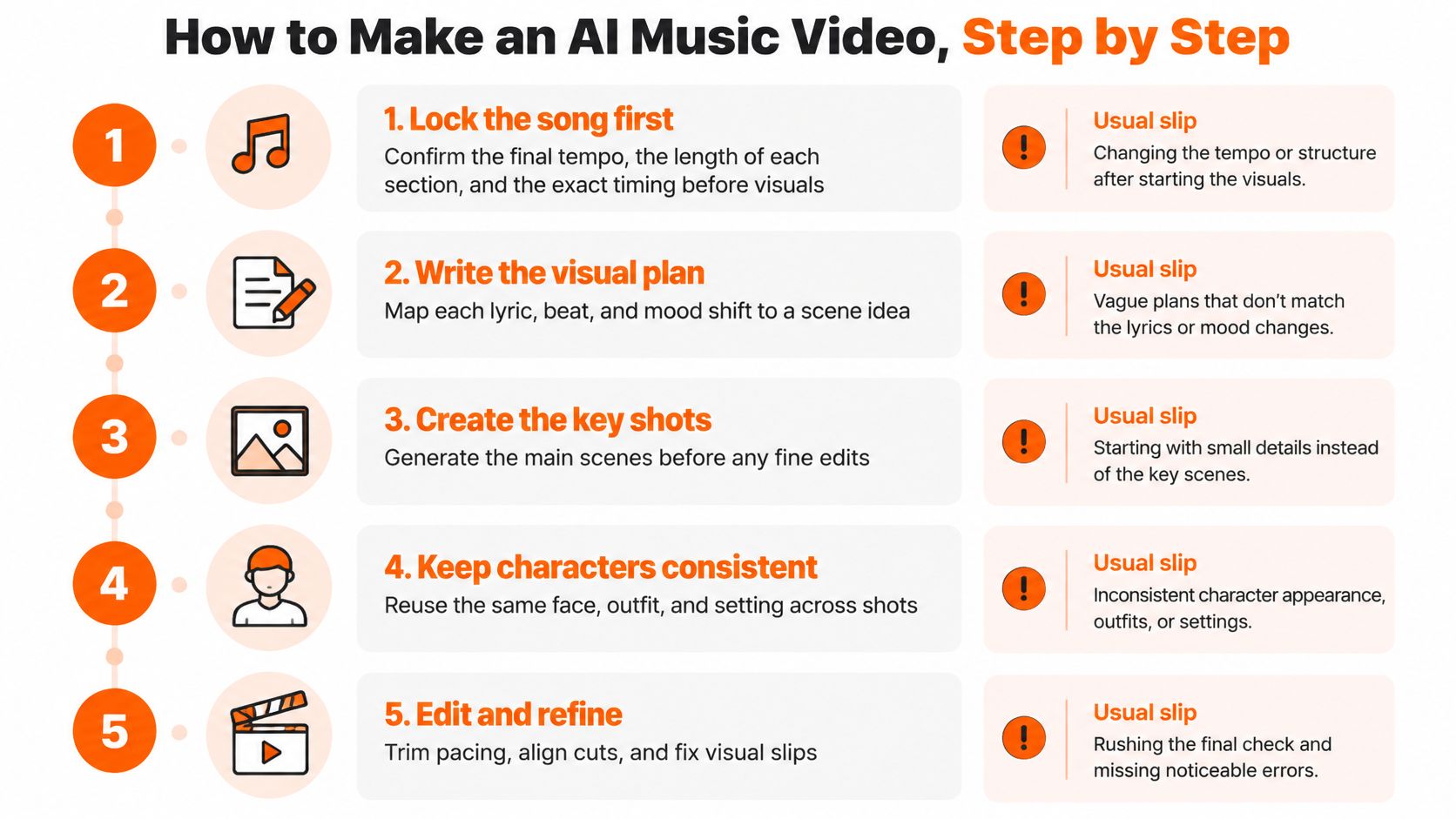
Use this production flow as a visual checklist.
-
Lock the song first. Confirm the final tempo, total runtime, and boundaries of the intro, verses, choruses, and bridge. The usual slip is generating visuals against a demo, then discovering that the master has a different opening or ending.
-
Write a timed scene list. Record each scene's start, end, transition point, visible lyrics or vocals, and intended mood. Avoid a global instruction such as “dreamy visuals throughout,” which gives you no useful direction when the arrangement changes.
-
Create characters and reference images. Fix the face, outfit, and distinguishing details before generating shots. Use concrete descriptions rather than a pile of aesthetic adjectives; this text-to-video prompt guide helps translate an idea into visible actions.
-
Generate against the scene list. In a manual workflow, generate scenes individually; with full-video generation, review the returned scenes individually. Check each scene against its assigned action and setting instead of keeping it merely because it looks attractive.
-
Check timing and mood separately. Confirm that cuts, beats, and transitions meet the intended frame, then ask whether the visual intensity suits the musical passage. AV-SyncBench distinguishes temporal alignment from semantic alignment, separating when events happen from whether sound and picture belong together.
-
Add lyrics or captions and export. Correct sung words manually, check line breaks, and preview crops before downloading each platform version. Keep accompaniment beneath lyrics or dialogue where you control separate stems; don't lower the entire finished song just to accommodate an unnecessary voiceover.
-
Complete the rights log and disclosure. Save the song source, voice permissions, character references, and generation settings alongside the final cut. Writing the disclosure before upload prevents a rushed decision after you've already scheduled the release.
<a id="inspect-the-joins-not-just-the-shots"></a>
Inspect the joins, not just the shots
Watch across every scene boundary with the audio waveform visible in your editor. Mimic's audio timing guide for UGC creators is a useful companion when you need to inspect audio placement and edit timing.
Check the export framing separately from synchronization.
Export aspect ratios by platform
| Platform | Aspect ratio |
|---|---|
| YouTube (long form) | 16:9 |
| YouTube Shorts | 9:16 |
| Instagram Reels | 9:16 |
| TikTok | 9:16 |
| Feed posts | 1:1 |
A finished cut doesn't need a transition on every beat. It needs deliberate transitions that hit their intended musical moments, with pictures that grow more intense as the chorus arrives and leave breathing room when the arrangement pulls back.
<a id="keeping-the-same-characters-and-scenes-across-a-video"></a>
Keeping the Same Characters and Scenes Across a Video
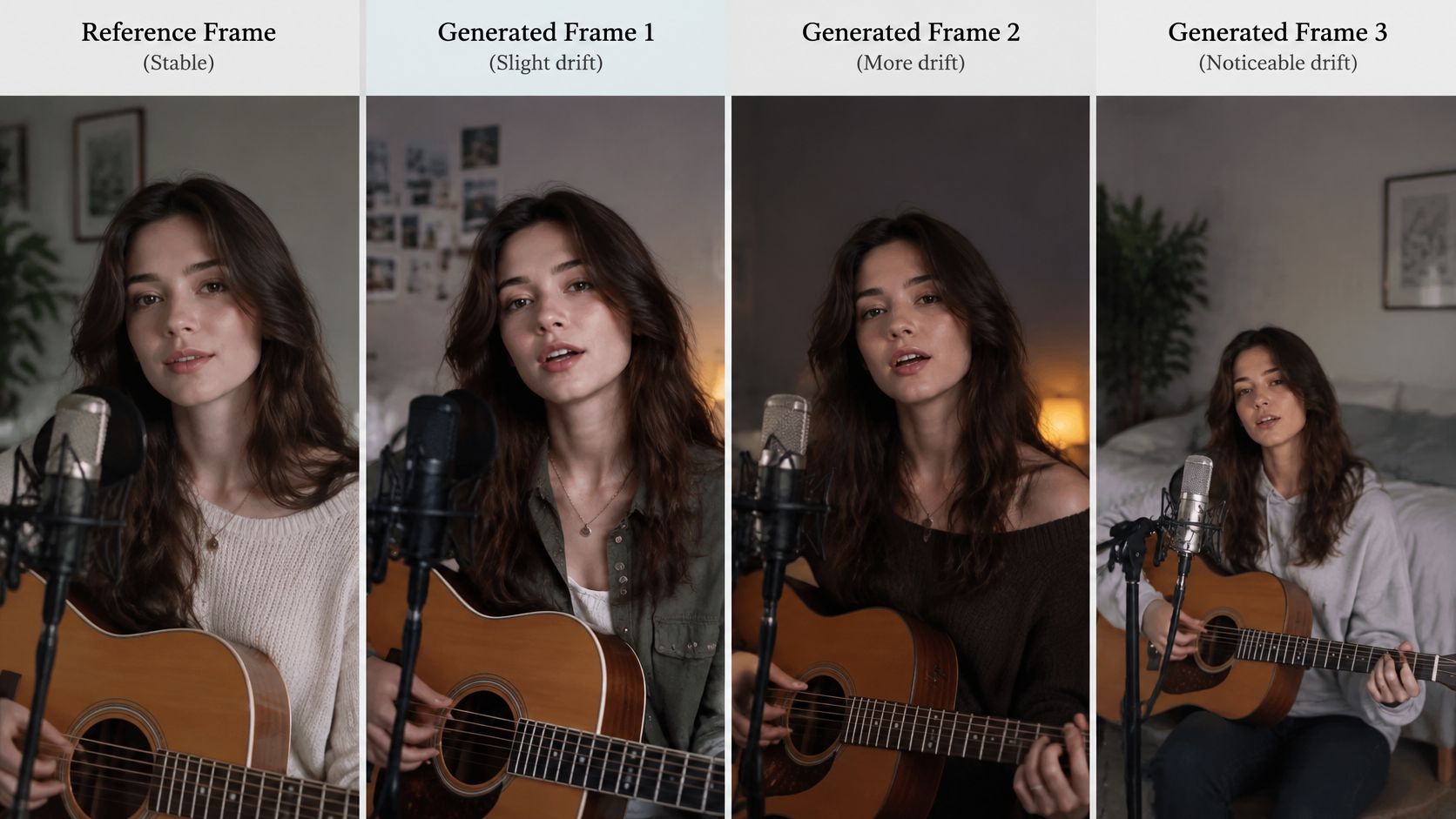
A character can look convincing in one shot and become someone else after the cut. Faces, jackets, props, room layouts, and apparent body size can drift when you generate each scene independently.
An agentic video-generation paper identifies isolated shot generation as a source of lost continuity in characters, environments, objects, and spatial relationships. Its evaluation separates character persistence, background persistence, and multi-person interaction, useful categories for a producer's review rather than a single vague judgment of quality.
This comparison illustrates why a good reference frame isn't enough.
<a id="build-a-small-continuity-package"></a>
Build a small continuity package
Create the character once, lock the outfit, and store the reference with a short description of features that must remain unchanged. Record setting details too: the door position, the instrument's color, and which hand holds an important prop.
For a band or recurring cast, assign appearances before generation. Keep crowded shots purposeful because every additional face and interaction gives you more continuity to inspect. A close-up followed by a clear reaction shot is often easier to control than an elaborate group performance.
On ClipNova, save each character once so the same face and outfit carry into every scene. Series supports the returning cast across episodes, and saved characters can talk on screen with lip sync. Treat those saved identities as production references, not permission to skip inspection.
<a id="run-the-continuity-checkpoints"></a>
Run the continuity checkpoints
- Scene endpoints: Compare the first and last frame of each scene against the saved reference. Look at face shape, hairstyle, outfit, and accessories.
- Cut entrances: Pause on the first frame after each cut. Check whether the character still belongs to the same location and whether their position makes sense.
- Whole-sequence details: Review backgrounds and props across the song. A missing microphone or reversed doorway can break continuity even when the face stays recognizable.
Camera movement complicates judgment. Moving toward or away from a character changes apparent size and perspective, so compare identifying features rather than expecting identical framing. Always play the scene in motion because an accurate still can conceal a face or hand changing between frames.
Judge continuity across the full song, not from the best thumbnail.
When a scene breaks, fix or regenerate that scene in Studio. Replacing an otherwise coherent sequence introduces new variables without solving the original problem.
<a id="creator-and-brand-use-cases-that-work"></a>
Creator and Brand Use Cases That Work
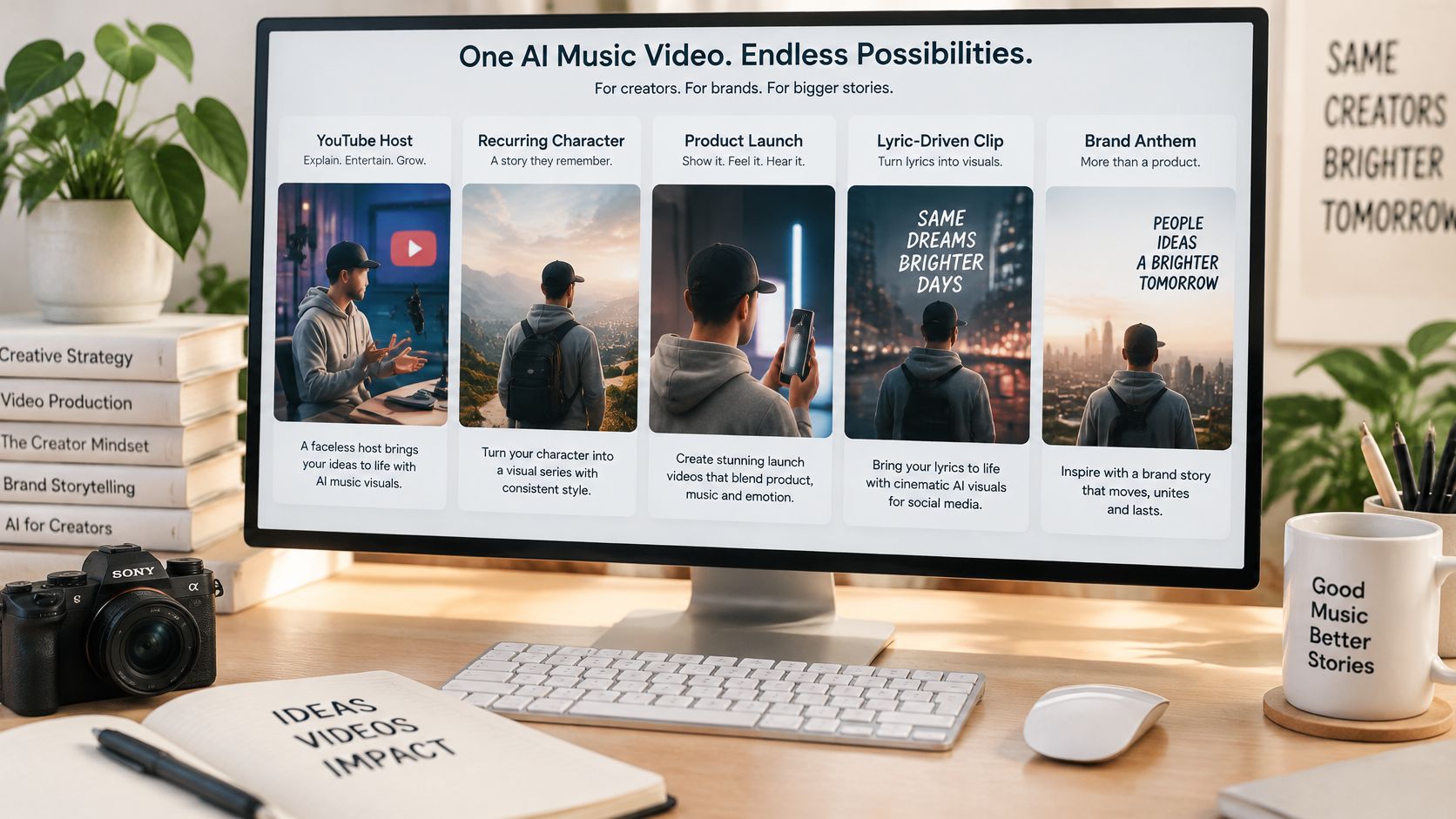
Start with what the audience should follow: the lyric, a recurring character, a performance, or a product. These concepts are useful starting points for matching a channel to a format.
<a id="channels-built-around-recurring-stories"></a>
Channels built around recurring stories
Faceless YouTube and music-driven story channels: Say a channel follows a traveler through a different imagined city in each episode. Use a narrative video, aim for one complete musical chapter, and check that the ending resolves the episode or establishes a deliberate cliffhanger.
Kids song channels: A simple character can demonstrate the action described in the lyric, then repeat it when the chorus returns. Choose a bright narrative format, keep the length to the complete song without an added spoken introduction, and check pronunciation and action-to-lyric accuracy.
Horror, history, and faith channels: An atmospheric sequence can support a narrated mystery or story. Aim for a self-contained episode, keep music beneath intelligible narration, and check factual claims or source passages separately from visual quality.
The embedded video can serve as a viewing reference while you consider pacing and presentation.
<iframe width="100%" style="aspect-ratio: 16 / 9;" src="https://www.youtube.com/embed/1o8Pxt0IxKI" frameborder="0" allow="autoplay; encrypted-media" allowfullscreen></iframe><a id="releases-and-commercial-messages"></a>
Releases and commercial messages
Independent artists: Use a lyric video or visualizer for the full release, or a performance format when a character should sing on screen. Check voice authorization before publishing; package the finished video with release information in an electronic press kit built with epks so promoters can find the relevant assets.
Small brands: Build a short product or UGC-style music ad around one demonstration and one offer. Keep only the musical passage needed for that message, preserve the same product and presenter across versions, and confirm that the song license covers advertising.
For alternative concepts, use these music video ideas to develop a premise before generating footage.
Commercial interest doesn't guarantee creator income. Berklee's discussion of music and video cites a CISAC study projecting AI-generated music revenue could rise from approximately $100 million in 2023 to about $4 billion by 2028. That forecast concerns music broadly, not music-video earnings.
<a id="rights-disclosure-and-commercial-use"></a>
Rights, Disclosure and Commercial Use
Permission to use an output commercially isn't the same as copyright protection. Owning the downloaded file also doesn't prove that you've cleared the song, voice, or recognizable person inside it.
A European Parliament research briefing796995) states that purely AI-generated productions generally don't receive copyright protection. Preserve evidence of your human contributions, including scripts, scene selections, arrangements, edits, and creative direction, and check the applicable law in each target market rather than assuming every generated frame is protectable.
<a id="clear-the-inputs-separately"></a>
Clear the inputs separately
For music, distinguish the composition from the sound recording. Confirm that your permission covers the intended video use, including paid advertising if that's where you'll publish.
Obtain the performer's authorization before cloning a voice, and clear recognizable likenesses. Avoid prompts requesting a living artist's style when concrete musical or visual attributes would communicate the direction without implying impersonation or endorsement.
Keep a production log you can hand to a collaborator or brand reviewer:
- Song source and license: Track title, source file, rights holder, permitted uses, and saved license terms.
- Voice authorization: Performer identity, consent, and the agreed scope of synthetic use.
- Character references: Reference files and permissions for any recognizable person.
- Generation settings: Prompts, selected outputs, and relevant settings.
- Edit notes: Your script changes, scene arrangement, and substantial modifications.
- Disclosure text: The wording and platform settings used for publication.
<a id="disclose-the-relevant-elements"></a>
Disclose the relevant elements
YouTube's altered or synthetic content policy requires disclosure for realistic altered or synthetic content and includes synthetically generated music. It generally excludes productivity assistance such as script ideas and automatic captions from mandatory disclosure.
Don't assume that obviously fictional visuals settle the question when the song itself is generated. An animated story and a realistic cloned performer can raise different disclosure issues, so review music, visuals, and voice separately for each destination.
Publishing safeguard: Keep evidence of permission, not just a note saying that permission exists.
Start the log with the first asset. If someone questions a published video, you should be able to answer from saved records rather than reconstructing how you made it.
<a id="start-your-first-ai-music-video-today"></a>
Start Your First AI Music Video Today
Prepare the final song file, a timed scene list, and character descriptions or reference images before opening the generator. Those inputs give you a concrete standard for judging the result instead of deciding whether you like a collection of unrelated images.
For a first project, choose a manageable premise: a character traveling toward a destination, a performer in a controlled setting, or a lyric-led sequence built around a clear visual motif. Keep the story simple enough that viewers can understand it while listening.
<a id="build-the-draft-in-clipnova"></a>
Build the draft in ClipNova
-
Write or paste the script or idea. Describe the premise, the recurring character, and the changes that should accompany the song's major sections. Include the timed scene plan so your creative direction stays attached to the arrangement.
-
Add the track and balance the voice. Our AI Story Video Generator accepts your own music uploaded or linked, lets you set its volume under the narrator, and mixes it in. For a narrated story, check that the track doesn't compete with speech; for a song-led video, avoid adding narration that interrupts the vocal.
-
Choose the destination format. Select 9:16, 16:9, or 1:1 before reviewing composition and caption placement. A centered face may survive multiple crops, but a wide group scene or lyric line may not.
-
Generate and inspect the full video. ClipNova returns the script, scenes, voiceover, captions, and background music in one pass, with videos up to 5 minutes at up to 1080p. Review the first render as a draft, especially lip sync, beat timing, and character continuity.
<a id="finish-with-a-publishing-check"></a>
Finish with a publishing check
Plans start at $19/mo and include commercial rights, with watermark-free exports. Keep the input clearances in your project folder and correct any scene that doesn't match the intended musical moment before uploading.
Watch the exported file from beginning to end, not just the preview inside the editor. Confirm the opening, chorus entrances, final audio tail, and caption framing, then make your first video in the ClipNova app.
ClipNova AI turns a song-led idea into a finished long video with original scenes, consistent characters, voiceover, captions, and music. Visit ClipNova AI to build your first AI music video around your track, then review the timing and cast before you post.
Ready to ship your own?
Start creating viral videos with AI in under twenty minutes, no credit card required.